


Let's walk through the tiles
1: Access Your Dashboard
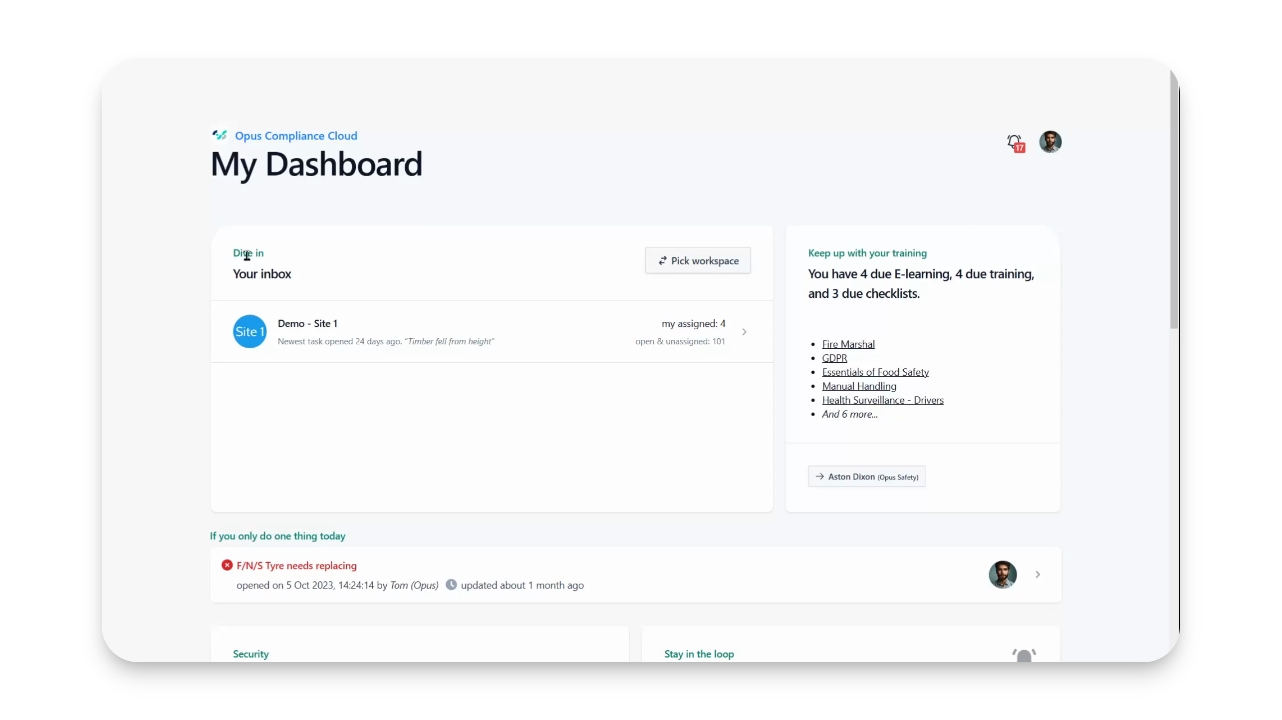
Log into Opus Compliance Cloud to reach your dashboard.
This dashboard provides an overview and quick access to your compliance tasks.
2: Review Training, E-learning etc
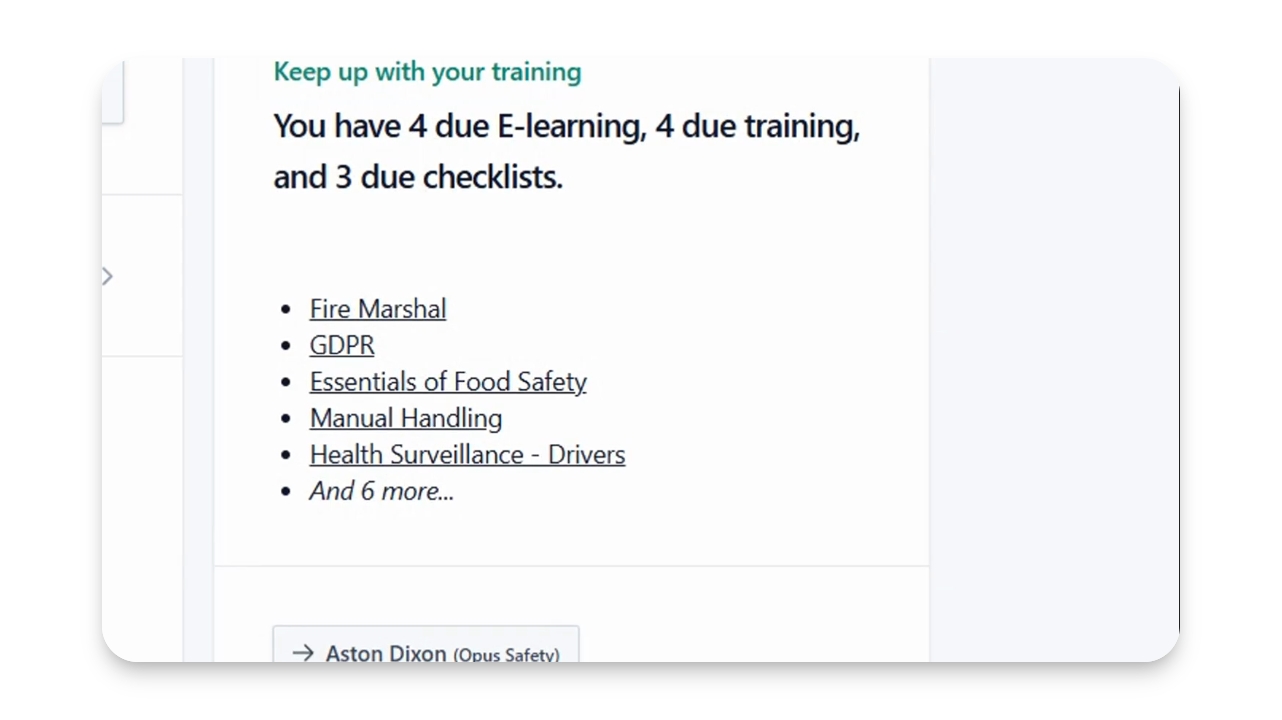
The first tile gives an overview of your training status.
Click on any overdue elearning or training checklist to start.
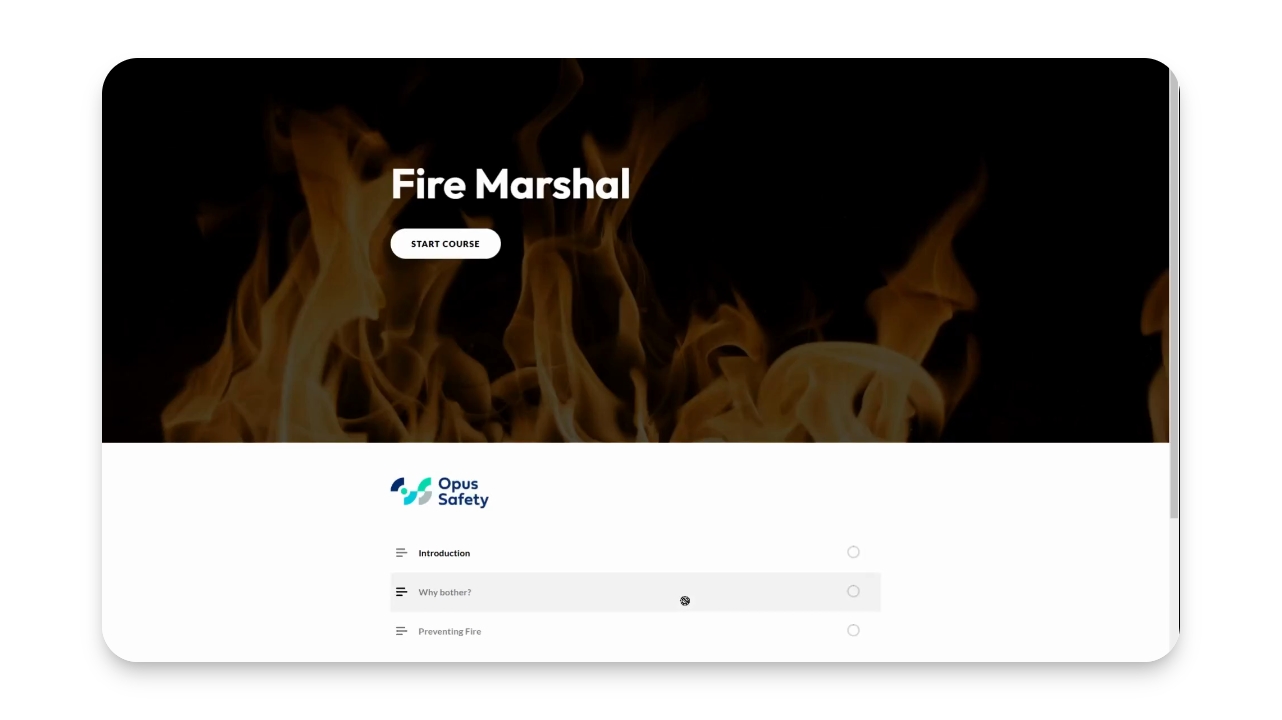
You will be directed to the selected training item to begin.
3: Start Elearning
On the Elearning Start page, choose one of three options.
Scan the QR code to access elearning on a mobile device.
Click Copy Link to use it in task management software.
Click Start Elearning on this device to begin training directly.
You will immediately enter the elearning module for your training.
4: Check Your Own Employee Inbox (optional)
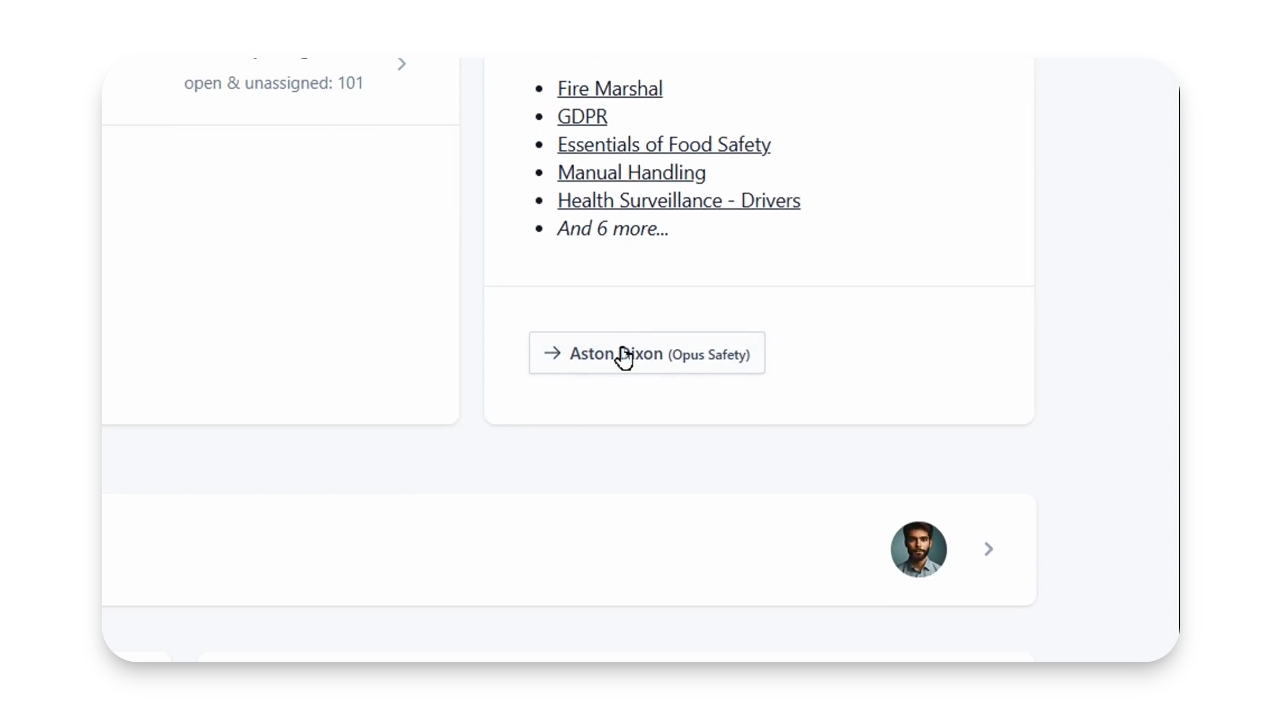
Access your employee inbox to view all tasks.
The inbox format is similar to the site inbox which will be discussed later.
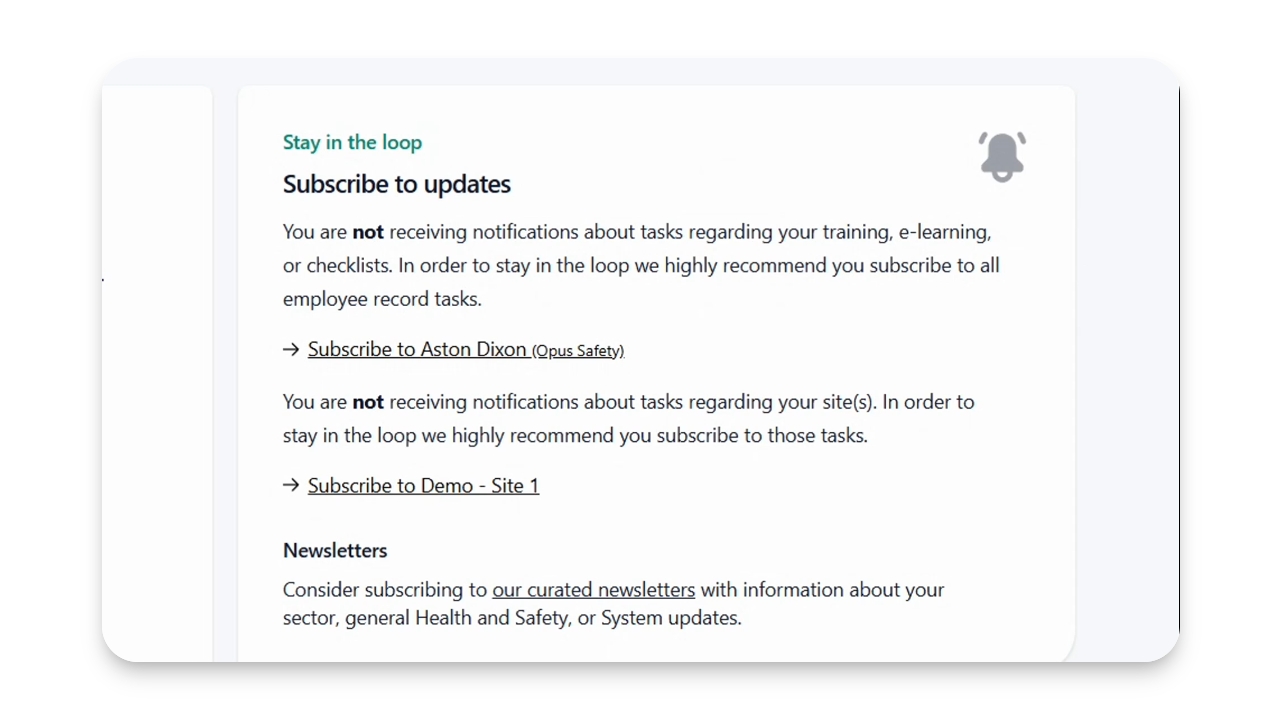
5: Stay Informed
Review the Stay in the Loop tile for notifications about your tasks.
Click the provided links to subscribe to updates and newsletters.
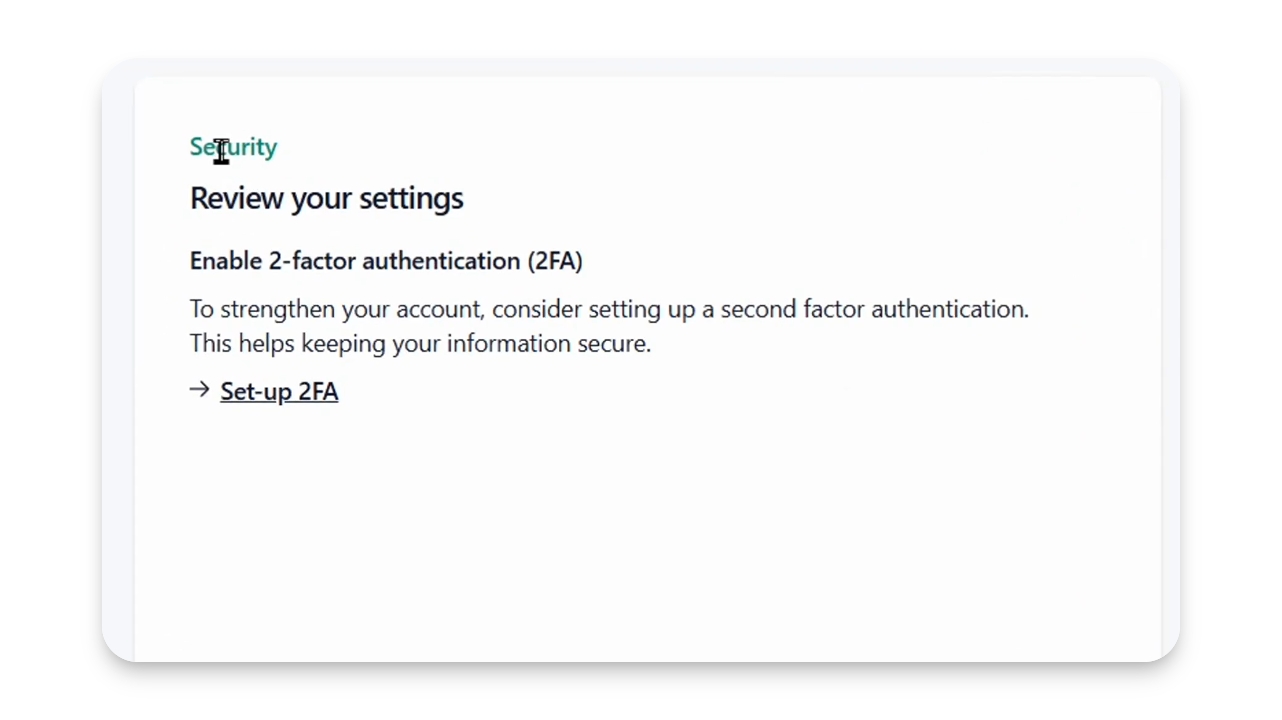
6: Enable Security Features
Check the Security tile to ensure two-factor authentication is enabled.
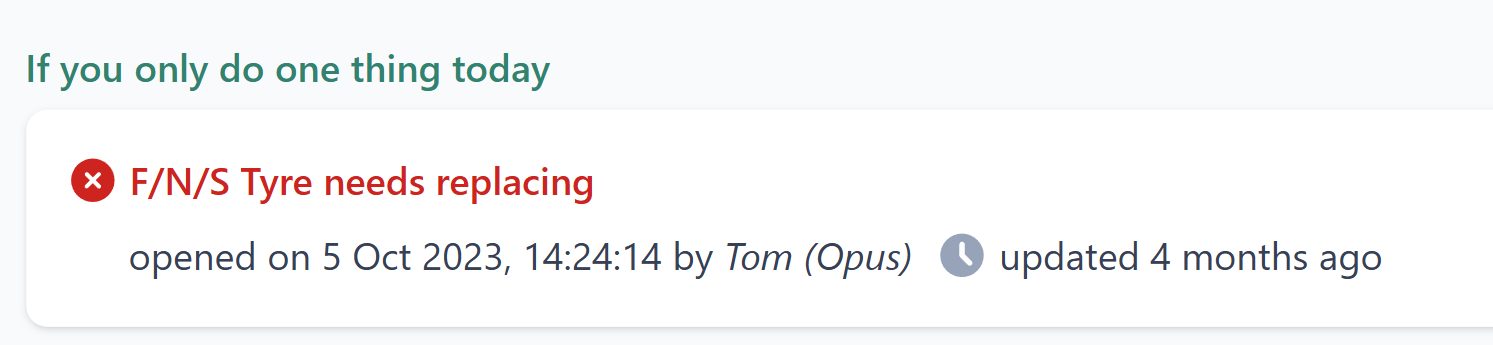
7: Suggested Tasks
Look for the tile that suggests a task if you're unsure what to do next.
This will show the highest priority task that have been assigned, or otherwise the highest priority task from your site inbox.
8: Access Site Inboxes
The Dive in section lists your site inboxes.
Click on any inbox to view your assigned tasks.
You will see the status of tasks and can manage them accordingly.
