Adding a new contractor
Step
From My Dashboard, click on Pick workspace and select the site where you want to add the contractor.


Step
From the site inbox, click the Switch to Manage Mode button.


Step
Click Contractors on the manage sidebar.


Step
Click the +New button at the top right of the page.


Step
Fill in the initial contractor's details:
Contractor name


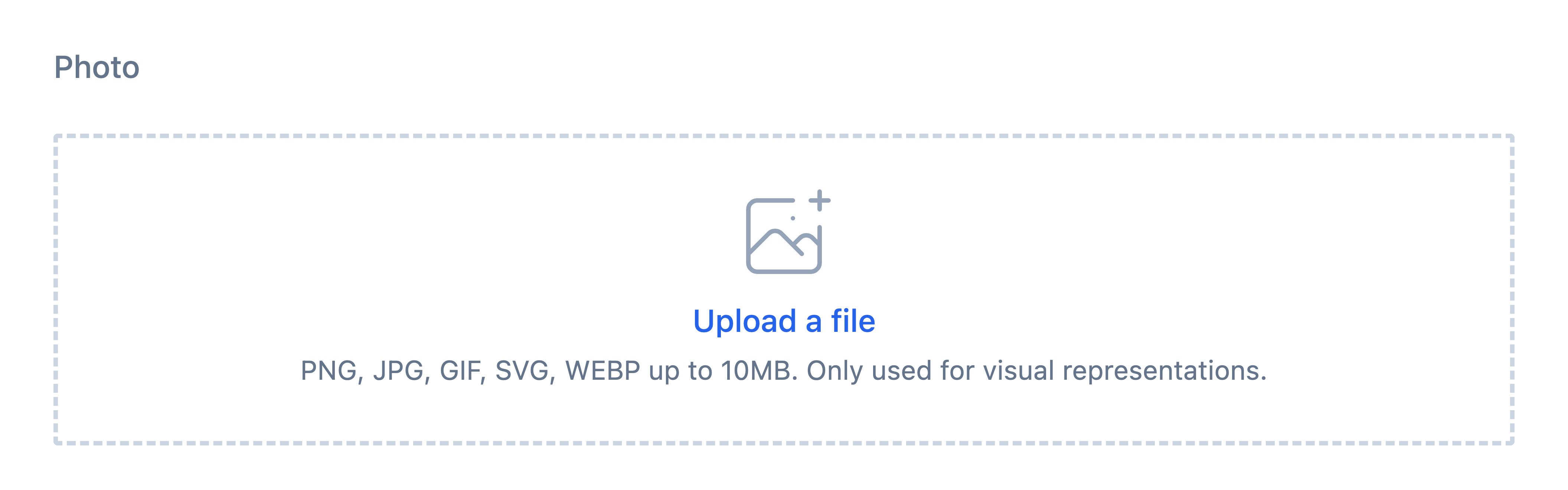
Photo
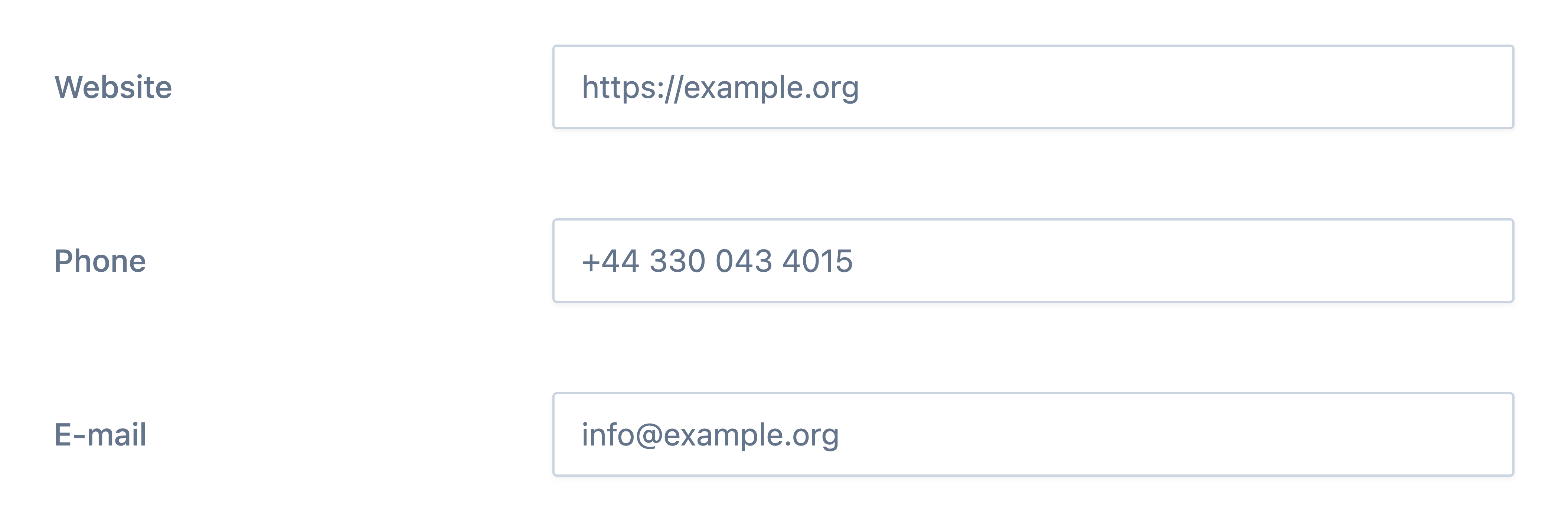
Website, Phone and E-mail Information

Step
Select whether you would like to keep this contractor up to date when not in use (no active projects).
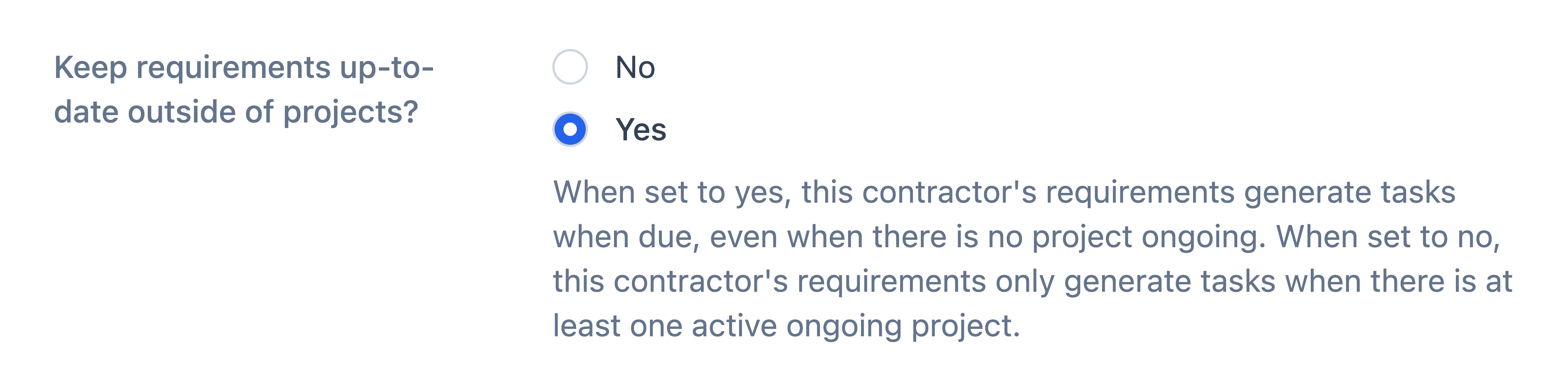
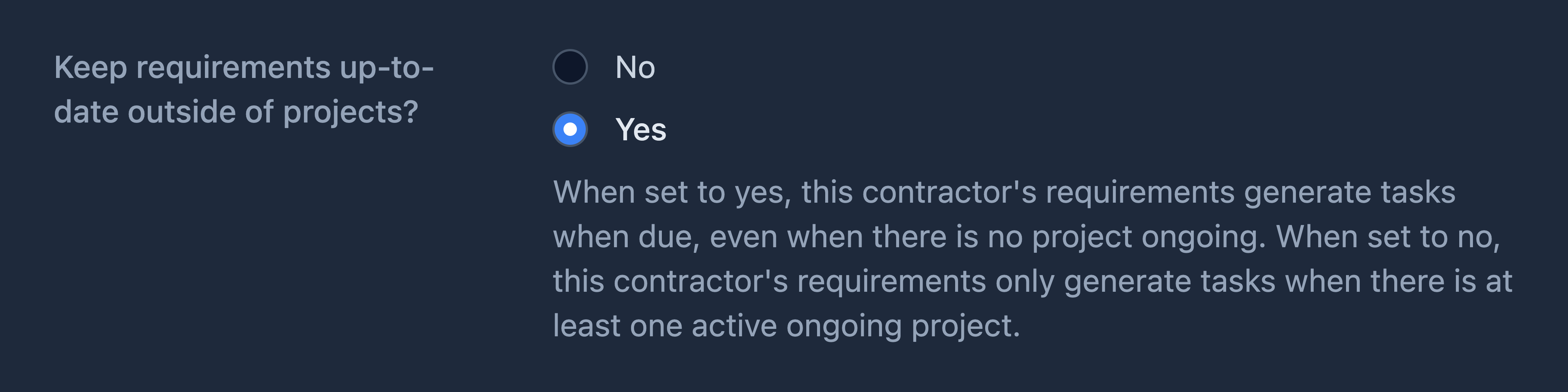
When to select Yes
Selecting Yes means:
- You will always receive ongoing task reminders into your inbox to complete and maintain this contractor’s requirements (e.g. insurance documents).
- Reminders will continue even if the contractor is not currently in use (via an active project).
- This helps ensure important or frequently used contractors remain compliant and ready to use when needed.
Recommended for: Contractors who are regularly used or important to your operations.
When to select No
Selecting No means:
- You will only receive ongoing task reminders into your inbox to complete and maintain this contractor’s requirements (e.g. insurance documents) when the contractor is in use (via an active project).
- Reminder tasks will be hidden from your inbox if the contractor is not currently in use (via an active project).
Recommended for: Contractors who are not regularly used or are less important to your operations.
Step
Select what Kind of contractor they are.


Step
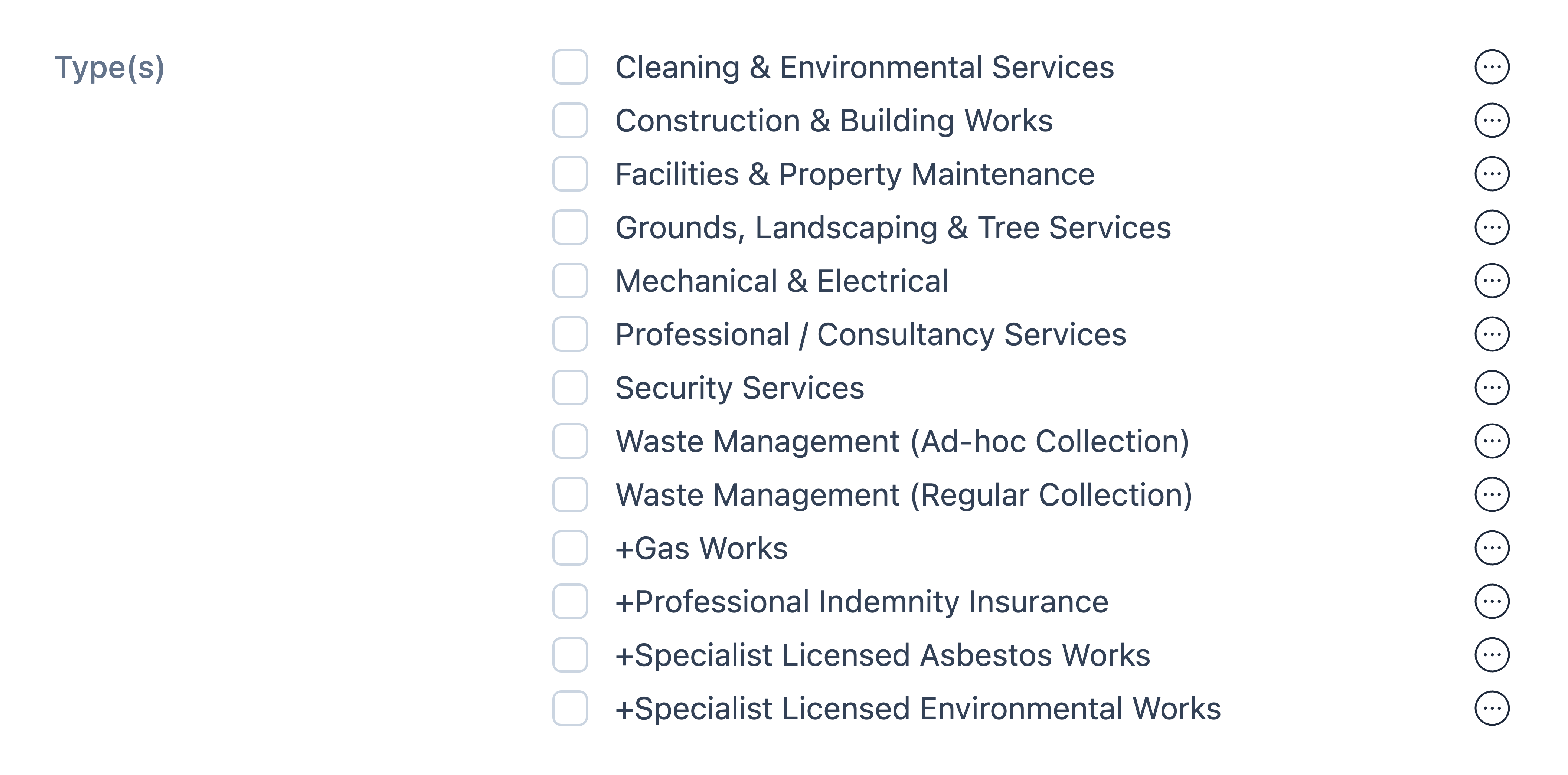
Select the type(s) for this contractor.
Tip
To view the requirements set up against a type, select the ellipsis (…) icon next to it.
Can't find a type that describes your contractor?
Contact support for assistance with setting up new contractor types.
Step
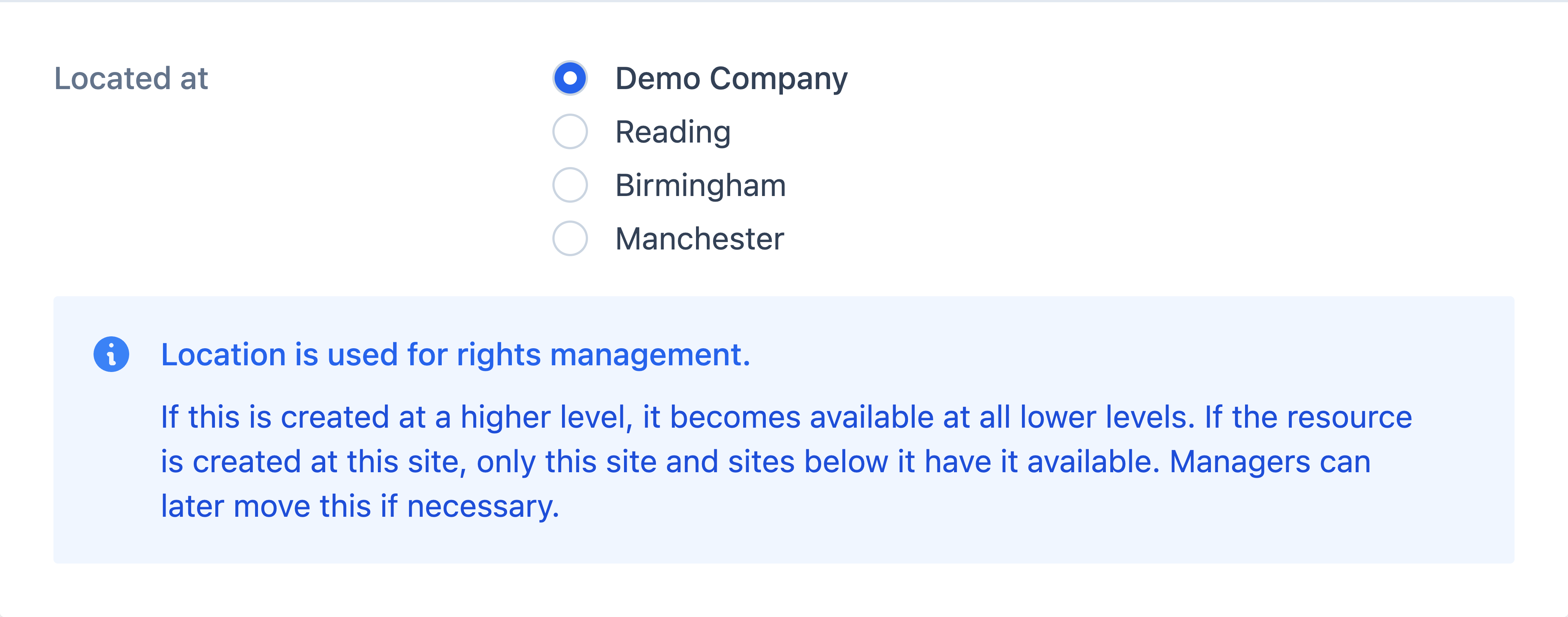
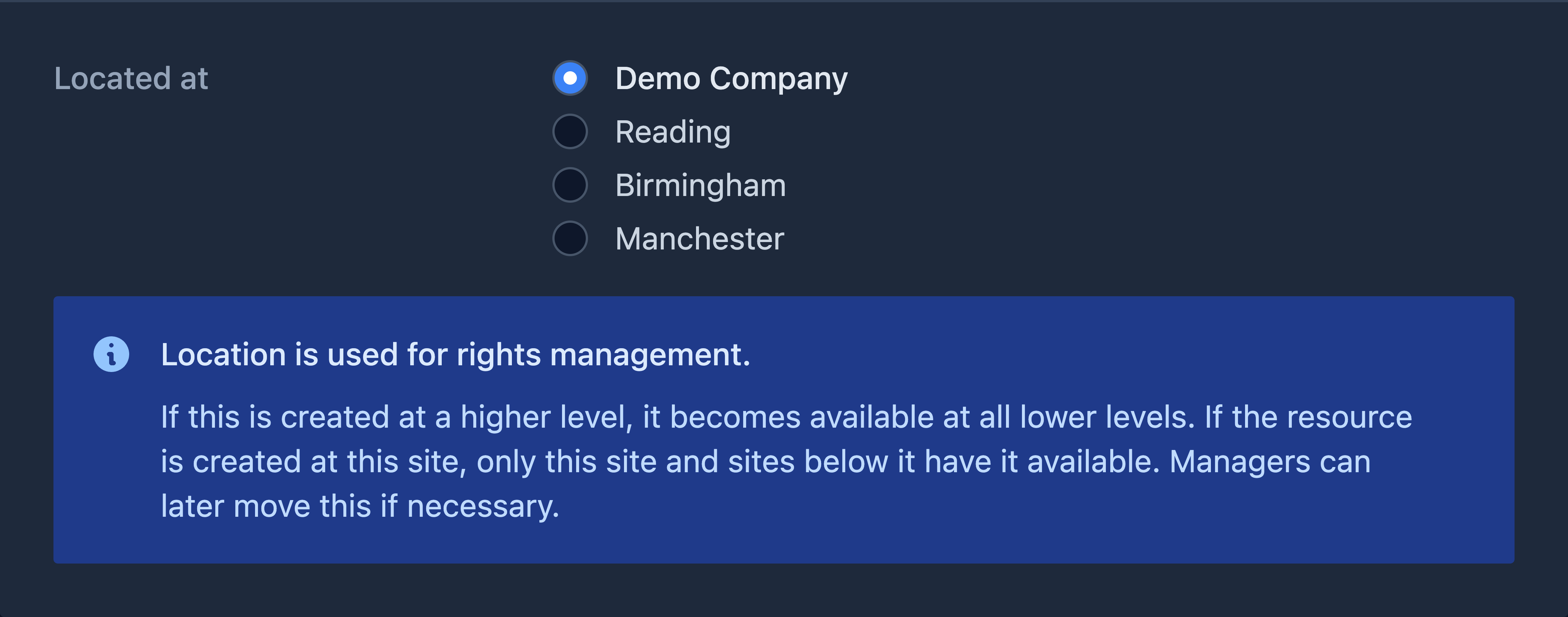
Under Located at, choose the site the contractor will belong to. By default, the contractor will be located at the site you selected in Step 1, but you can change the location here if needed.
Tip
If you operate across multiple sites and this contractor is used throughout a region or across your organisation, place the contractor in the relevant regional or parent site so it is available to all sites within that scope.
Step
Click Save contractor at the bottom of the page.