Moving an employee
Written for Managers Administrators
If an employee changes site, you'll need to move their employee record to the new location and reconfigure their site access. This guide walks through this process.
Finding the employee


Step
From the site inbox page, click the Switch to Manage Mode button.


Step
Click Employee records on the manage sidebar.


Step
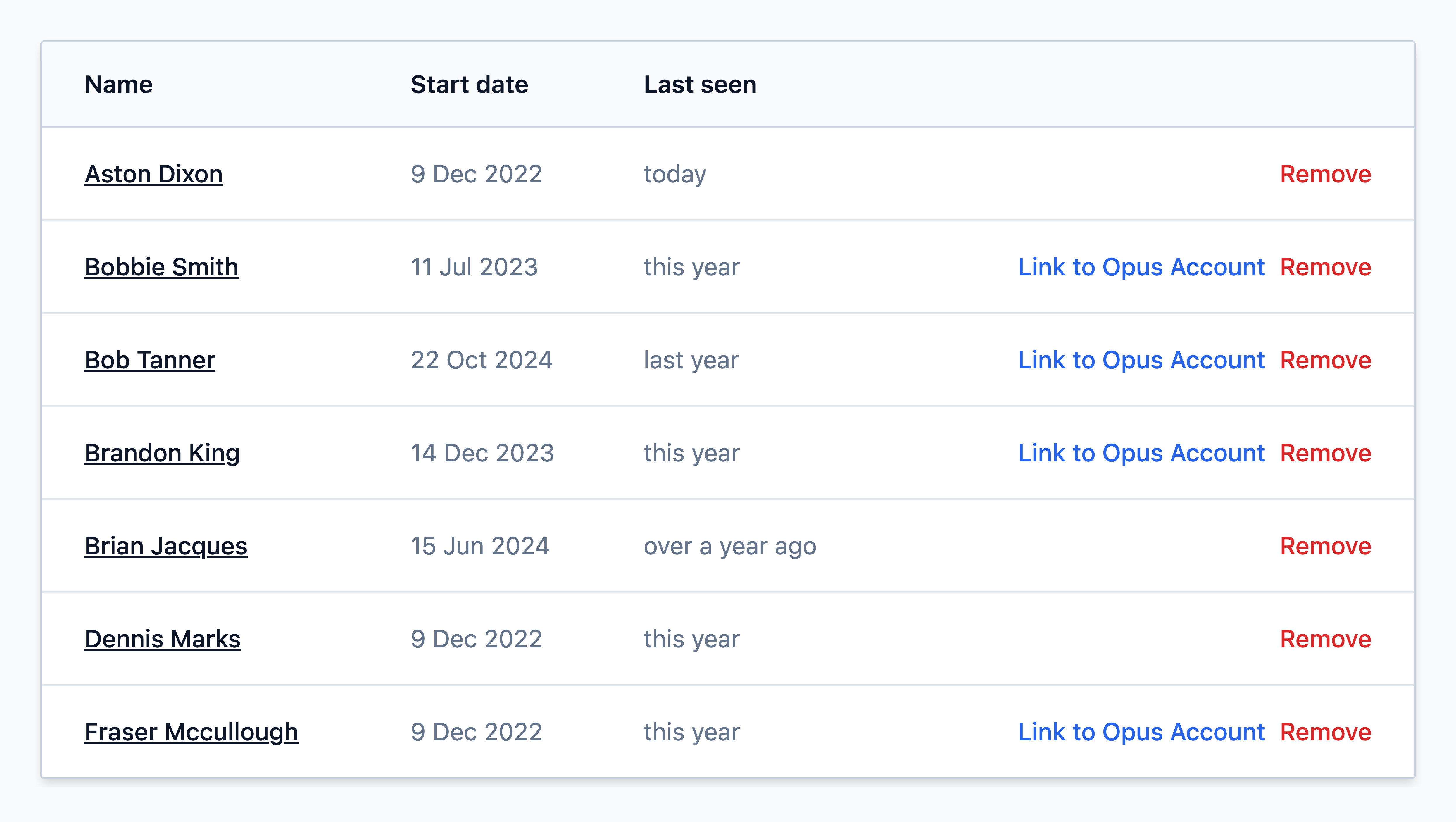
Find the employee from the list and click on their name
Changing the employee's location
Step
On the employee's record, select Change location


Step
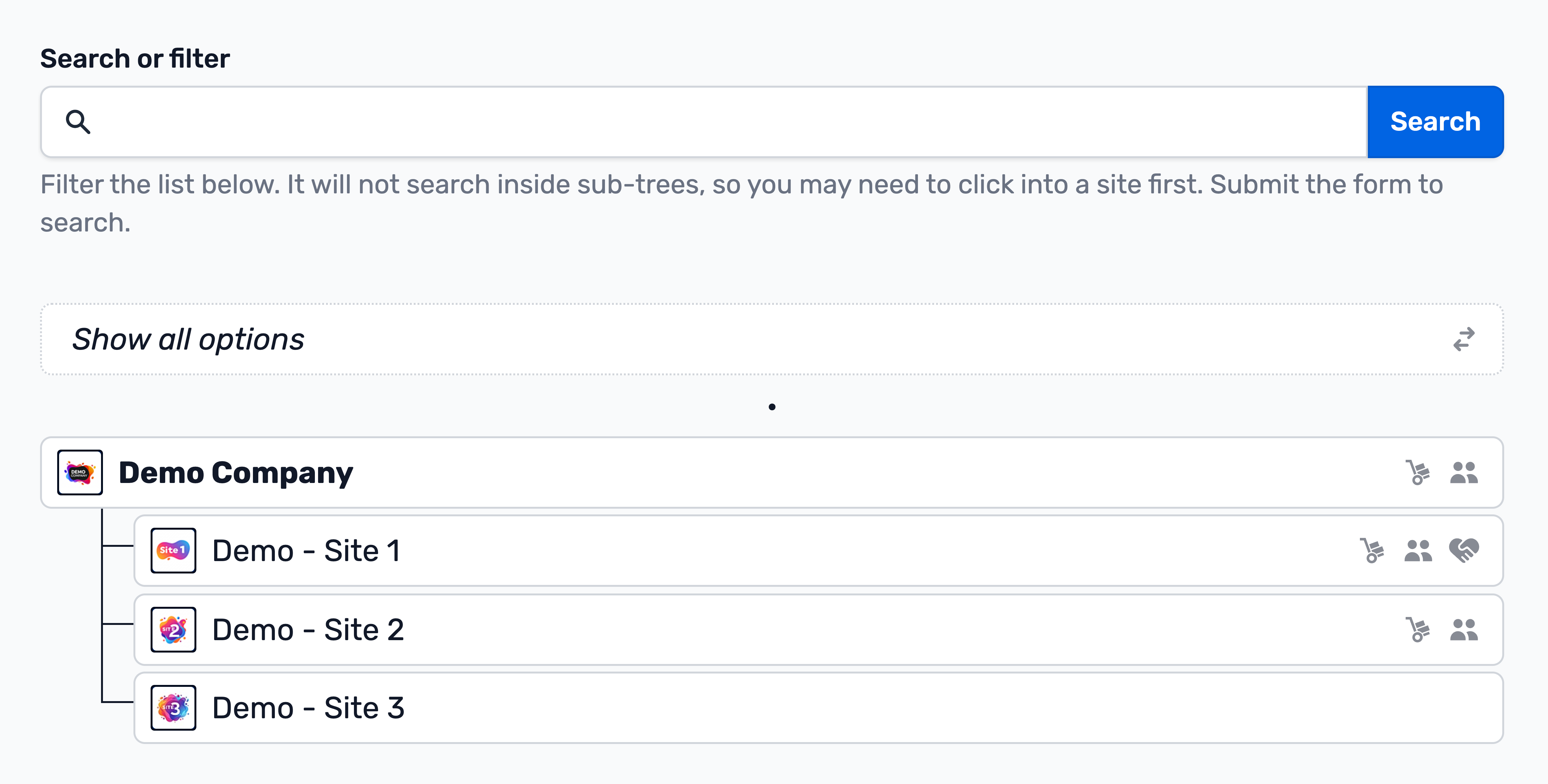
In the site tree, select the site to which the employee is moving.
Use the search bar, or select Show all options to help find the site.
Can't find the site?
You may not have access to the site the employee is moving to. If this is the case, you may need to contact a senior manager with access to your site and the destination site to complete the move.
Step
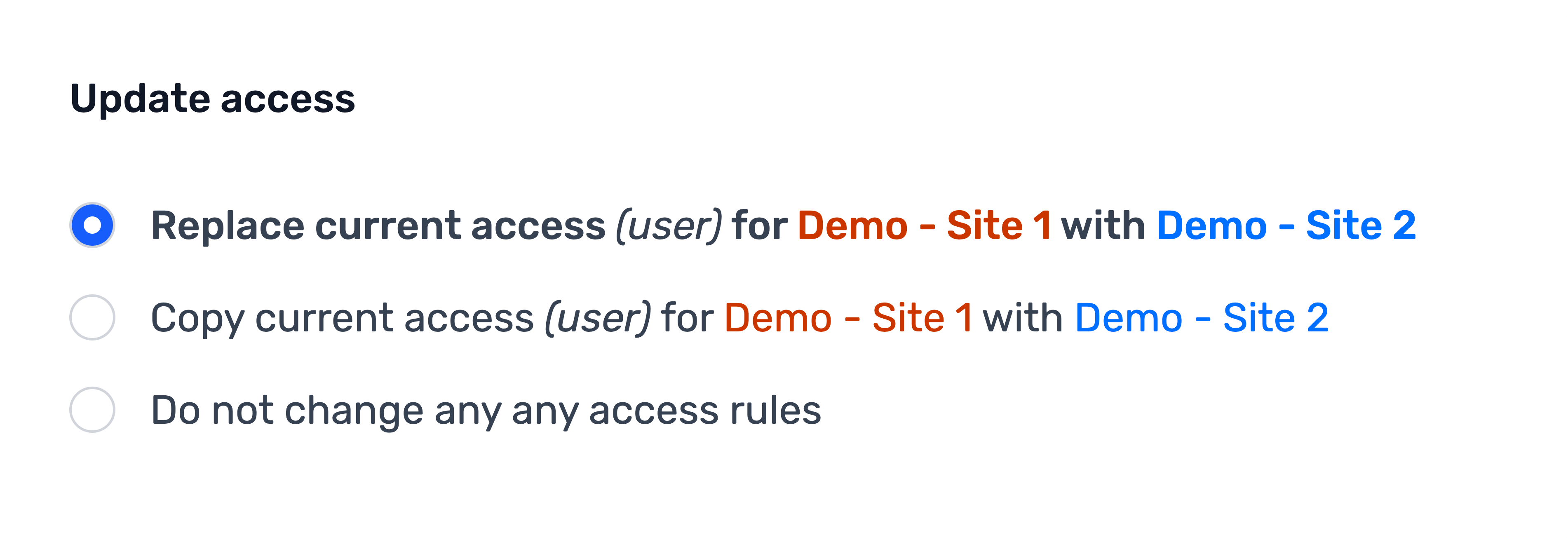
In the Update access section, choose how you want to handle the employee’s access:
- Replace – Removes the employee’s access to their old site and replaces with the same level of access at the new site. (recommended)
- Copy – Keeps the employee’s access to their old site and copies the same level of access to the new site.
- No change – Moves the employee’s record without changing their existing access.
Step
Finalise the move by clicking the green Move employee button.

