Registering an Employee with an Opus Account
Written for Managers Administrators
Follow this guide to register an employee in Opus Compliance Cloud using their own Opus account. This guide assumes that the employee record already exists.
SSO Users Information
If you are using Single Sign On (SSO), the process is slightly different as users will be using their company credentials to log in. Please refer to the documents > help folder in Site Documents for client specific instructions.
No Account? Try Temporary Access
Interested in a quick and easy way for employees to complete their personal requirements without creating an account? Explore our Temporary Access feature and give them secure, time-limited access to the system.
Manager Steps
Please follow the steps below to register employees as users on the system.


Step
From the site inbox, click the Switch to Manage Mode button.


Step
Click Employee records on the manage sidebar.


Step
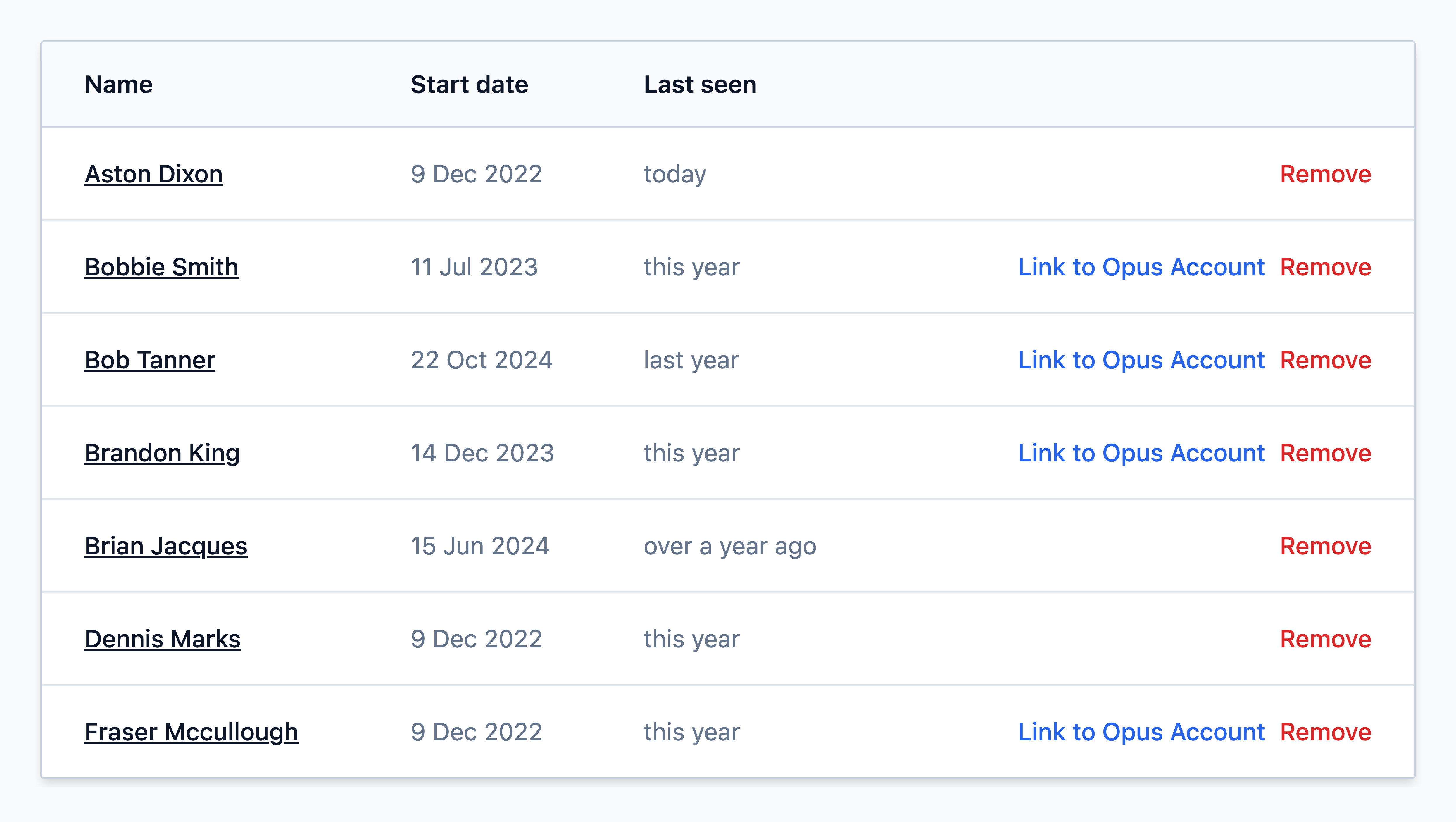
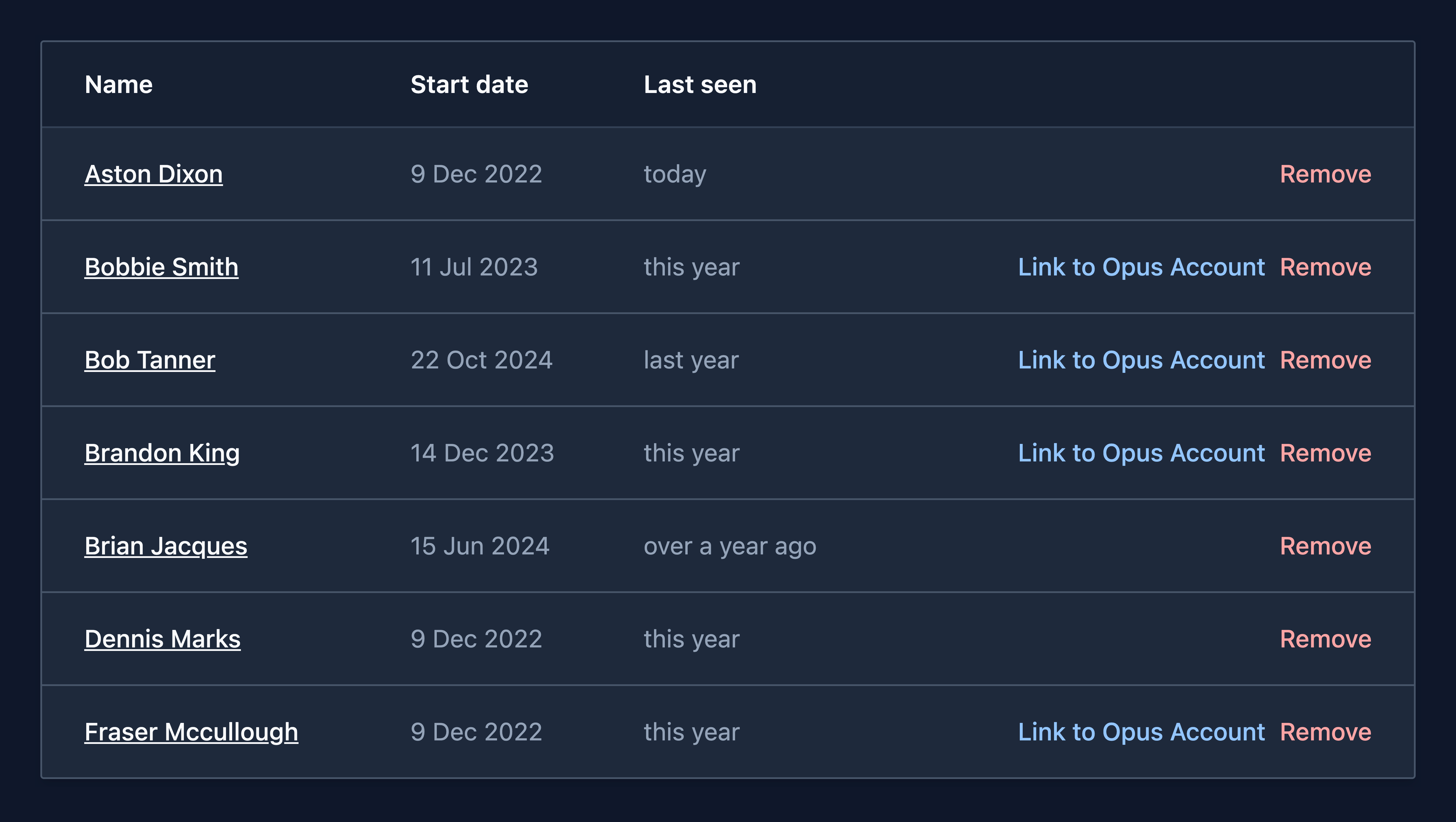
In the employee list, click the blue Link to Opus Account button next to the employee record.
Step
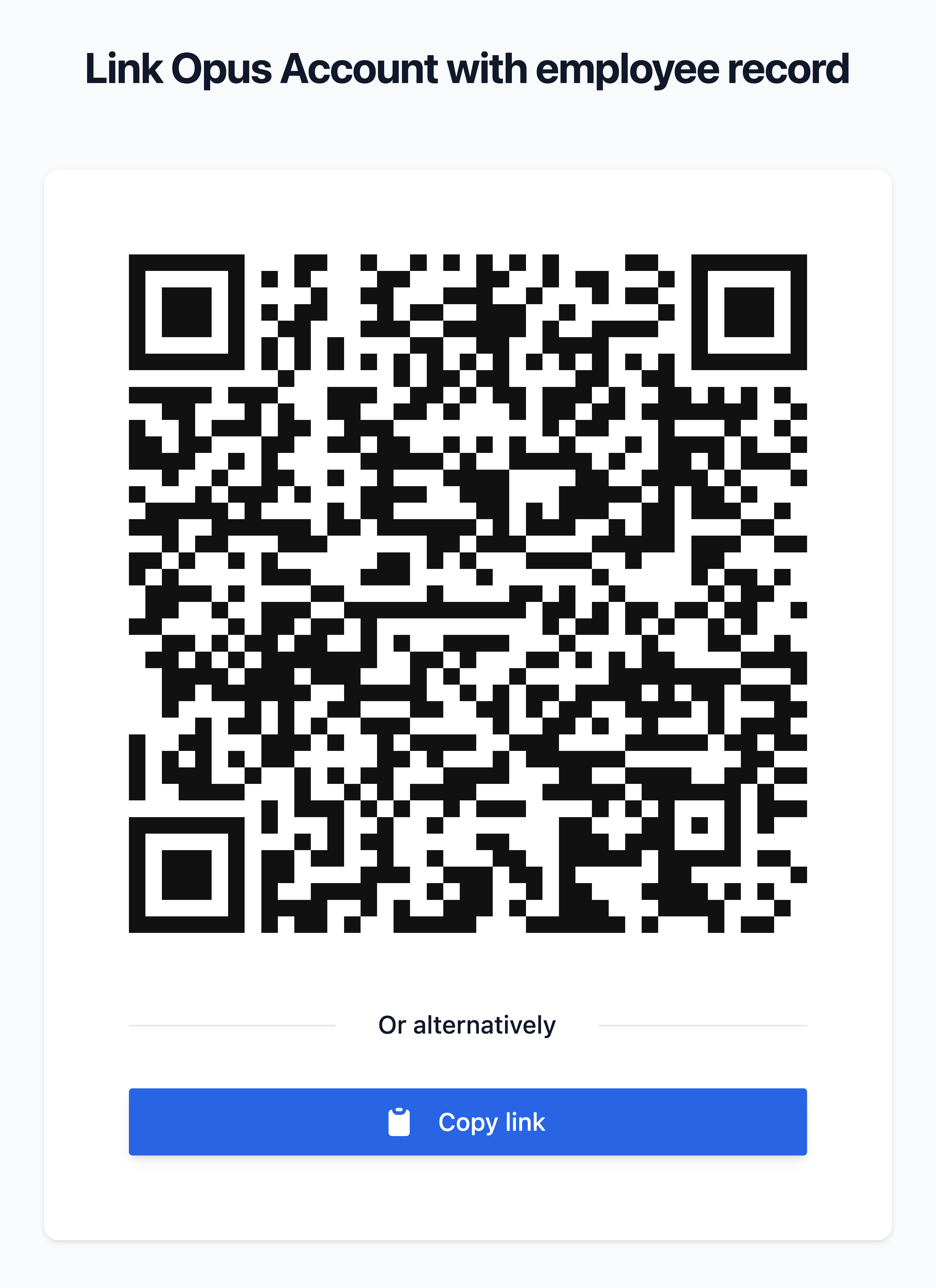
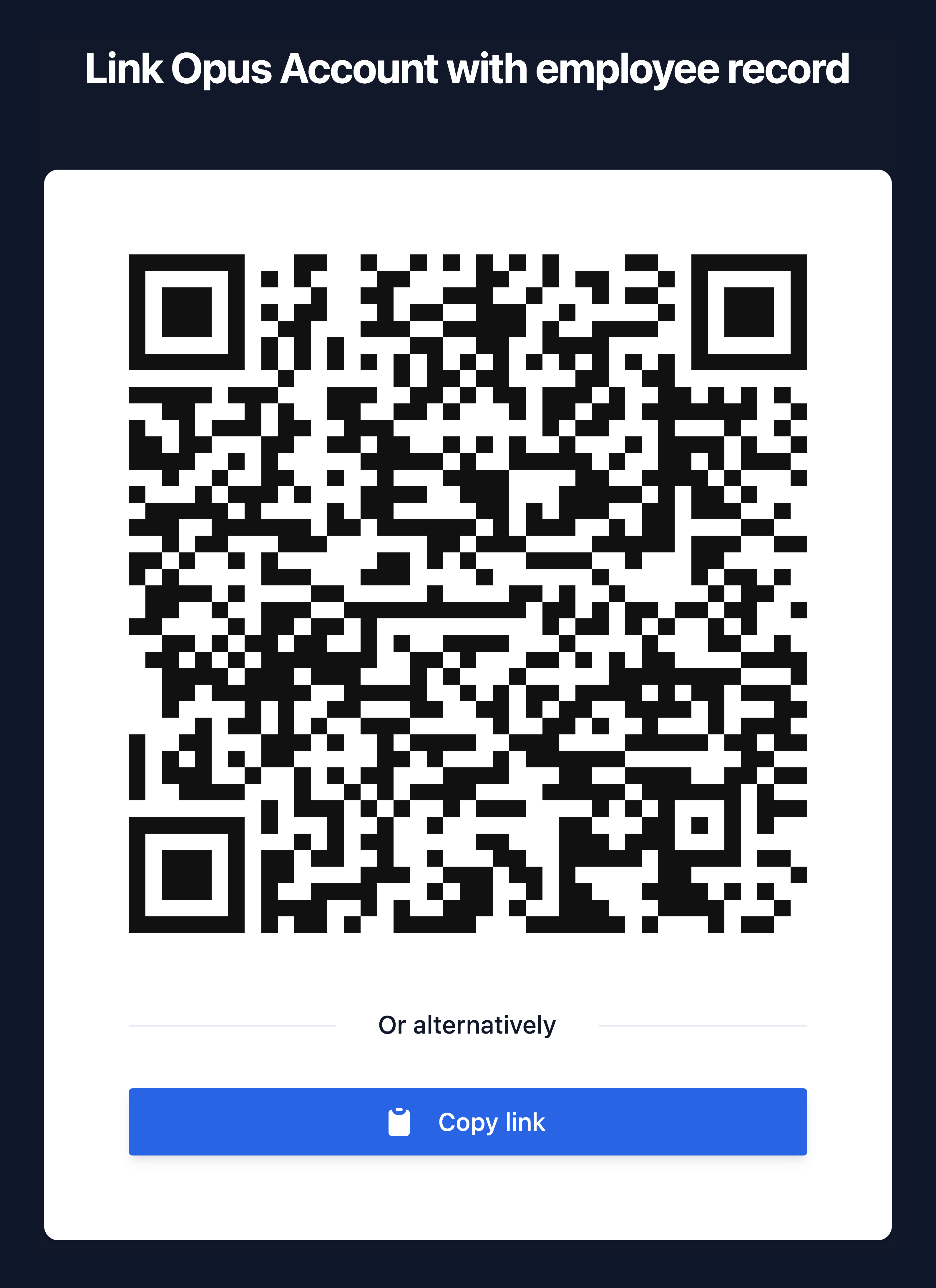
A QR code page will appear. You can then either:
- Ask the employee to scan the QR code with their phone (remind them to log out if they're using someone else's phone).
- Copy the link using the button at the bottom and send it via email or an internal messaging system (like Teams or Slack).
Optional Registration Email Template
If using the copied link, you can use a message like this to help:
Welcome to the Opus Compliance Cloud
There are two steps to registration:
Step 1. Creating your Opus account
To get started, please click on your unique registration link below and select 'Sign up' to create your Opus account:
[registration link]
Step 2. Linking your Opus account to your employee record
Click 'Link my Opus account' on the following page.
Once you've successfully registered, we suggest bookmarking your landing page. Or to access in future, visit www.opus-safety.co.uk and select 'Log in' via the menu in the top right corner.
If you need any assistance, our Opus Knowledge Base is always available — access it by clicking on your profile icon in the top right corner of the system and selecting Support.
We recommend having a look at these articles:
- System Overview for Managers — a quick introduction to the system
- Training Videos — a series of 15 short videos that cover the basics
- Subscribing to Notifications — remember to subscribe if you want to receive email notifications
You can also include any additional information or context you think is necessary for your staff — such as company-specific instructions or a personalised message from a senior manager. This can make for a much warmer and more engaging interaction than a generic system email.
User Steps
The user being registered can now follow the steps in the guide below to create their Opus Account.