Granting an employee temporary access
Written for Managers Administrators
Temporary access is a way to grant your employees temporary access to certain features without an account (such as E-learning, viewing site documents, and reporting events).
Follow this guide to grant an employee temporary access.
Manager Steps


Step
From the site inbox, click the Switch to Manage Mode button.


Step
Click Employee records on the manage sidebar.


Step
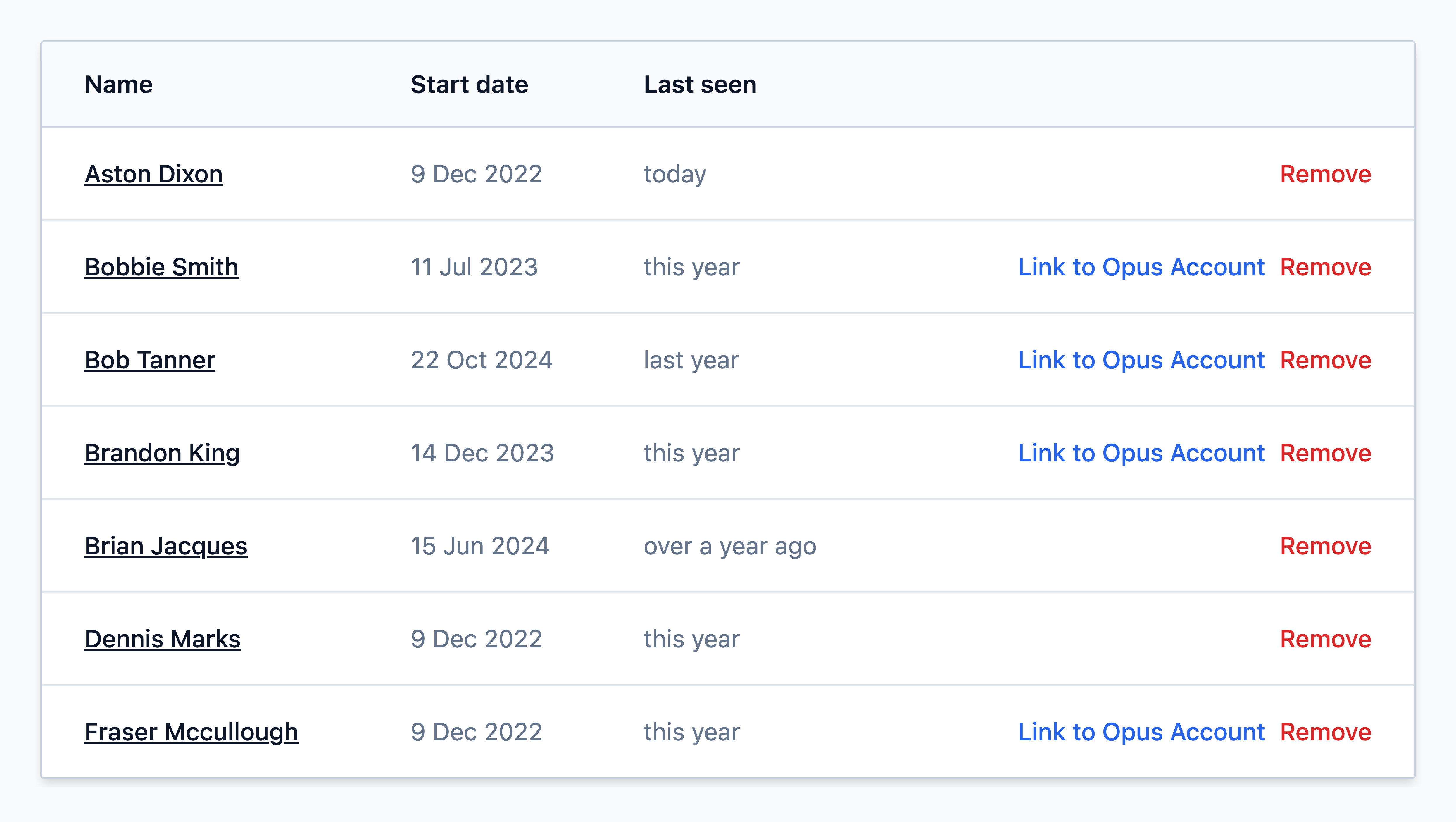
Use the Search Bar / Find the person you're looking for in the list and click on their name:
Step
Select the Temporary access button on their record.


Step
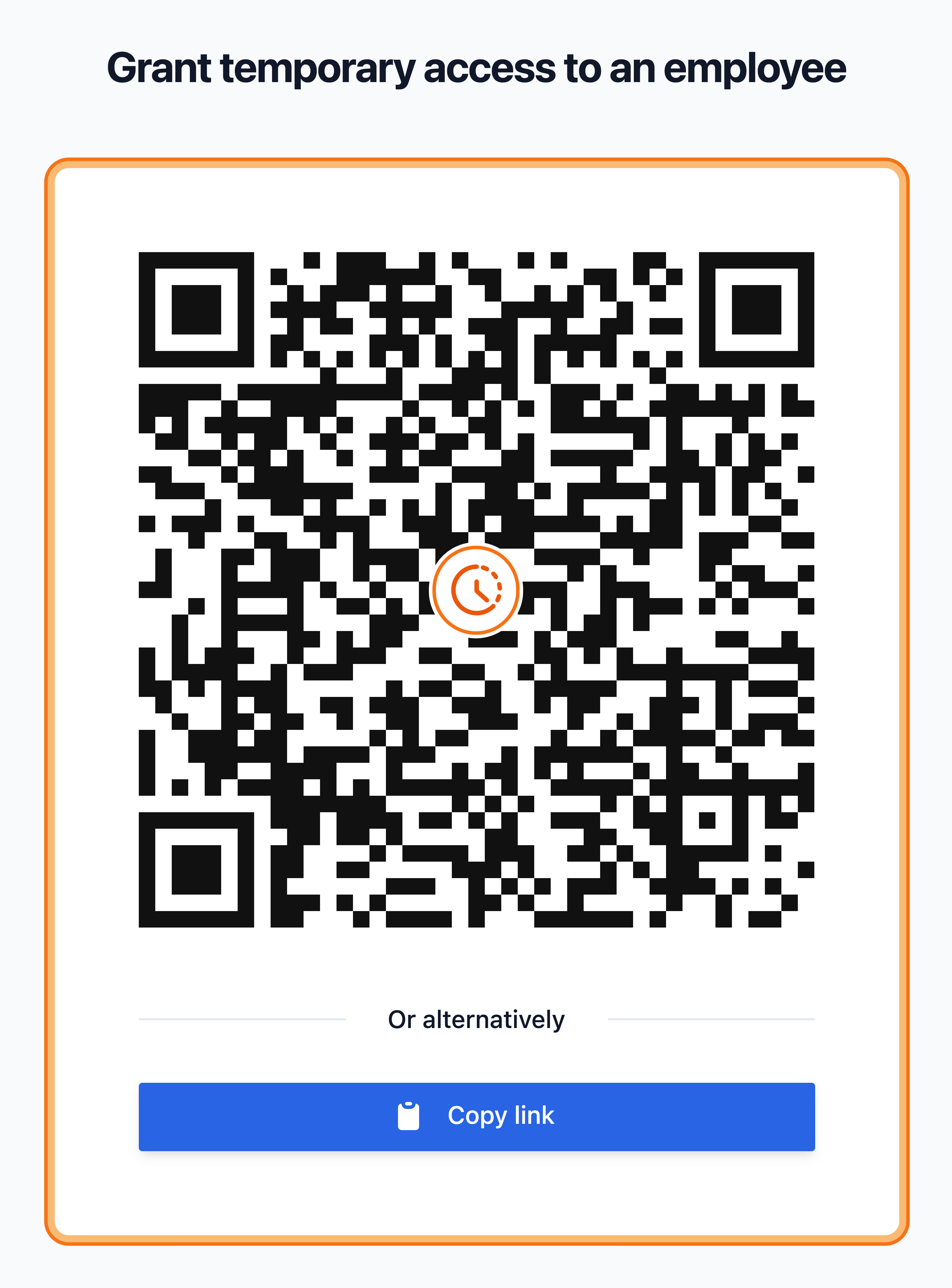
A QR code and link copy button will appear. Have the user scan the QR code with a mobile device or copy the link and send to them via email or similar
User Steps
This section is intended to be followed by the user being set up.
Step
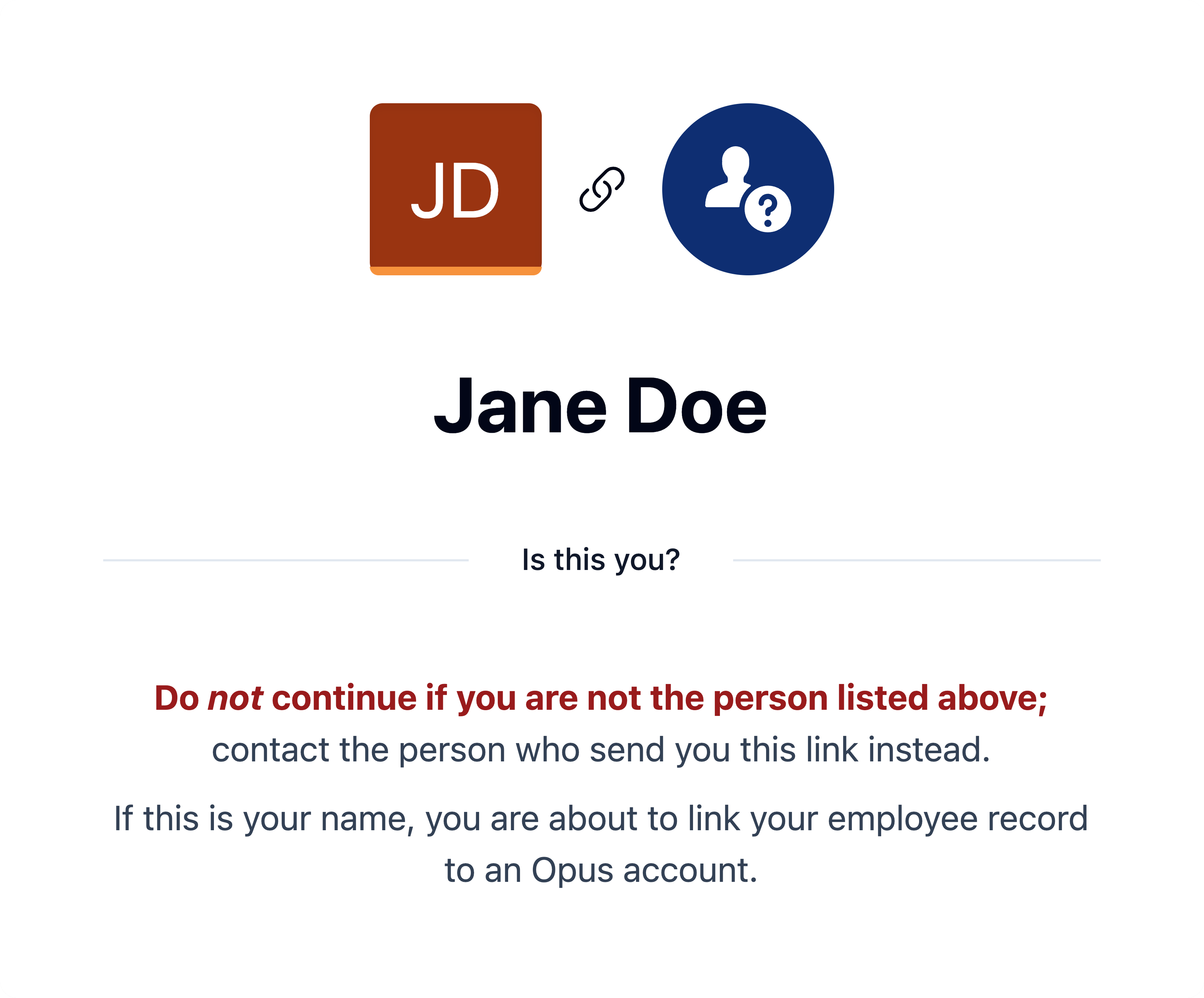
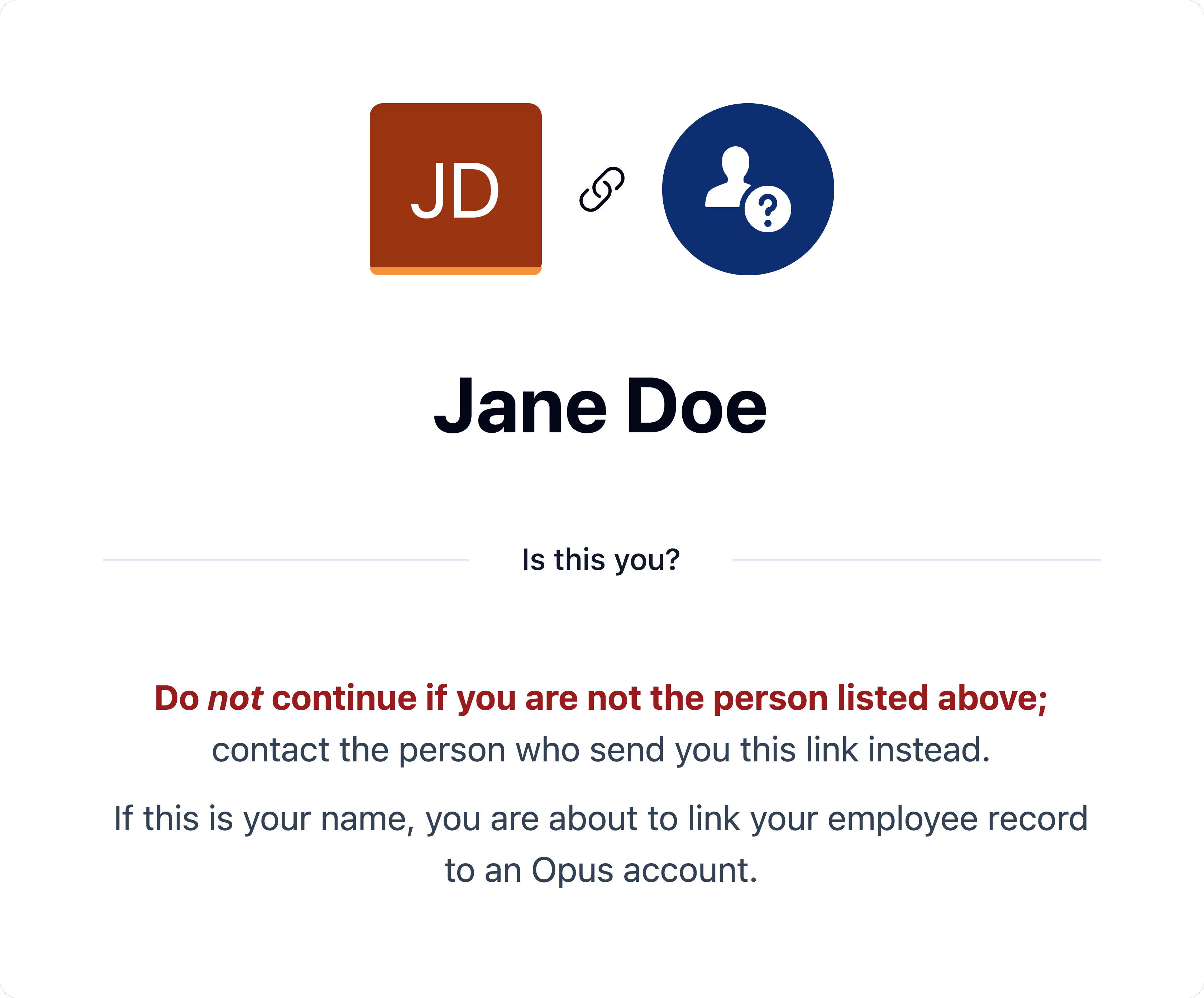
After following the link or scanning the QR code, you will be asked to confirm that you are linking to the correct employee record. Please ensure that your name is displayed on the confirmation page.
If your name is not shown, you may have been provided with an incorrect registration link or QR code. In this case, do not proceed and contact the person who provided it to you immediately.
Step
Click Accept temporary access


Step
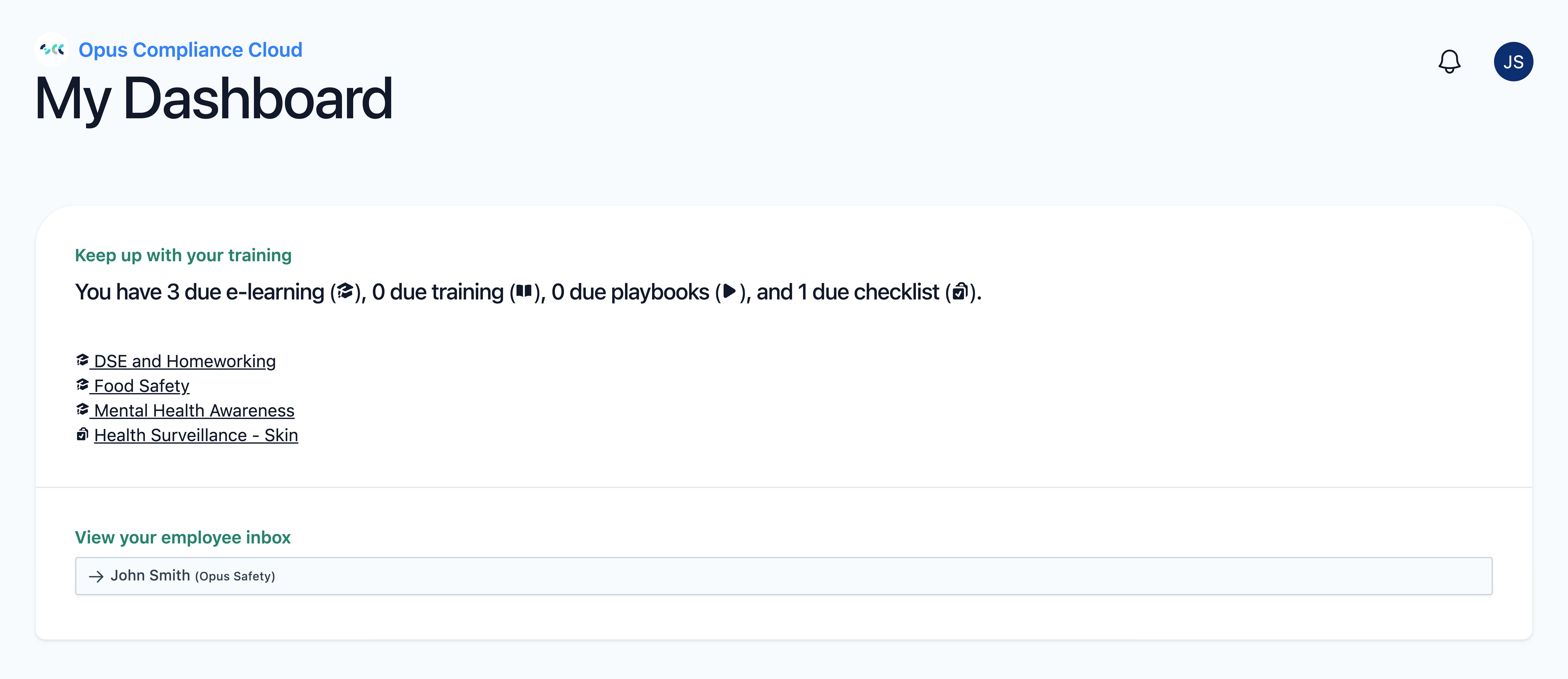
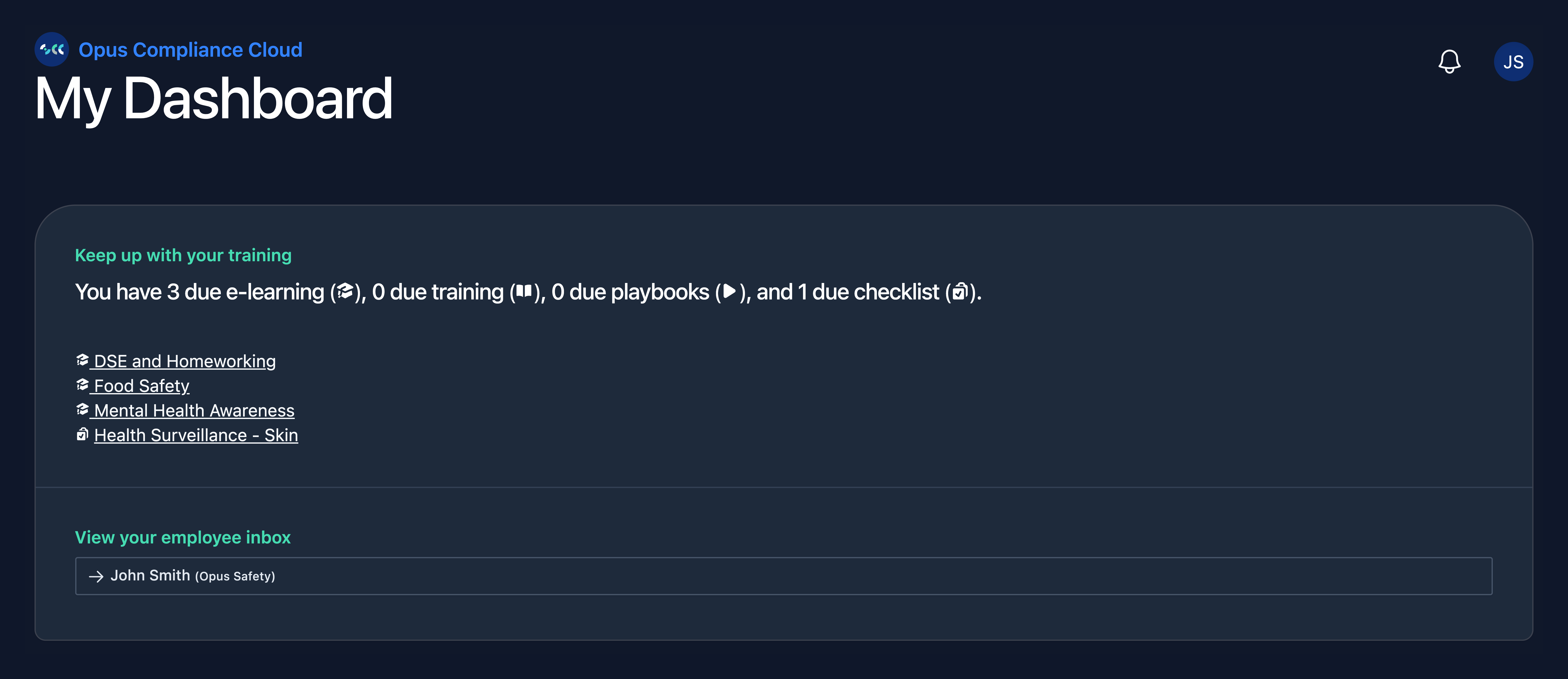
After accepting, you land on My Dashboard. You can now complete your employee requirements such as elearning from here.
Warning
Temporary access expires after 7 days. A prompt is available on My Dashboard in the Security panel to create an account if you would like to make your access permanent.