Interacting with a task
Written for Users Managers Administrators
This guide covers the basics of interacting with tasks.
Reminder Tasks
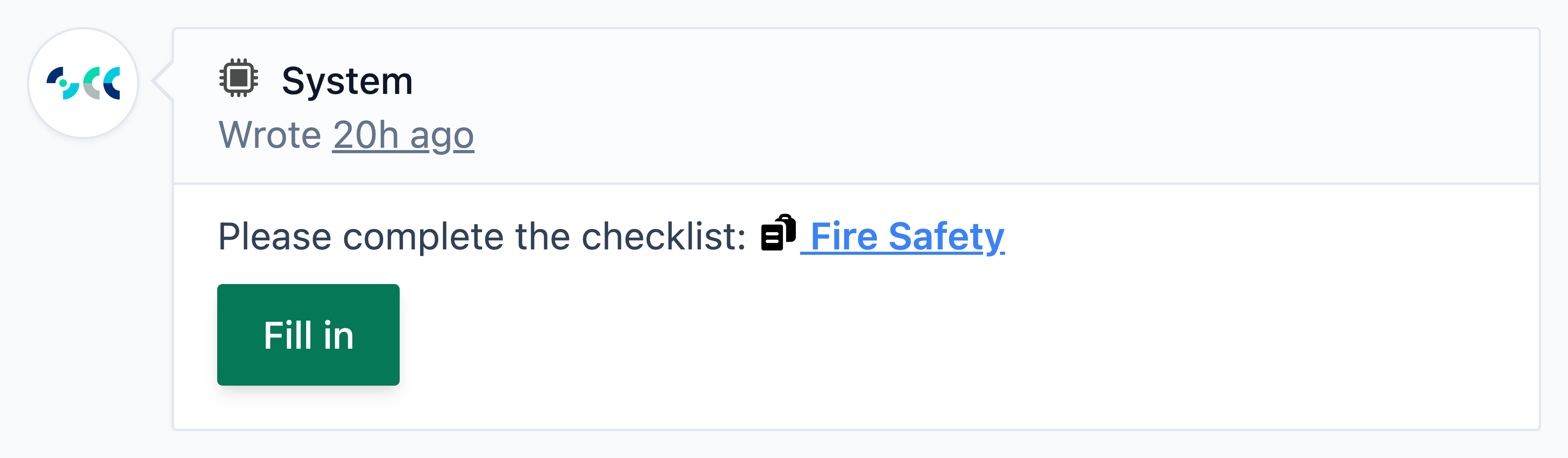
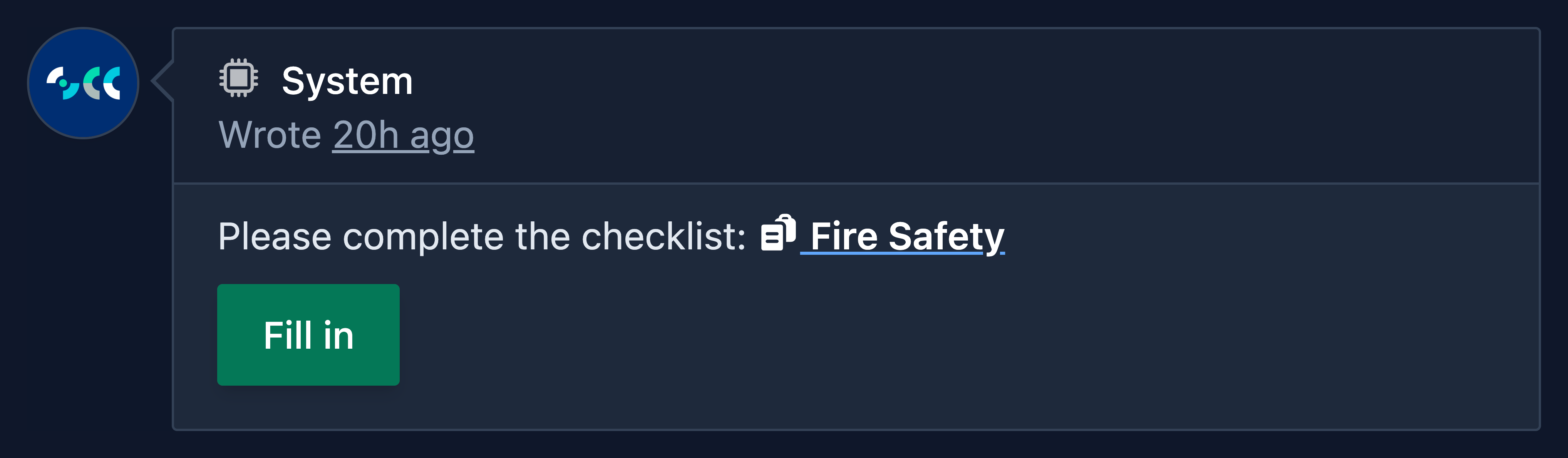
The system automatically creates a reminder task when a requirement is due. These reminders may involve completing an e-learning course, uploading a document, or filling in a checklist.
Reminder tasks include a button / blue link in the initial task message, allowing direct access to complete the requirement.
Warning
You cannot resolve reminder tasks manually using the Resolve button. You must complete the outstanding requirement. The reminder task will resolve automatically after you complete the requirement.
Commenting
You can post comments in the task log by using the comment section, which is located towards the bottom of the task page.
Example 1 - Logging Task Progress
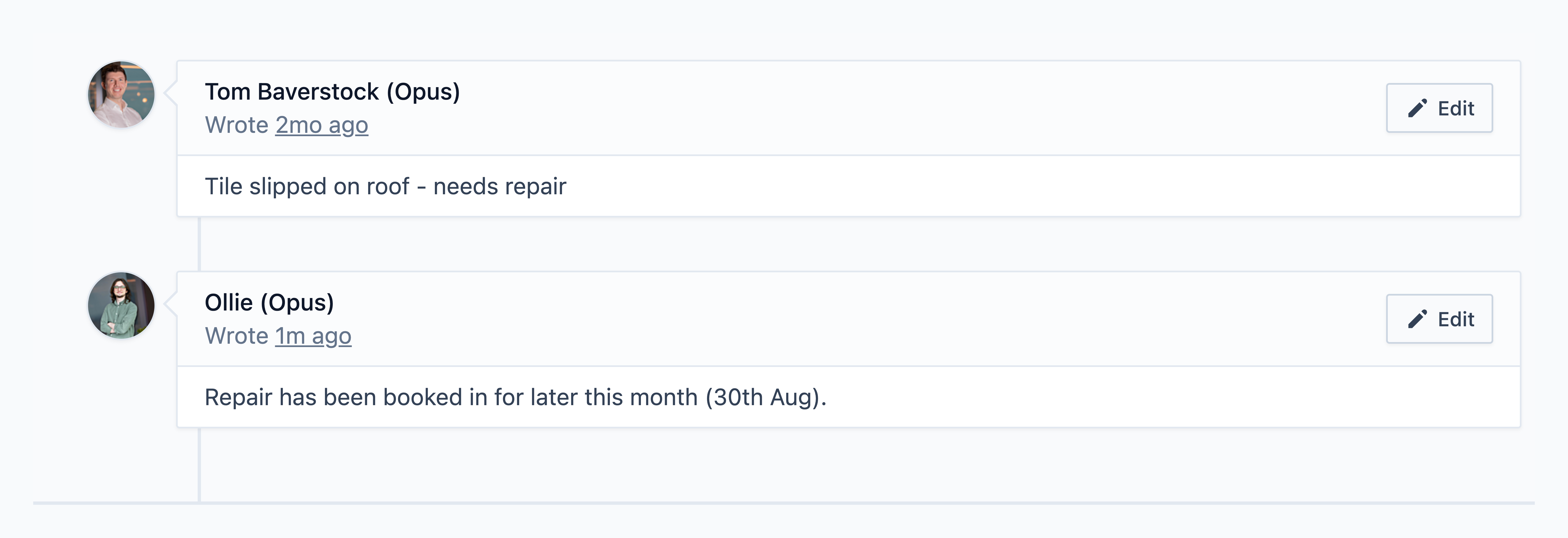
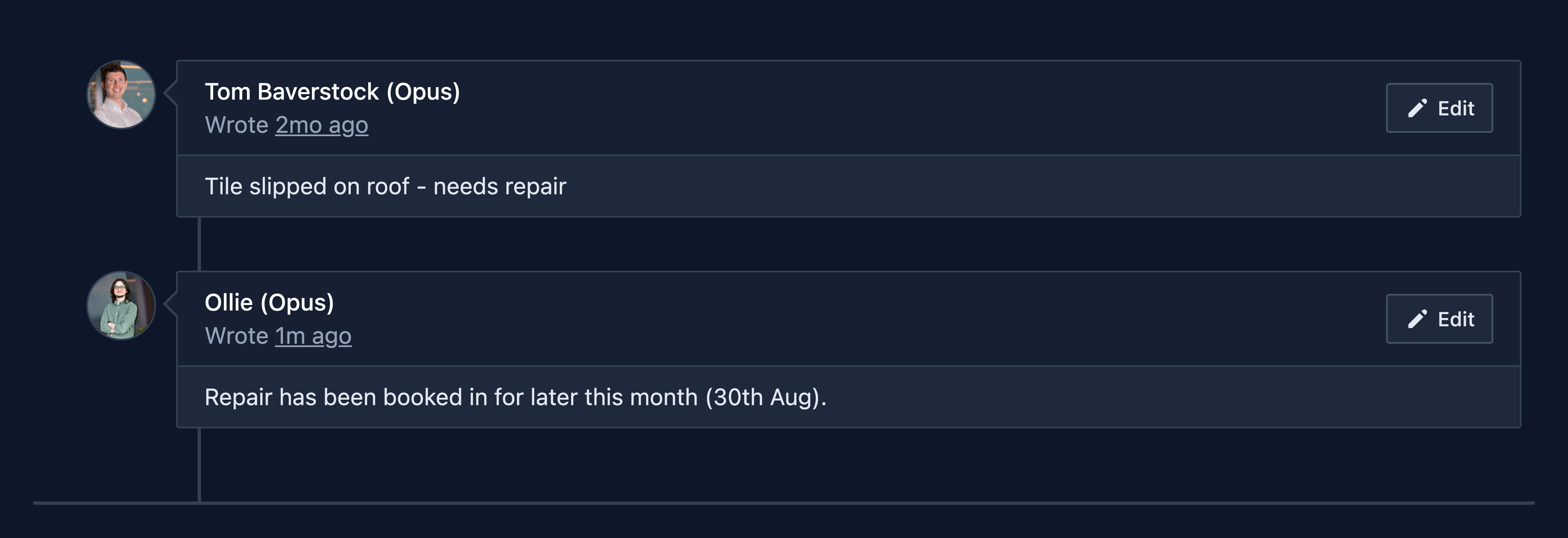
Example 2 - Uploading CCTV Footage for Incidents
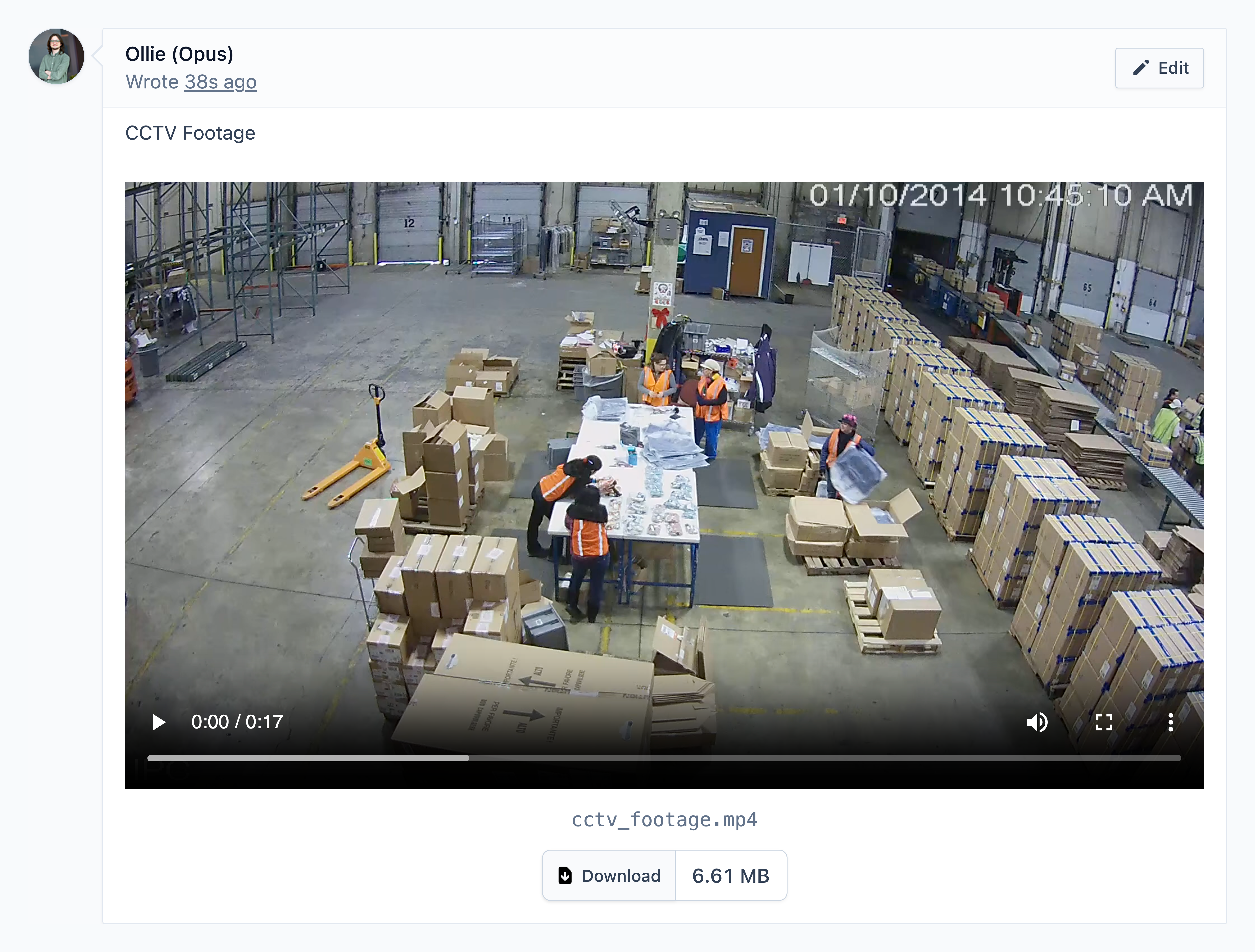
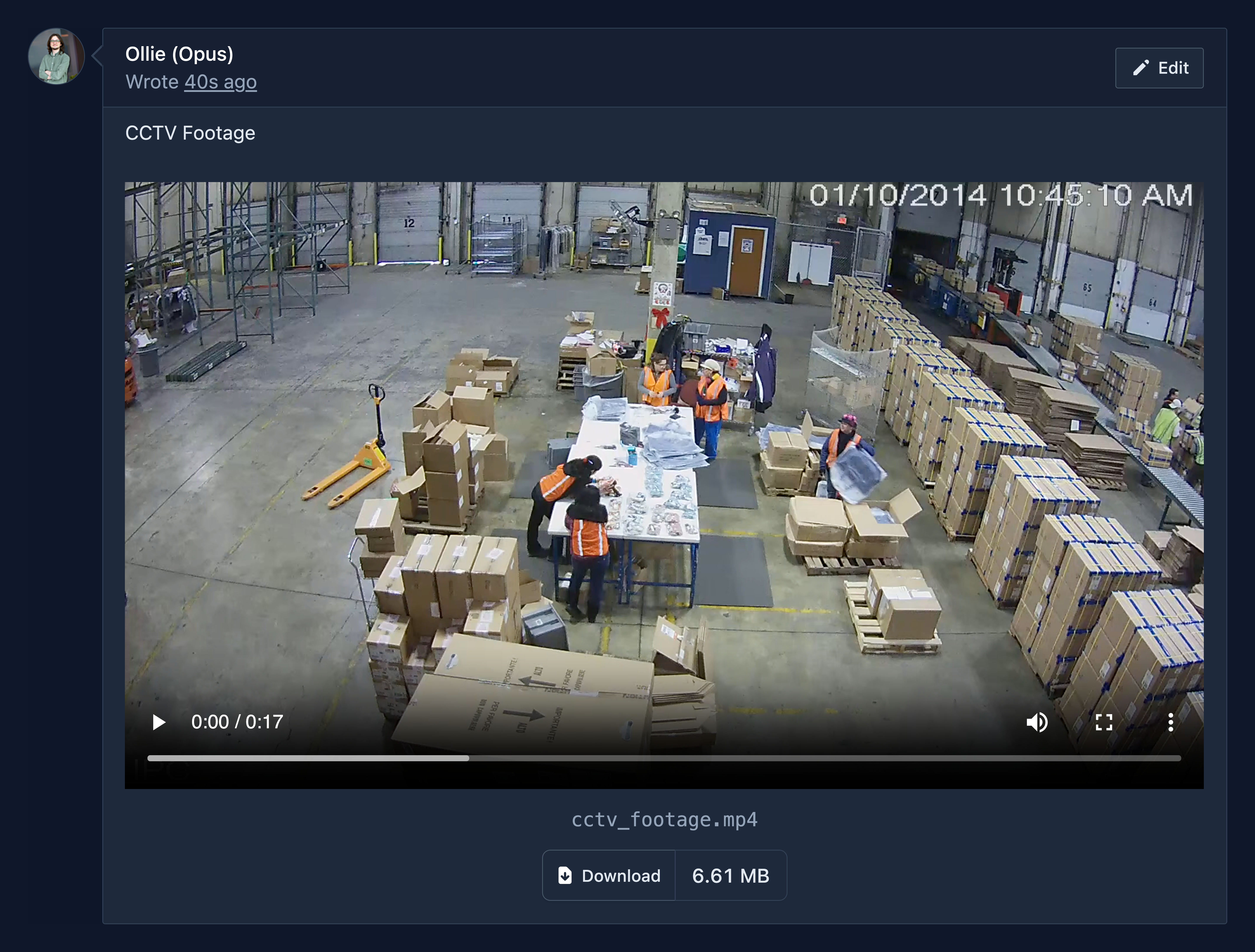
Creating sub tasks
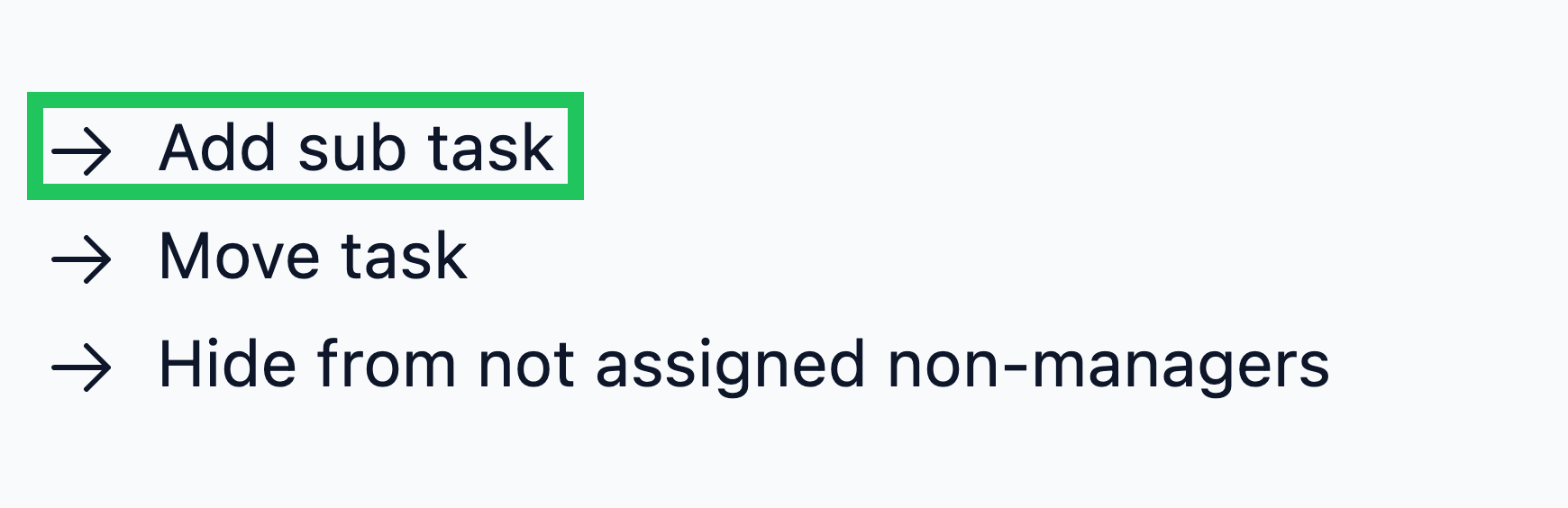
You can add sub-tasks to a task by clicking the button in the task actions list. They are a useful way to break large or complex pieces of work into smaller, more manageable parts.
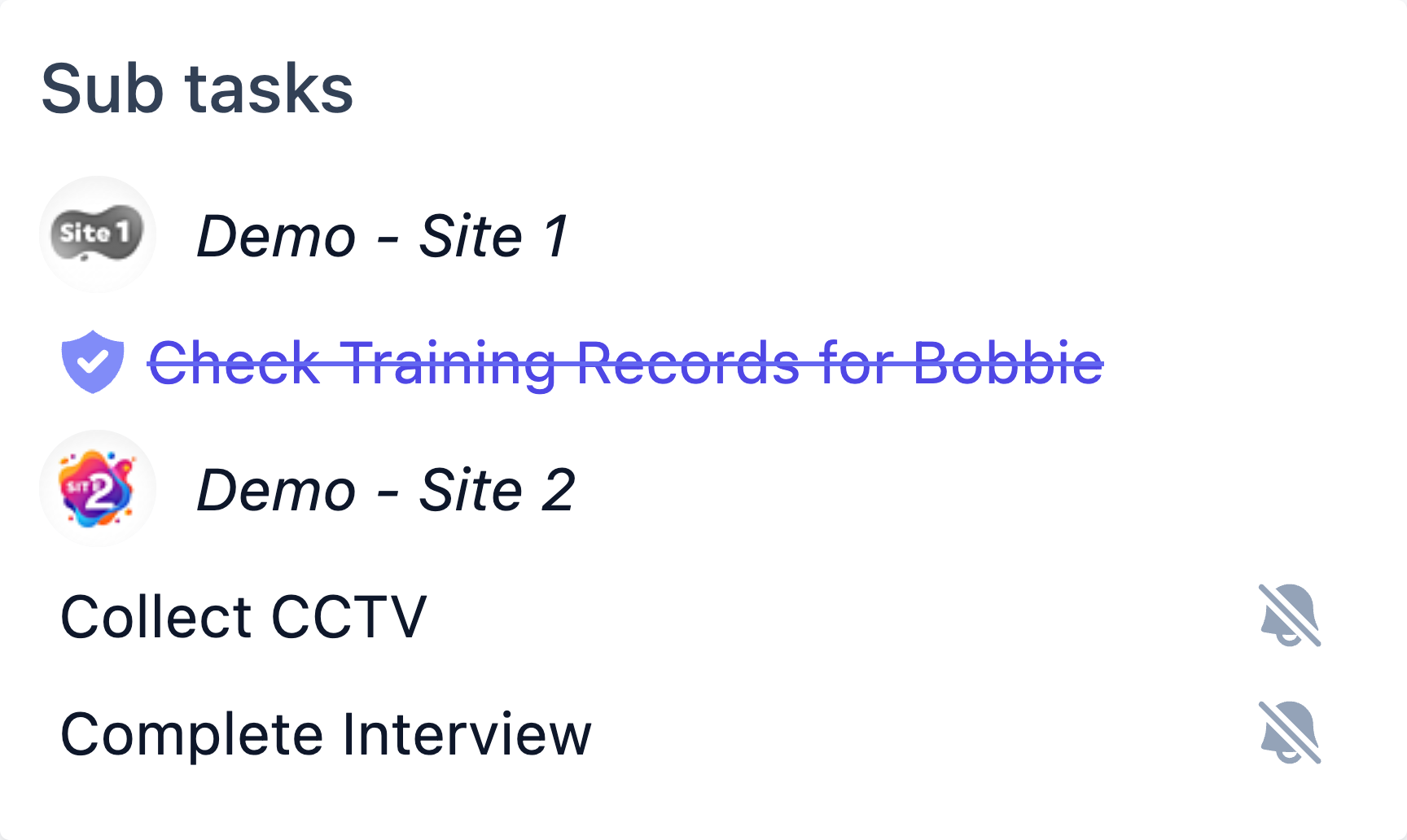
Example - Using Sub Tasks with Incidents
For managers handling incidents, sub tasks can be a useful way to create and allocate relevant work.
Snoozing tasks
Tasks can be snoozed for up to 14 days via the button at the bottom of the task page.
Snoozing is useful when you’re unable to complete a task for reasons such as waiting on a delivery or a booked service.
Warning
We recommend only snoozing tasks that have been assigned. If a task is unassigned, assign it to yourself or the person responsible before snoozing it. Unassigned snoozed tasks will continue to appear in the main site inbox.
Those with user access can only snooze tasks if they're assigned.
Note
Snoozed tasks appear under their own tab on task pages.


Resolving tasks
Tasks can be manually marked as resolved using the button at the bottom of the task page.

Warning
Marking a task as resolved is typically only used for manually reported events or corrective actions. Tasks with linked requirements, such as checklist/document reminder tasks, can only be resolved by completing the requirement.
Missing Information
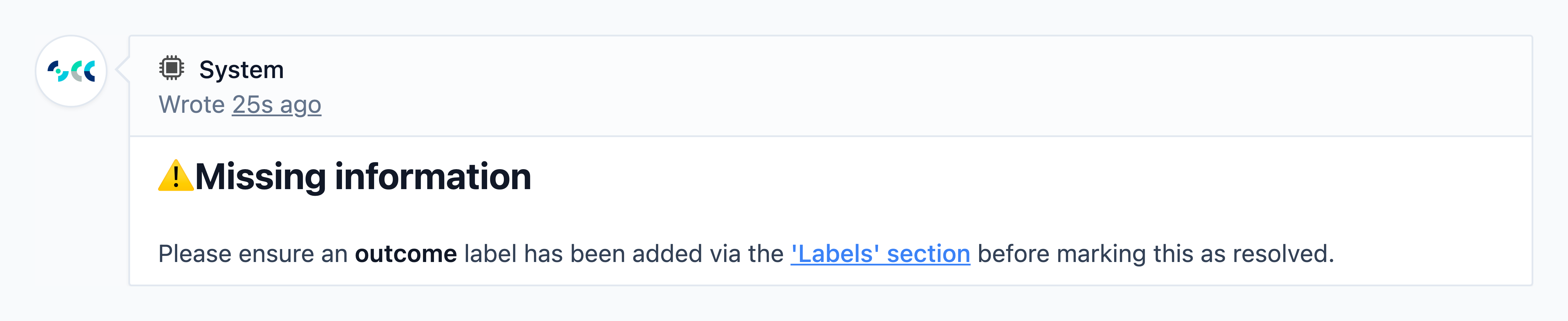
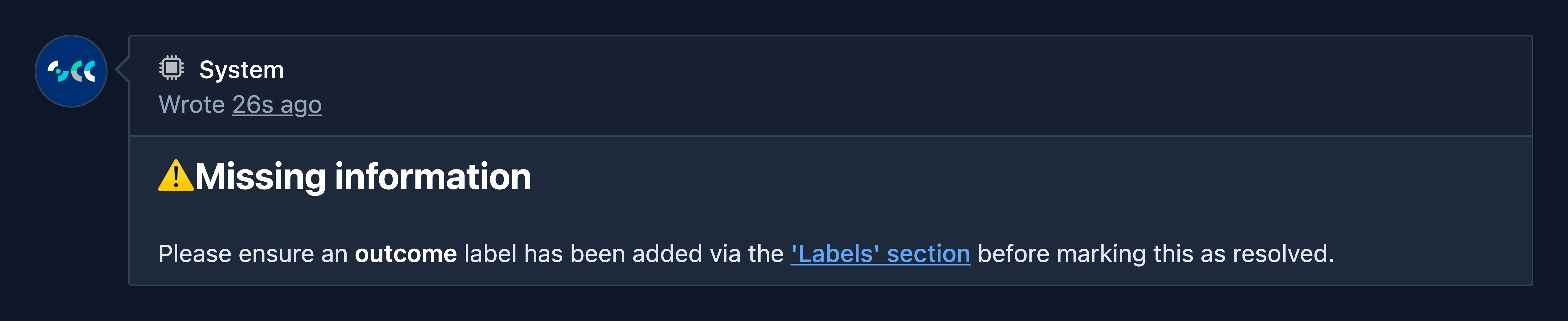
You may encounter tasks that cannot be resolved and instead display a “Missing information” message.
This occurs when a task has required inputs or conditions that have not yet been met. The message will describe the information that is missing and what is required to resolve the task.