Exporting a RAMS project
Written for Managers Administrators
This guide details how to export a RAMS project.
Finding the project


Step
From the site inbox, click the Switch to Manage Mode button.


Step
Select Manage RAMS


Step
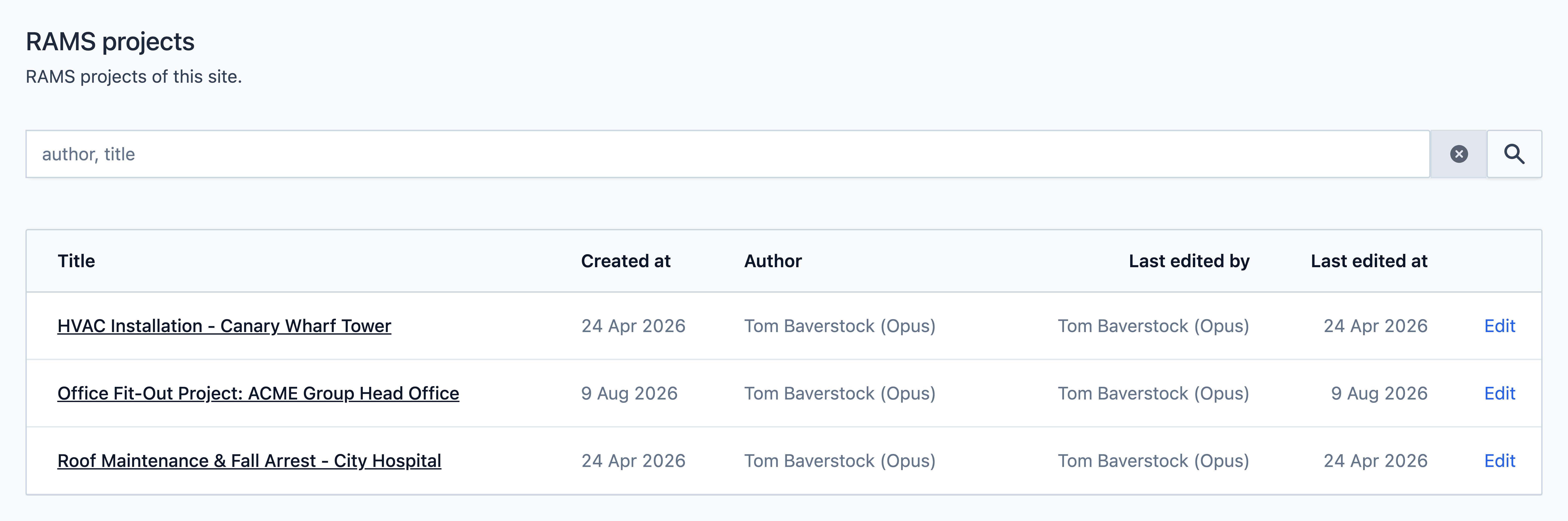
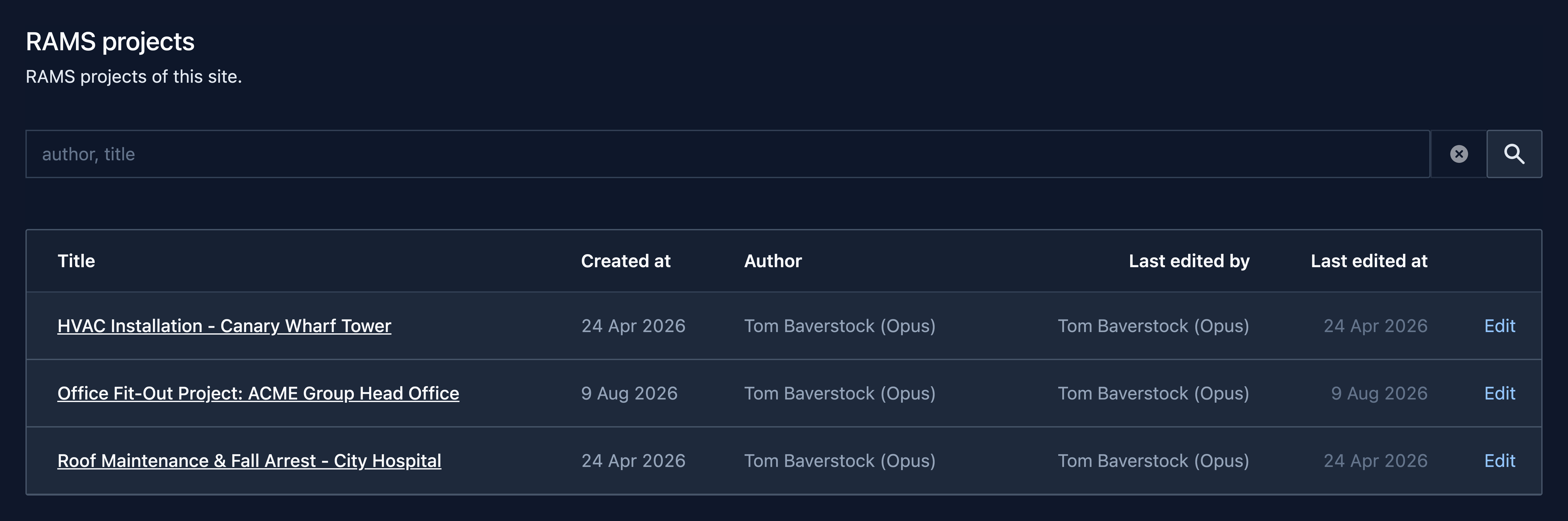
The RAMS projects for this site will appear in a list. Select the project you wish to export.
Tip
Use the search bar to find projects by title or author.
Exporting the project
Step
On the project page, select the Exports button at the top


Step
If any exports have previously been created for this project, they will be displayed in a list on this page.
To create a new export, click +New.


Step
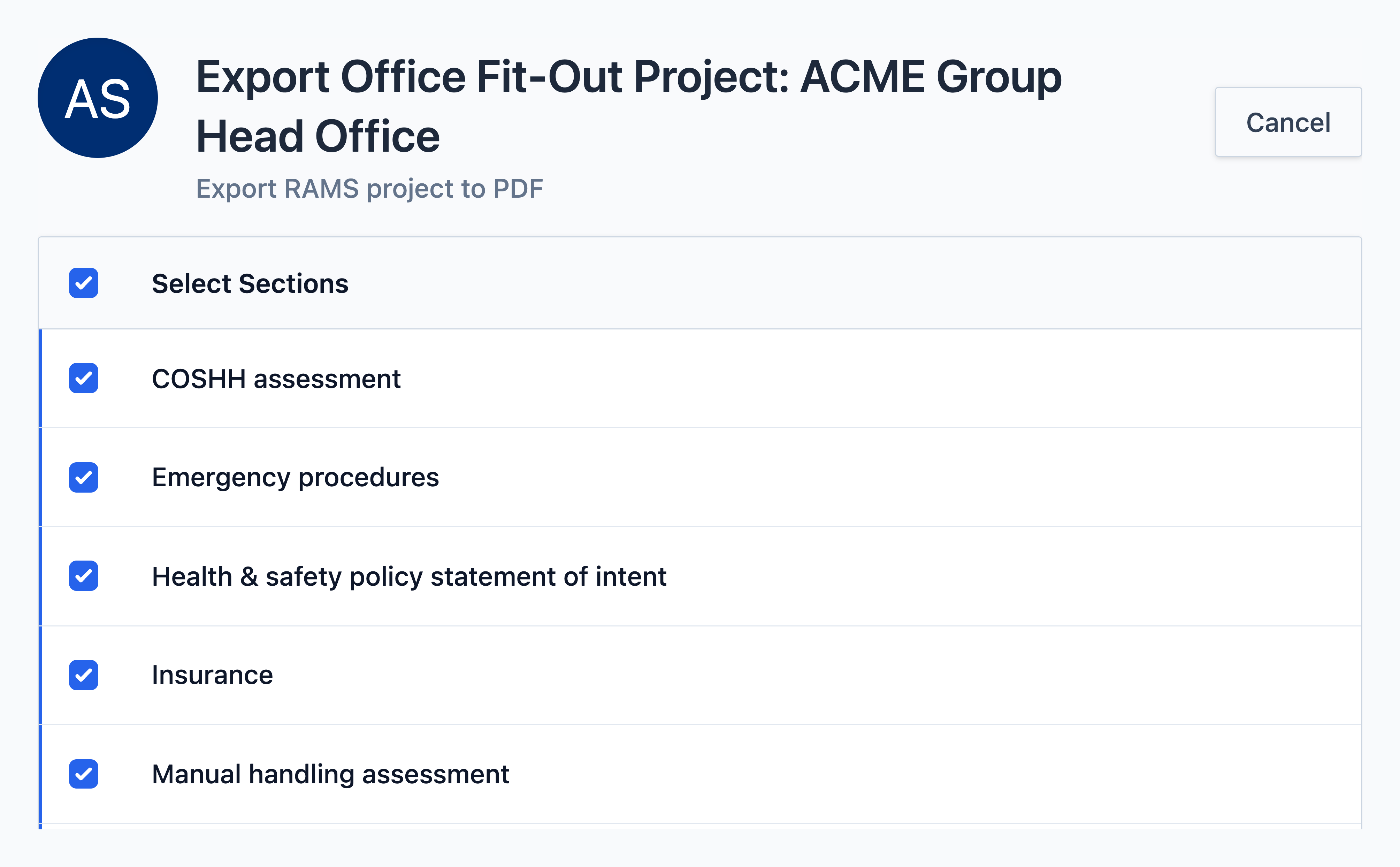
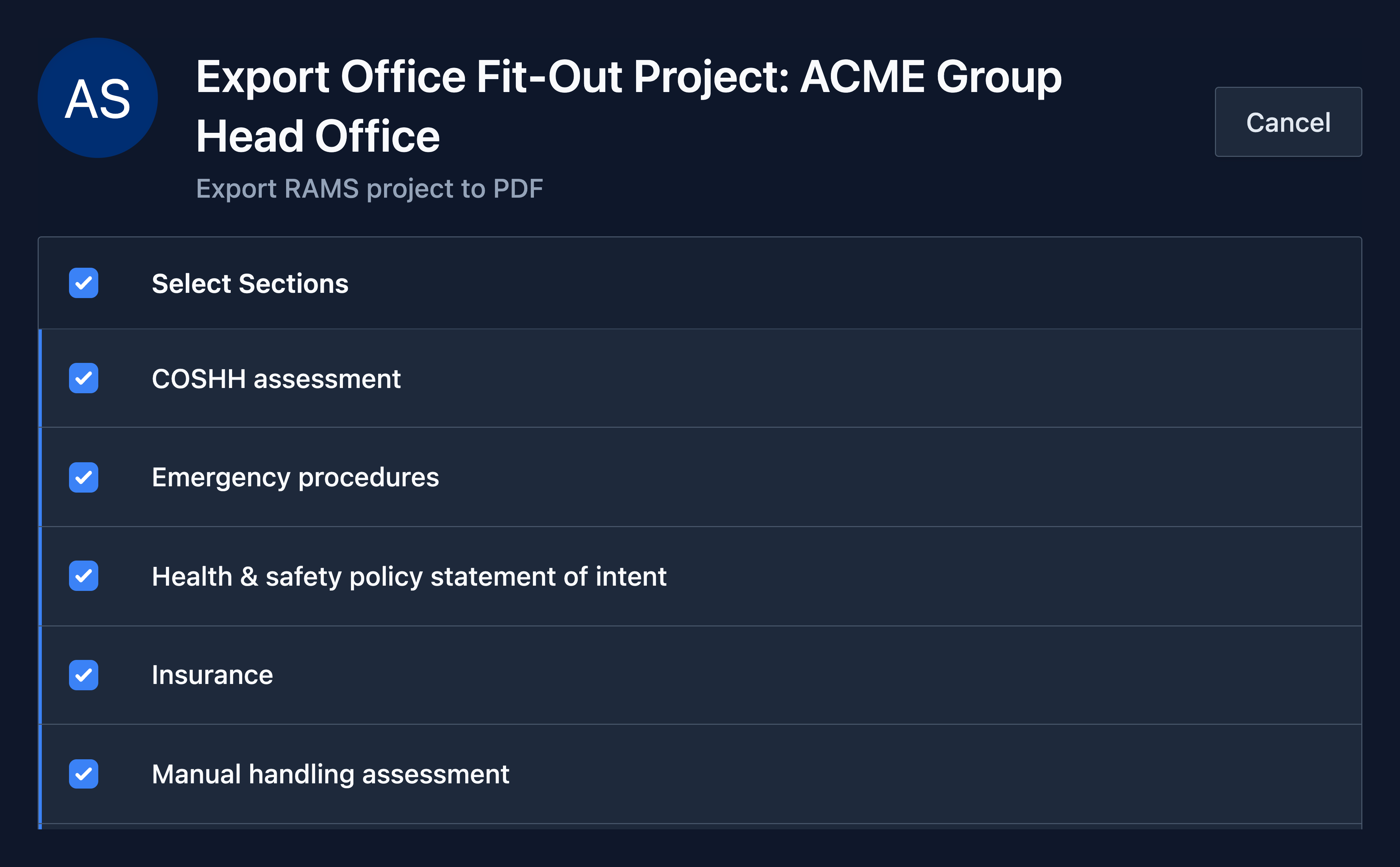
Select/deselect the sections you would like to include in the export.
(All sections are selected by default)
Step
Click the Export to PDF button.


Note
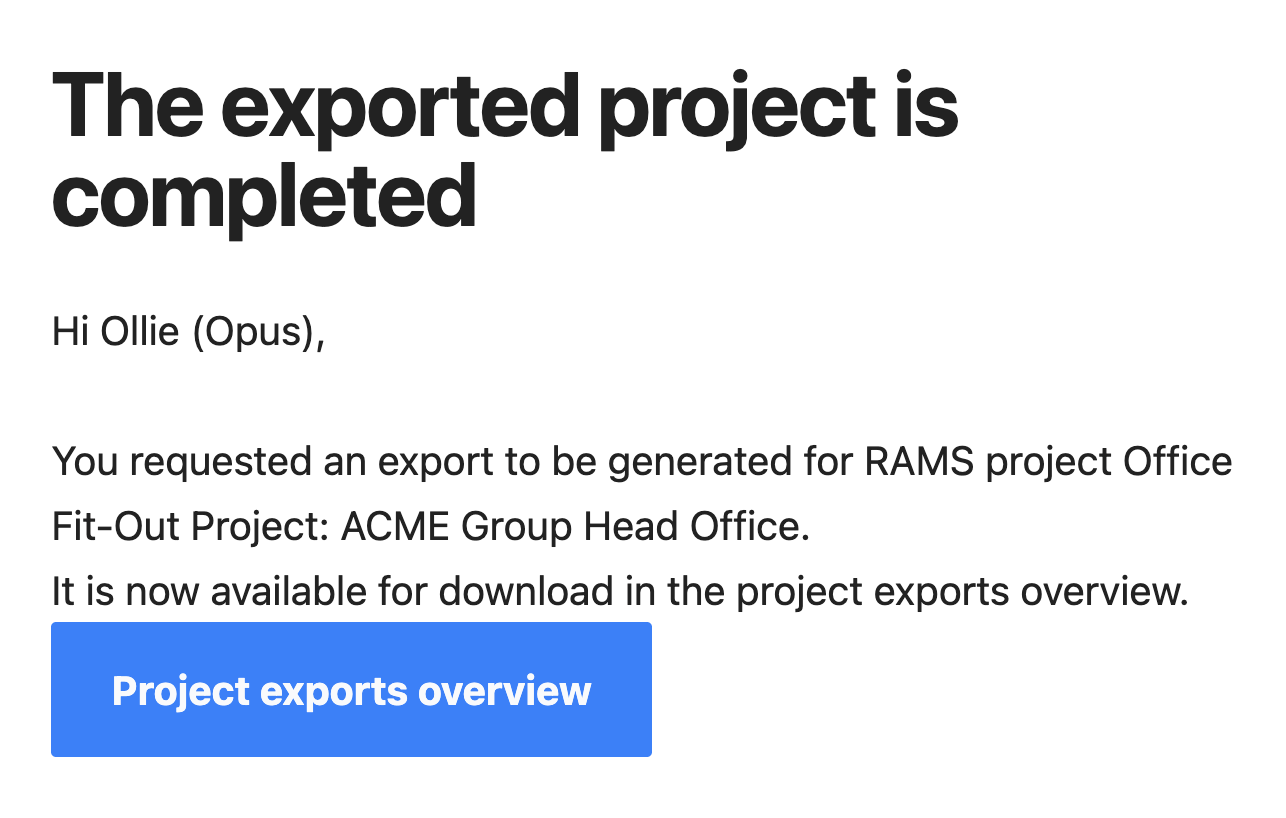
Once clicked, an Export of the RAMS project will be requested. Depending on the project size, the export may take some time to be generated. An email will be sent to you when it is ready for download.
Step
Once you receive the email notification about your RAMS export, follow the button/link to the exports overview.
Step
Your completed export will now appear in the export list. Download the export by clicking the blue Download link.


Warning
If the project is updated after an export has been created, the export will be removed from the table to prevent users from downloading an outdated version. If required, you will need to generate a new export.