Task inboxing
Written for Users Managers Administrators
Throughout Opus Compliance Cloud, tasks are displayed via inboxes/lists. This guide explains the different ways tasks are presented.
Site Inbox
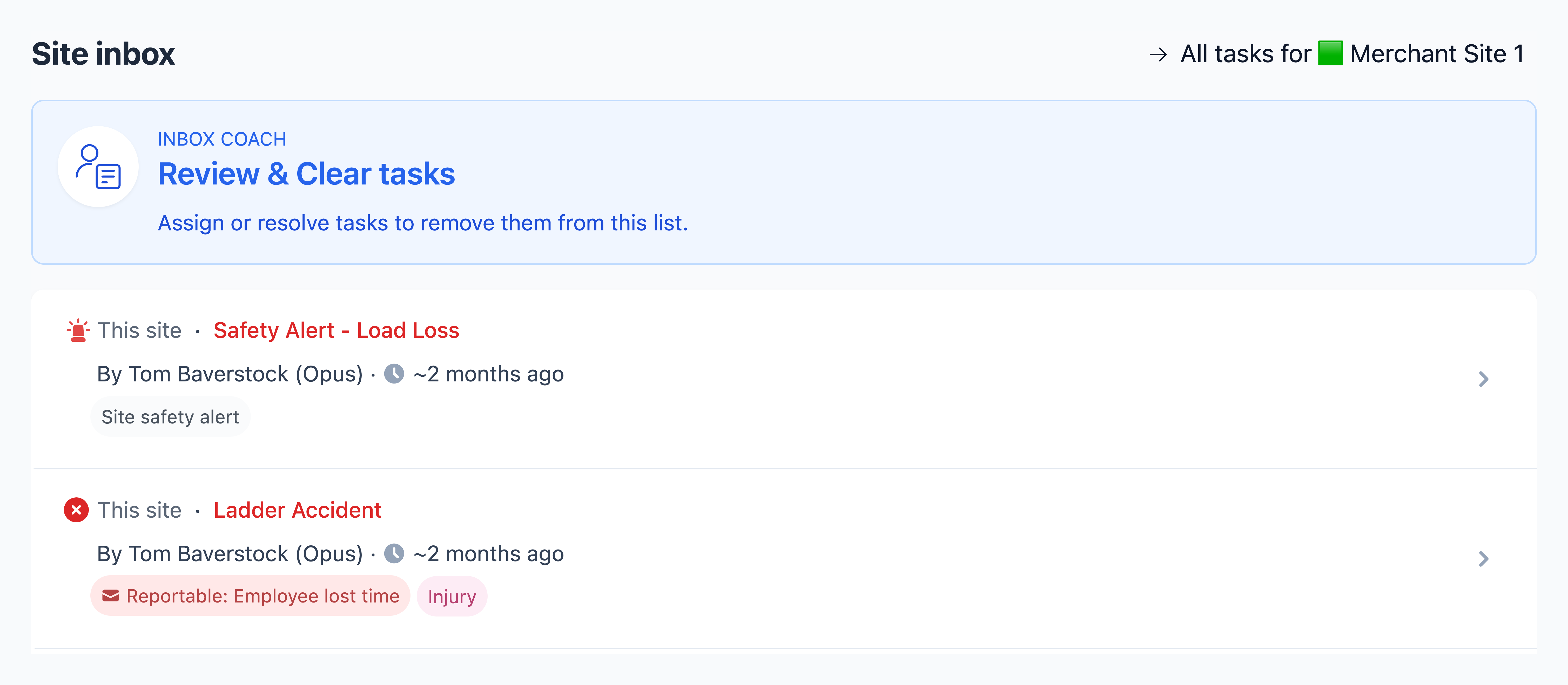
The Site Inbox displays all open and unassigned tasks for a site (including tasks in the inboxes of employees and assets located at the site).
How to get to the Site Inbox
The Site Inbox can be found when viewing any site in View mode.
From My Dashboard, click Pick Workspace and select the site whose inbox you want to view.


Using the Site Inbox
For Site Managers, the Site Inbox is one of the most important tools for overseeing day-to-day operations. Your goal is to keep the inbox clear by promptly reviewing each task and either:
- completing it yourself;
- assigning it to the appropriate person; or
- ensuring the responsible employee completes it.
Tip
By default, tasks are displayed in severity order, with the most important tasks at the top. Work through the list from top to bottom so that high-priority tasks are addressed first.
Warning
As a general rule, tasks should not remain open and unassigned for more than two weeks. If a task cannot be completed within that timeframe, assign it to yourself or another responsible employee so ownership is clear and progress can be tracked.
My Tasks
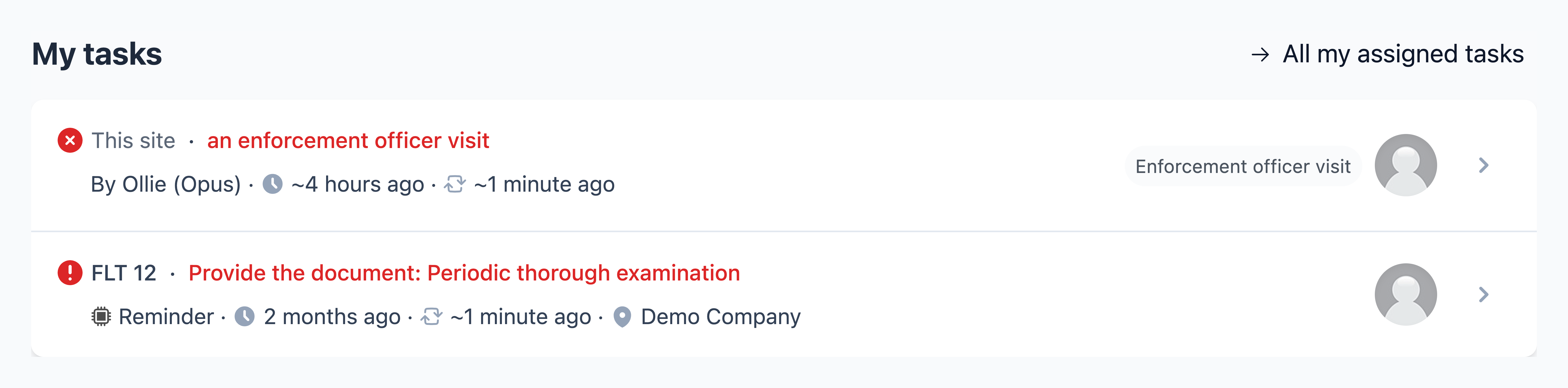
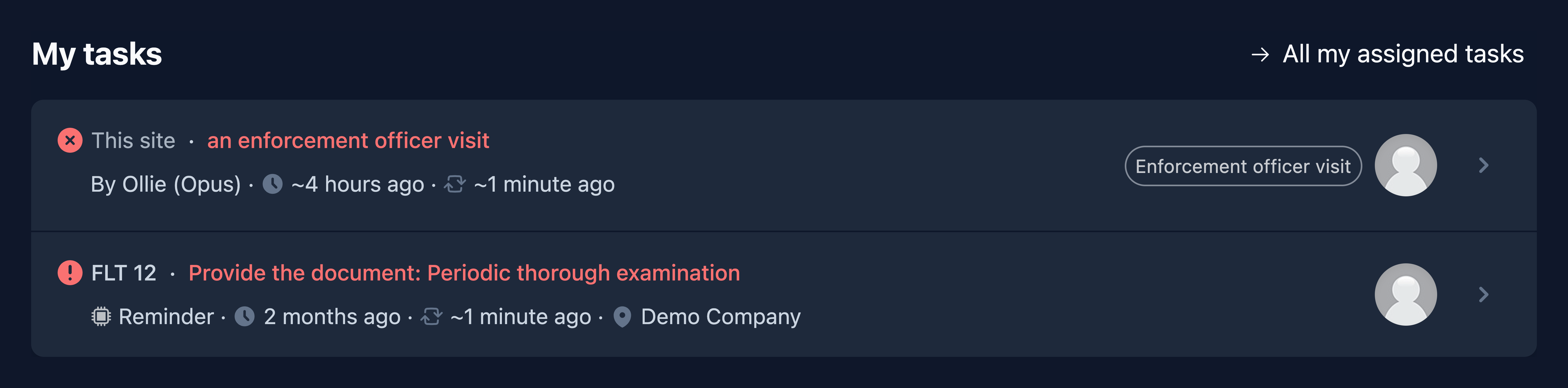
My Tasks appears above the Site Inbox and lists all tasks assigned to you that belong to the site or any sites beneath it in the hierarchy.
Inbox Coach
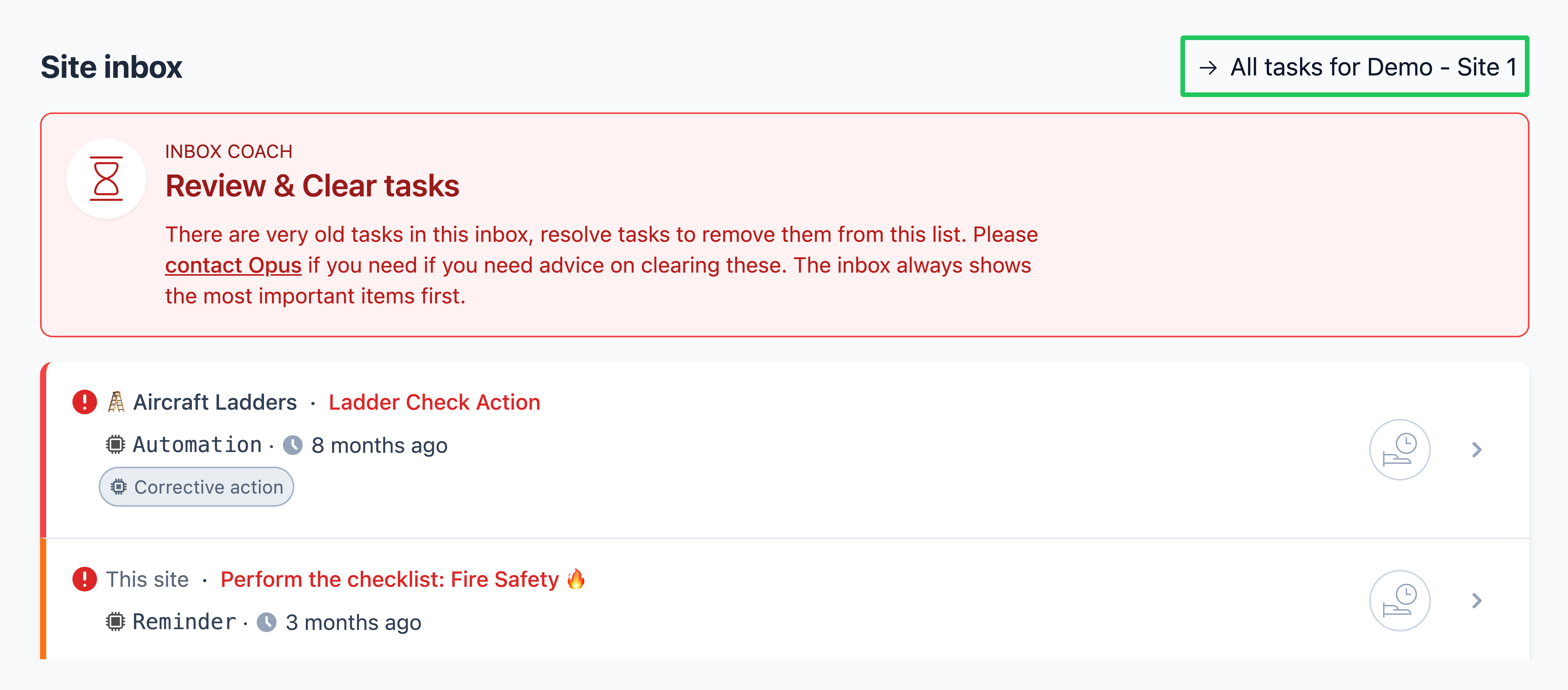
The Inbox Coach is a visual indicator displayed at the top of the Site Inbox. It provides an at-a-glance overview of the status of the tasks in your inbox, making it easy to see whether tasks are being completed effectively.
Status: Green
All tasks are assigned and nothing is older than 3 months.


Status: Blue
All tasks in the inbox are under 3 months old.


Status: Amber
There are tasks in the inbox that are over 3 months old. It is important that these are dealt with as soon as possible.


Status: Red
There are tasks in the inbox that are over 6 months old. It is important that these are dealt with as soon as possible.


All Tasks
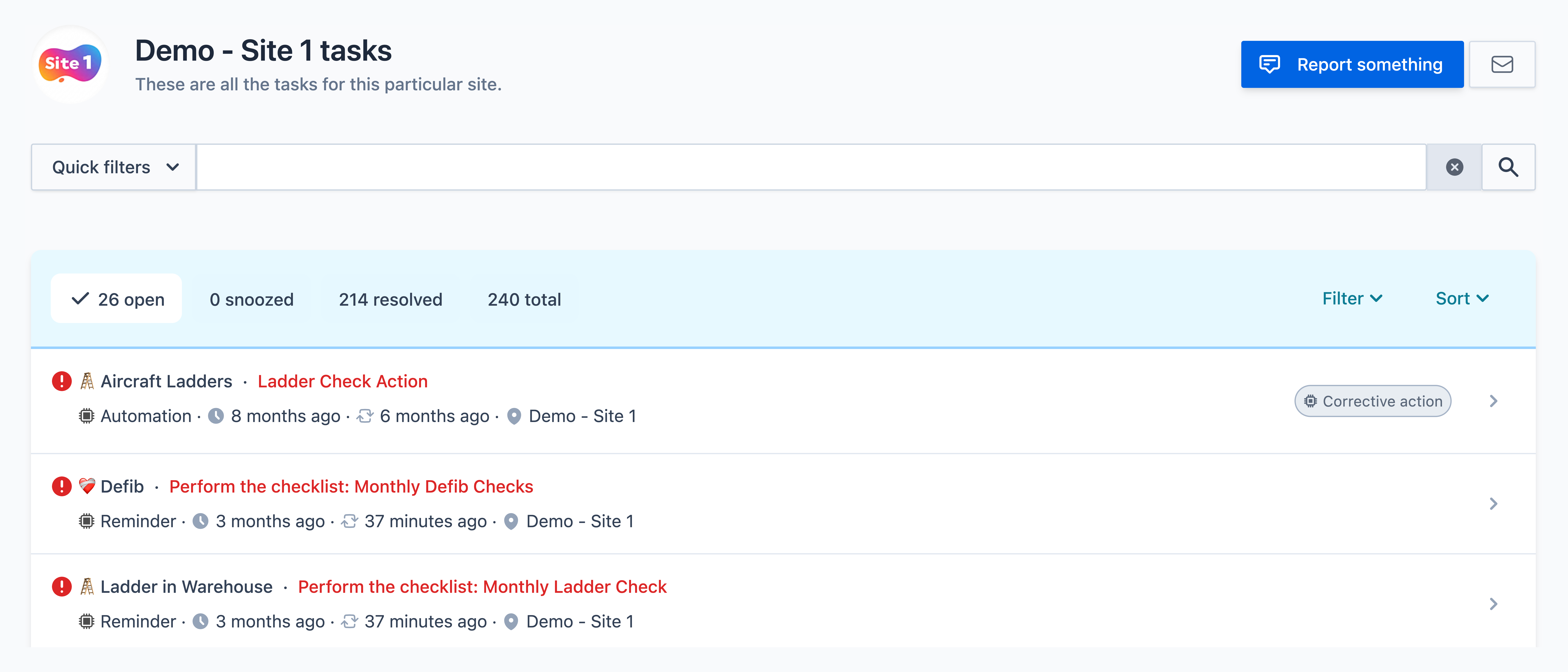
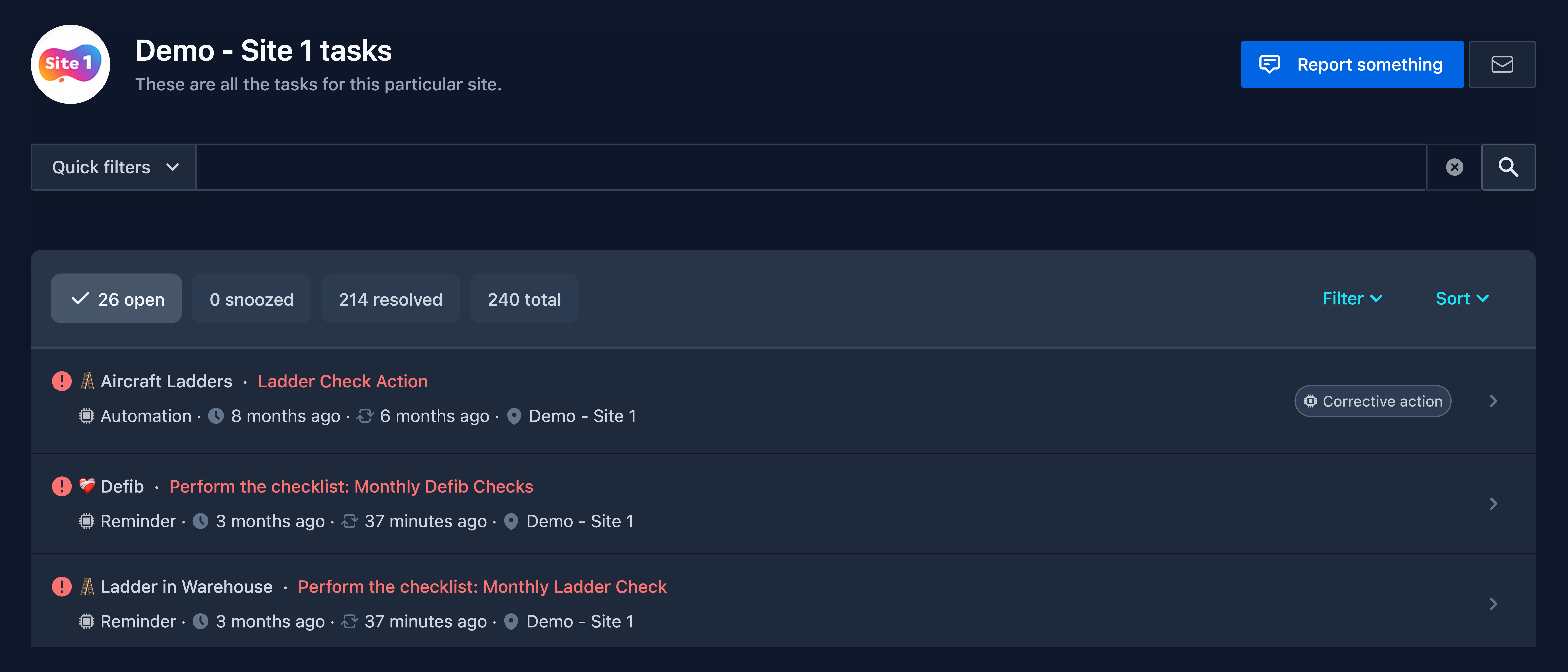
As the Site Inbox only displays open, unassigned tasks, use All Tasks to view every task, including open and resolved, assigned and unassigned.
How to get to All Tasks
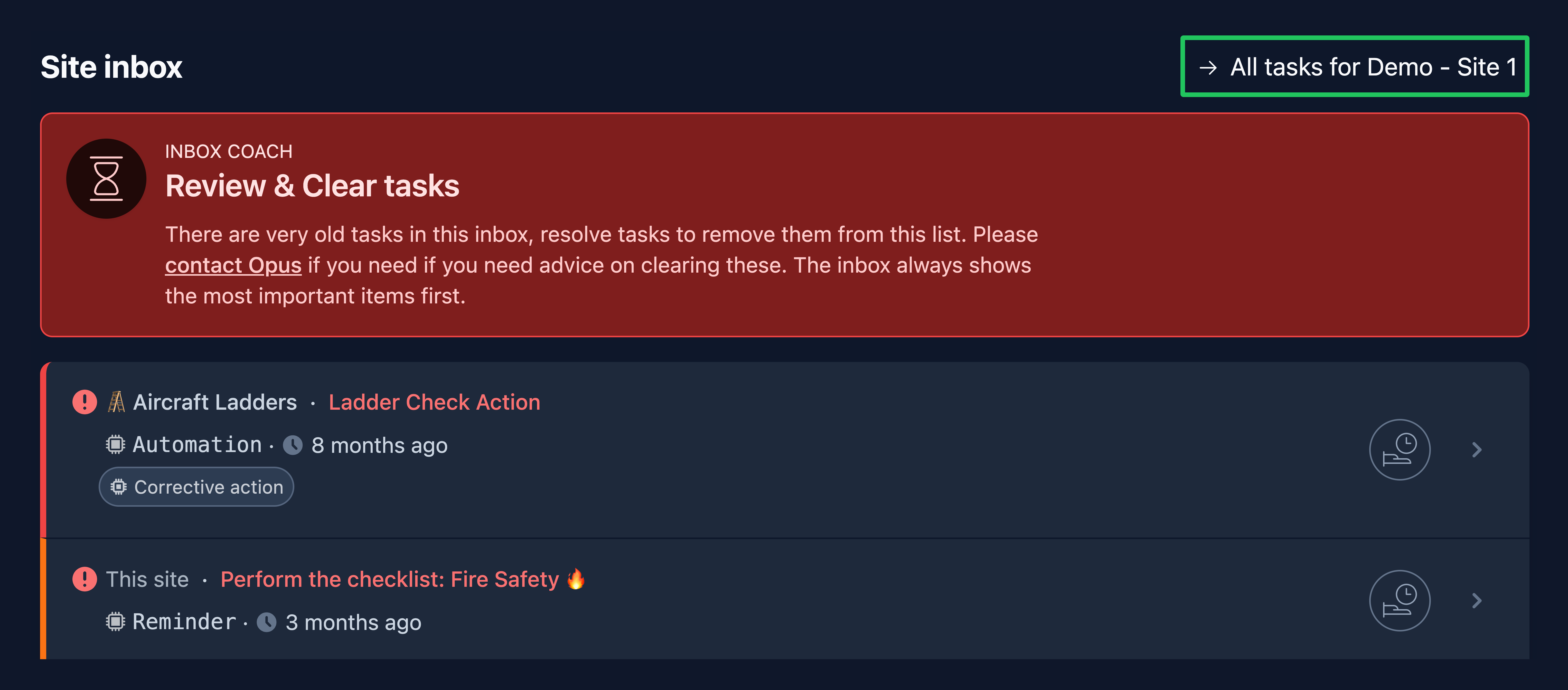
You can get to the All Tasks page for a site by clicking the link at the top of the site inbox.
Using All Tasks
By default, All Tasks is sorted in the same way as all other task pages and inboxes - first by severity, then by age. This ensures that, when working from the top down, you are addressing the highest-priority tasks first.
This page also includes additional filtering and search tools to allow you to find the tasks you're looking for.
My Assigned Tasks
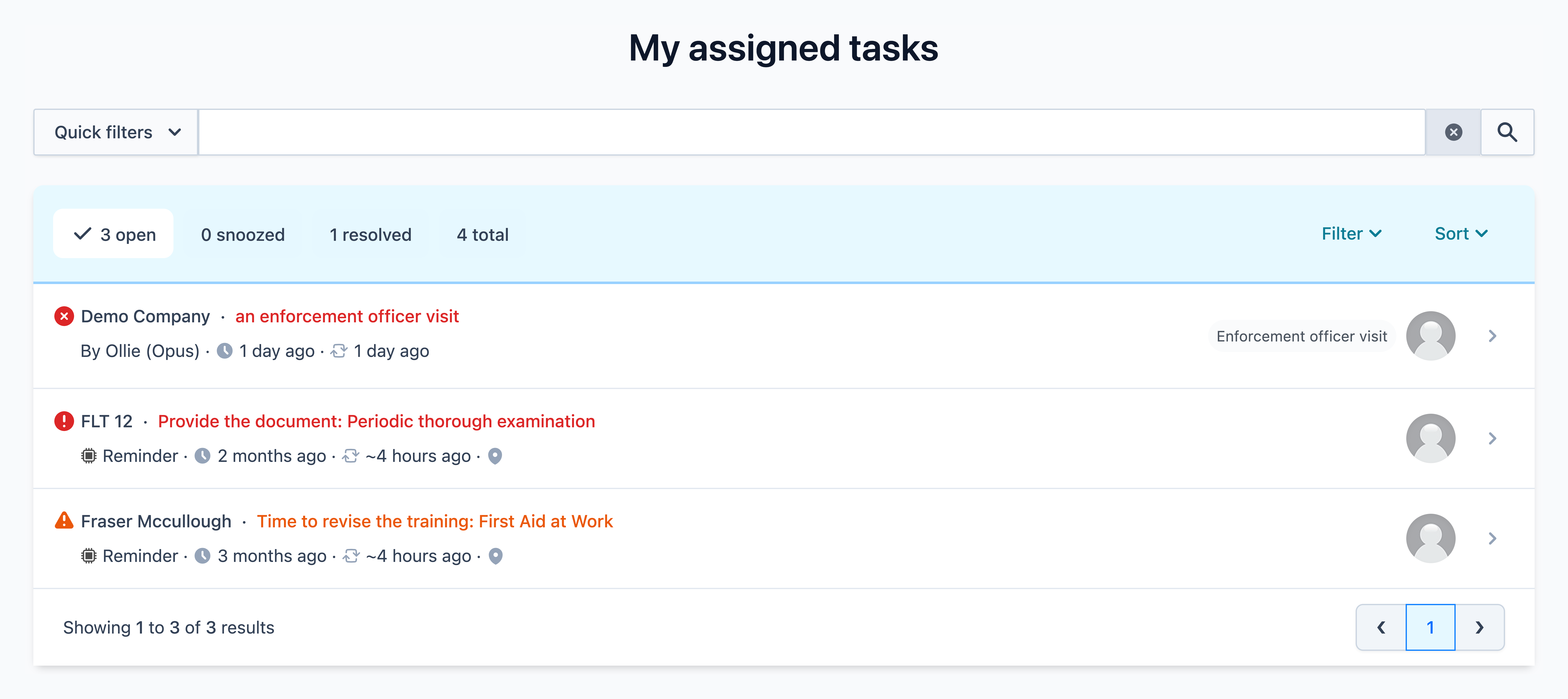
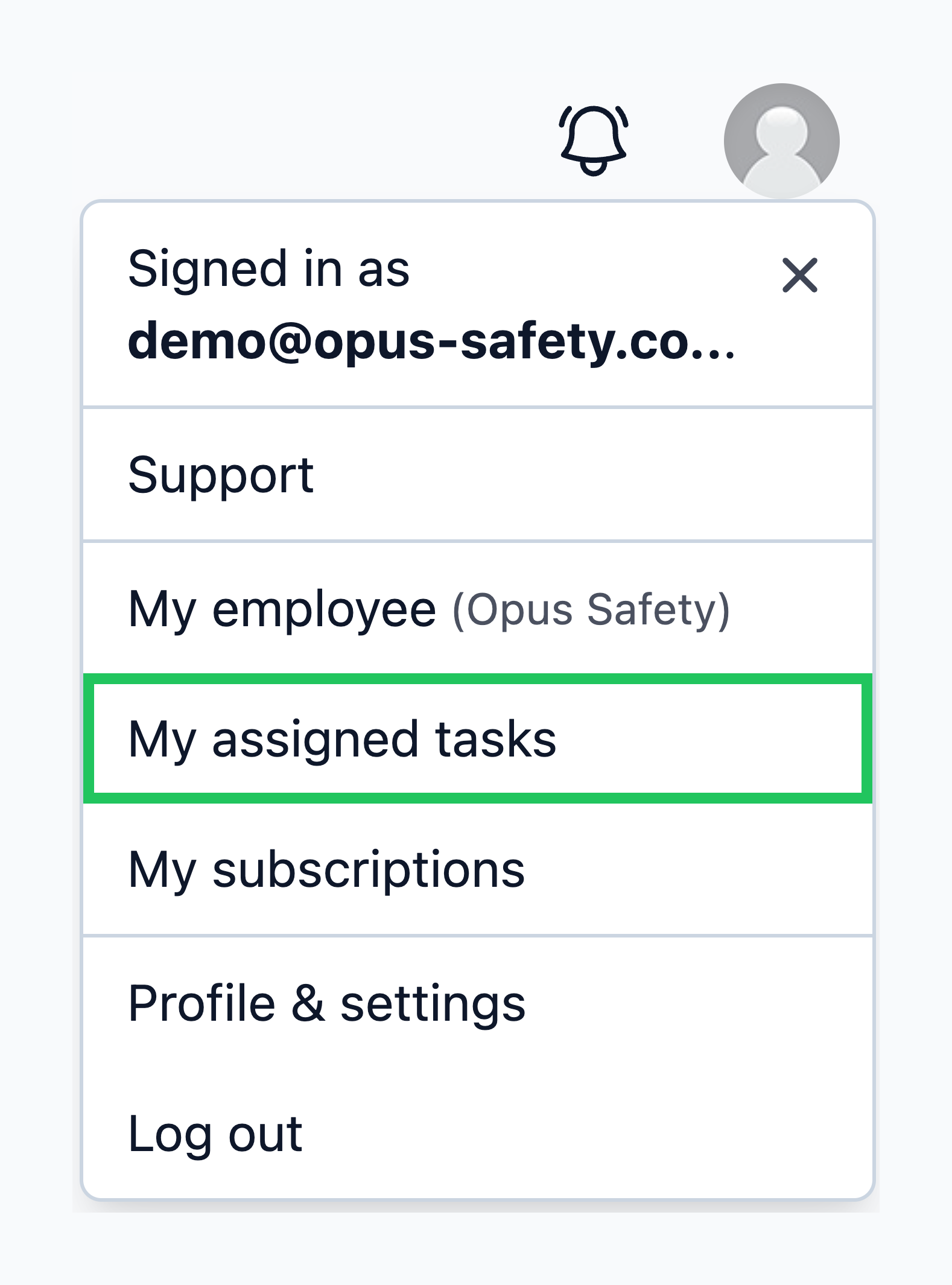
As well as My Tasks, there is a dedicated page called My Assigned Tasks that lists all tasks assigned to you across any site.
How to get to My Assigned Tasks
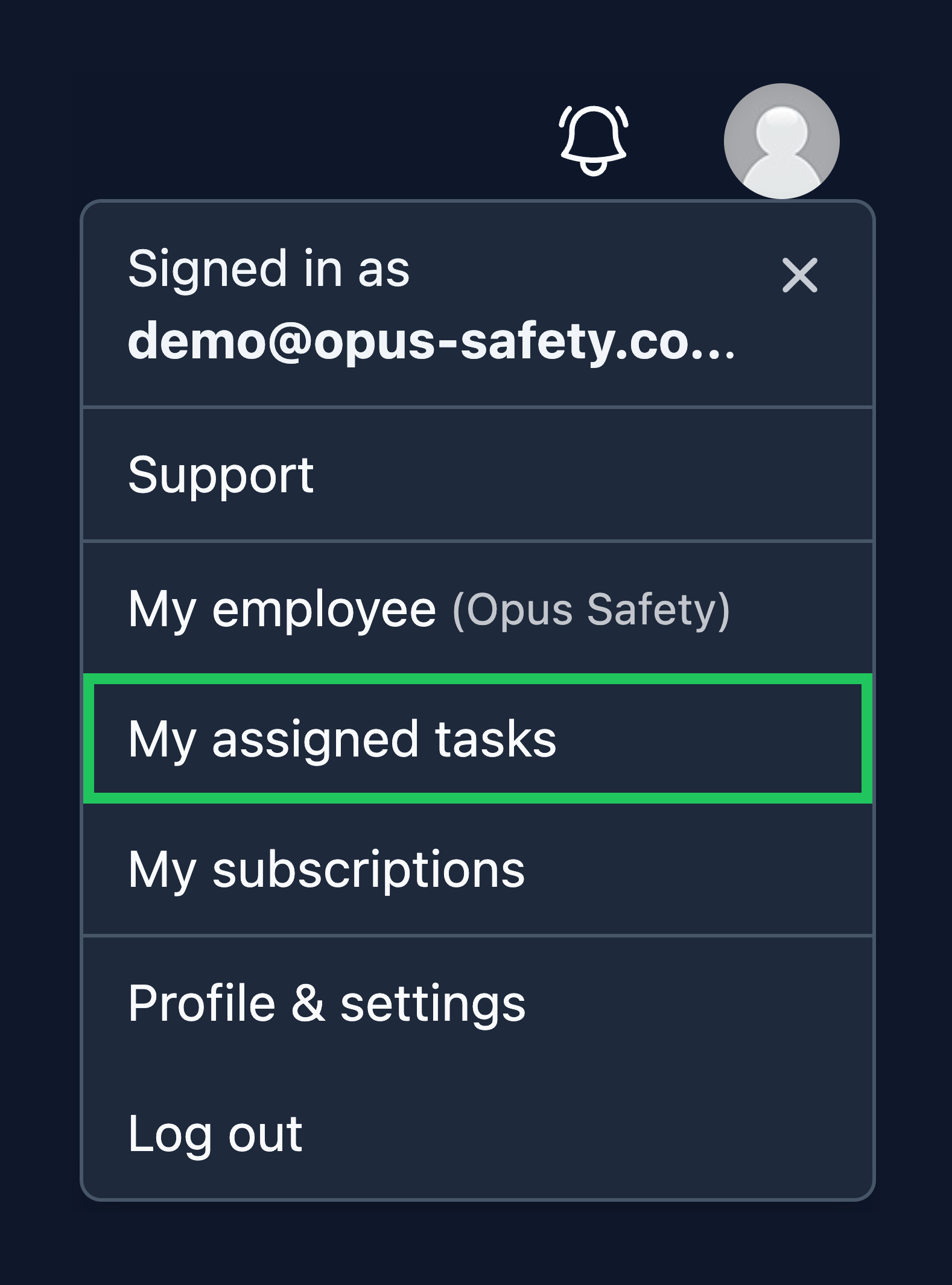
From My Dashboard or any view mode page, click your profile icon in the top right and select My Assigned Tasks
Using My Assigned Tasks
By default, My Assigned Tasks is sorted in the same way as all other task pages and inboxes - first by severity, then by age. This ensures that, when working from the top down, you are addressing the highest-priority tasks first.
This page also includes additional filtering and search tools to allow you to find the tasks you're looking for.