Managing a RAMS project
Written for Managers Administrators
This guide details how to manage a RAMS project in Opus Compliance Cloud.
Finding your projects
Step
From My Dashboard, click on Pick workspace and select the site that contains the RAMS project(s) you're looking for.


Step
From the site inbox, click the Switch to Manage Mode button.


Step
Select Manage RAMS


Step
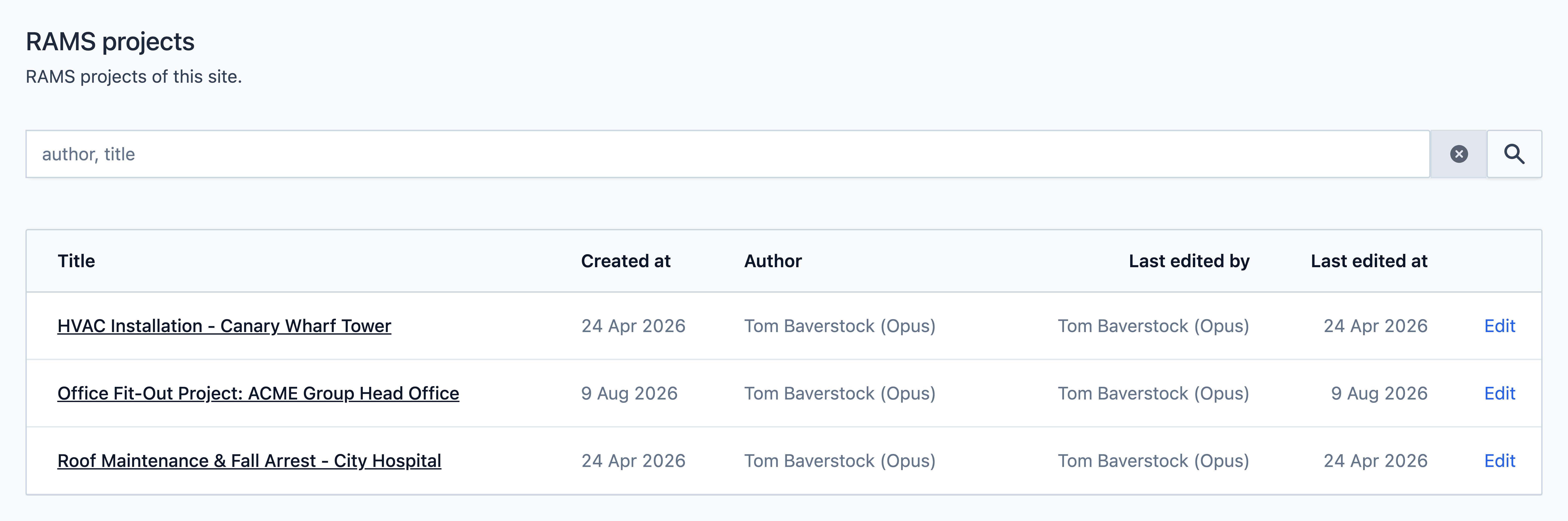
The RAMS projects for this site will appear in a list. Select a project to view/manage it.
Tip
Use the search bar to find projects by title or author.
Adding risk assessments & method statements
Step
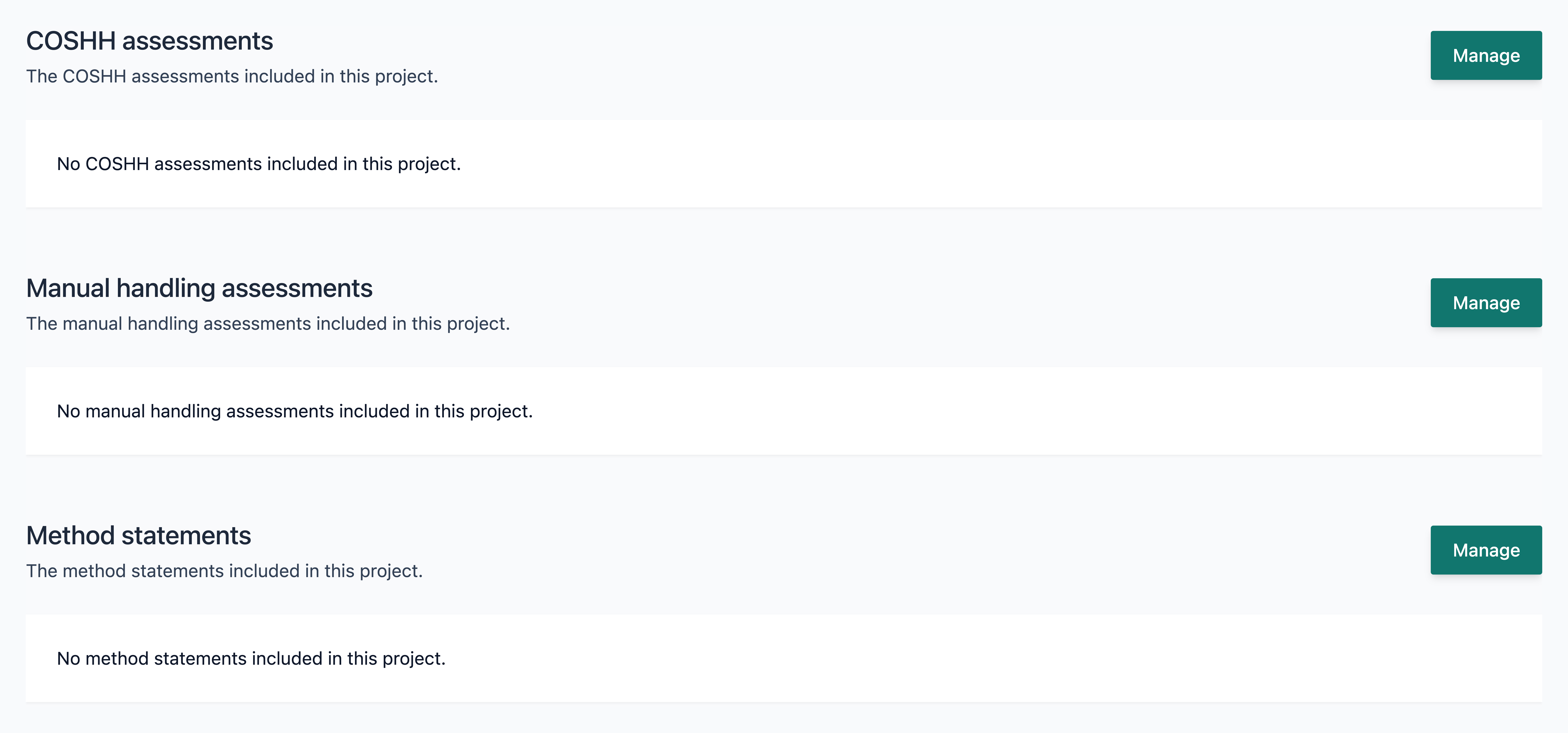
On the RAMS project page, scroll down to see the Risk Assessment/Method Statement sections.
Step
Select the Manage button on the section you wish to add content to.


Step
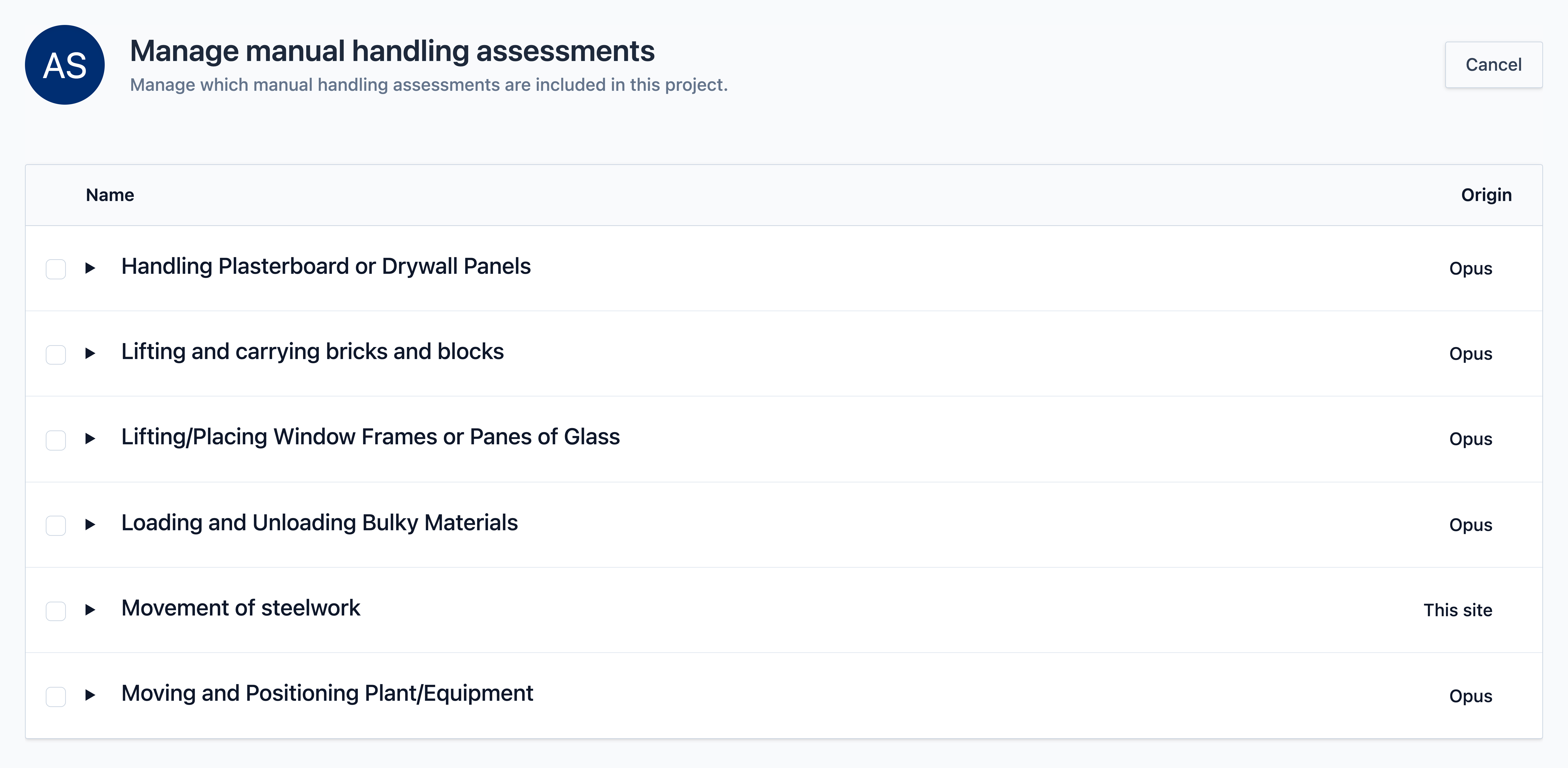
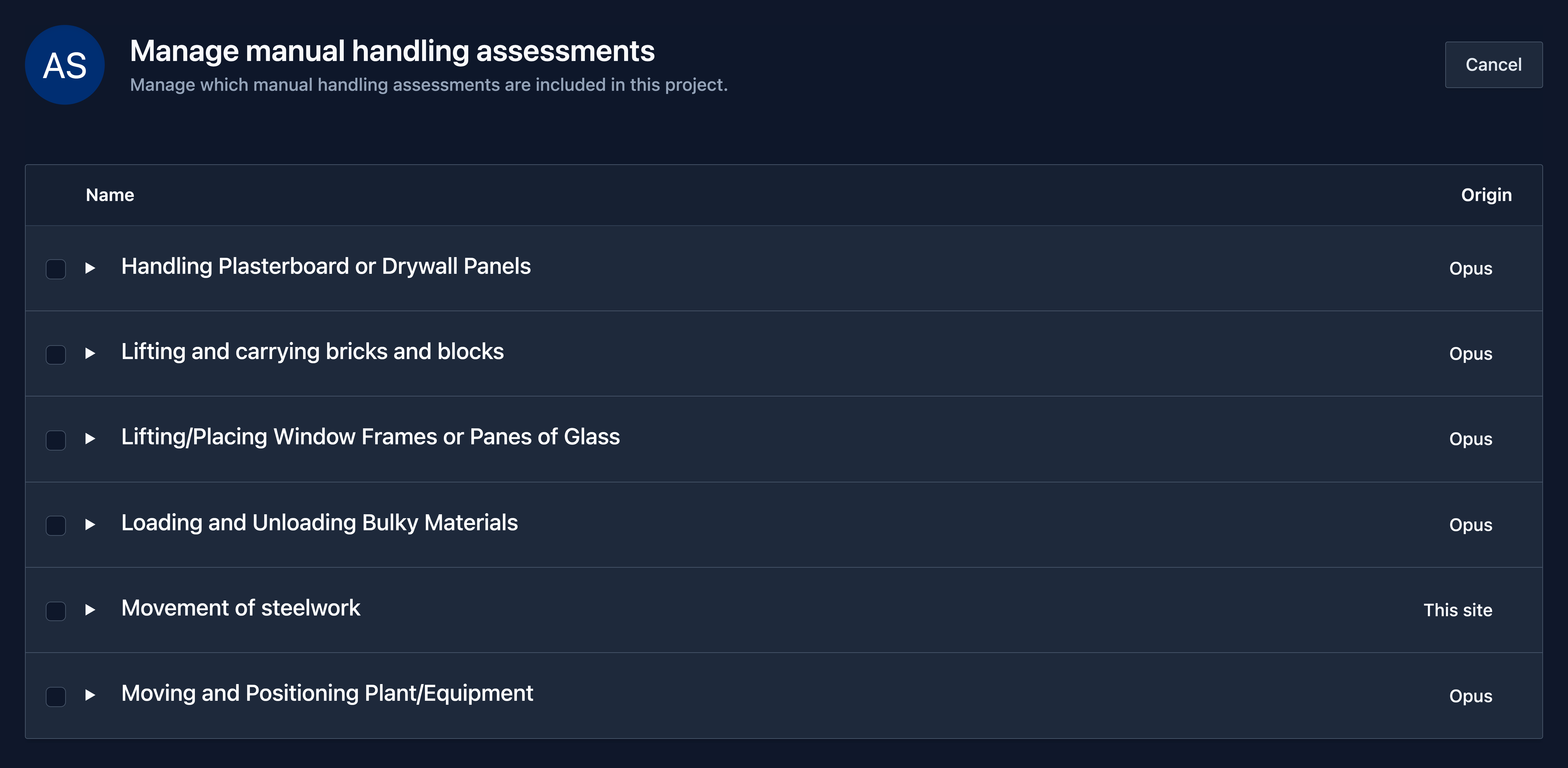
From the list of available options, select the resources you would like to add to the project.
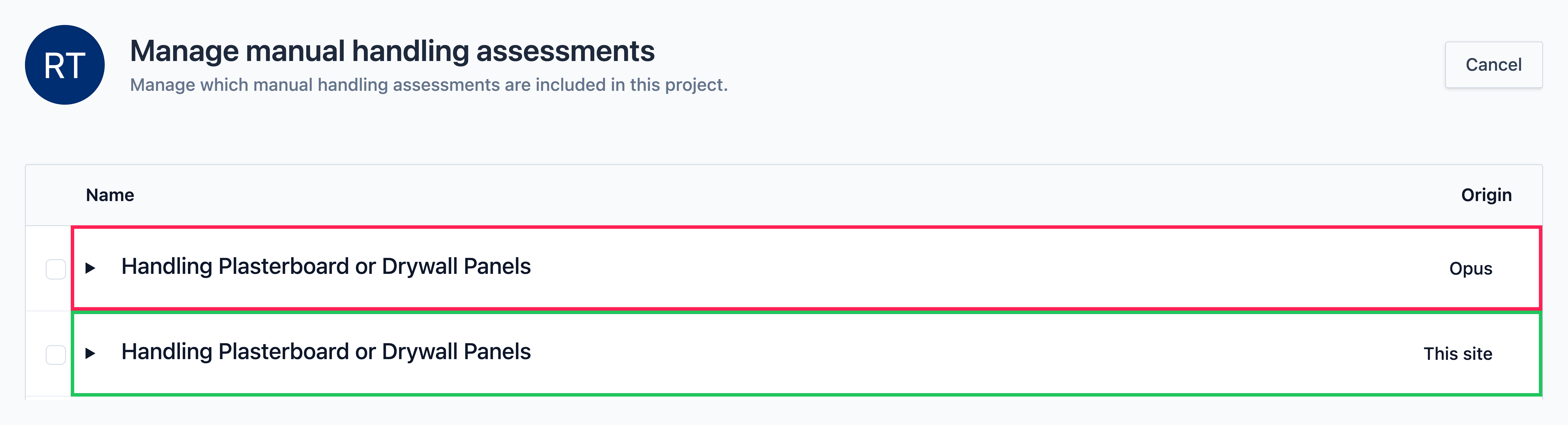
The Origin column shows whether each resource is an Opus assessment/statement, or one of your own.
Tip
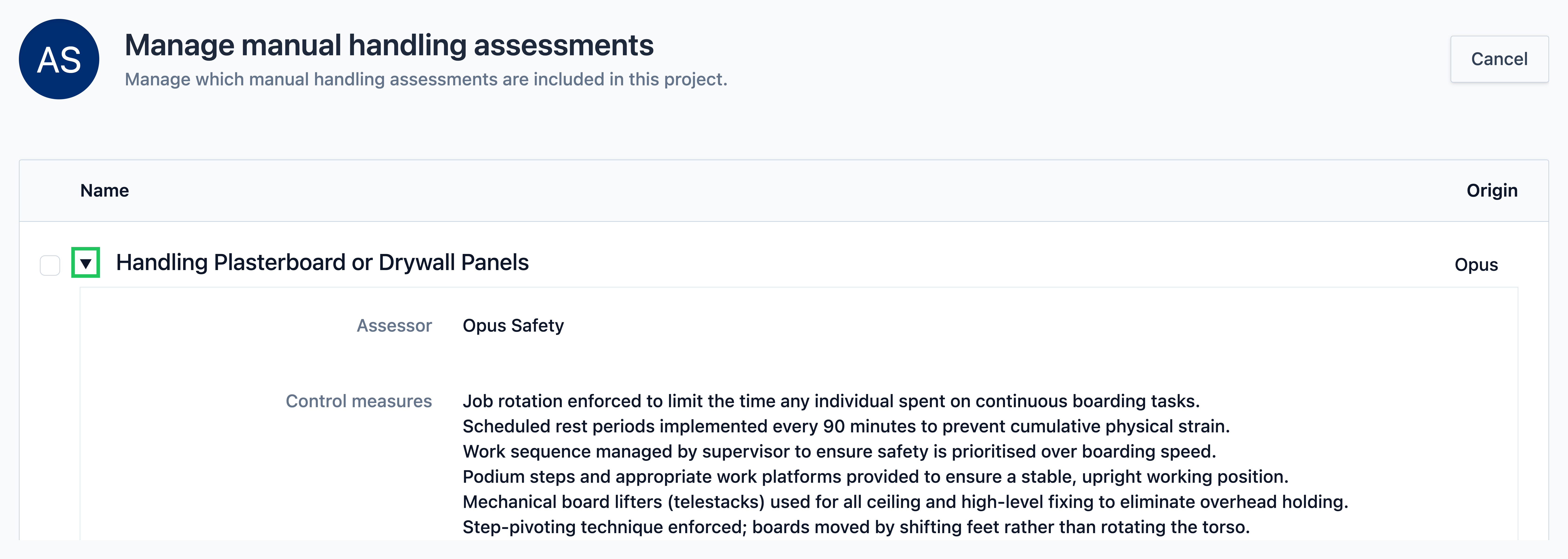
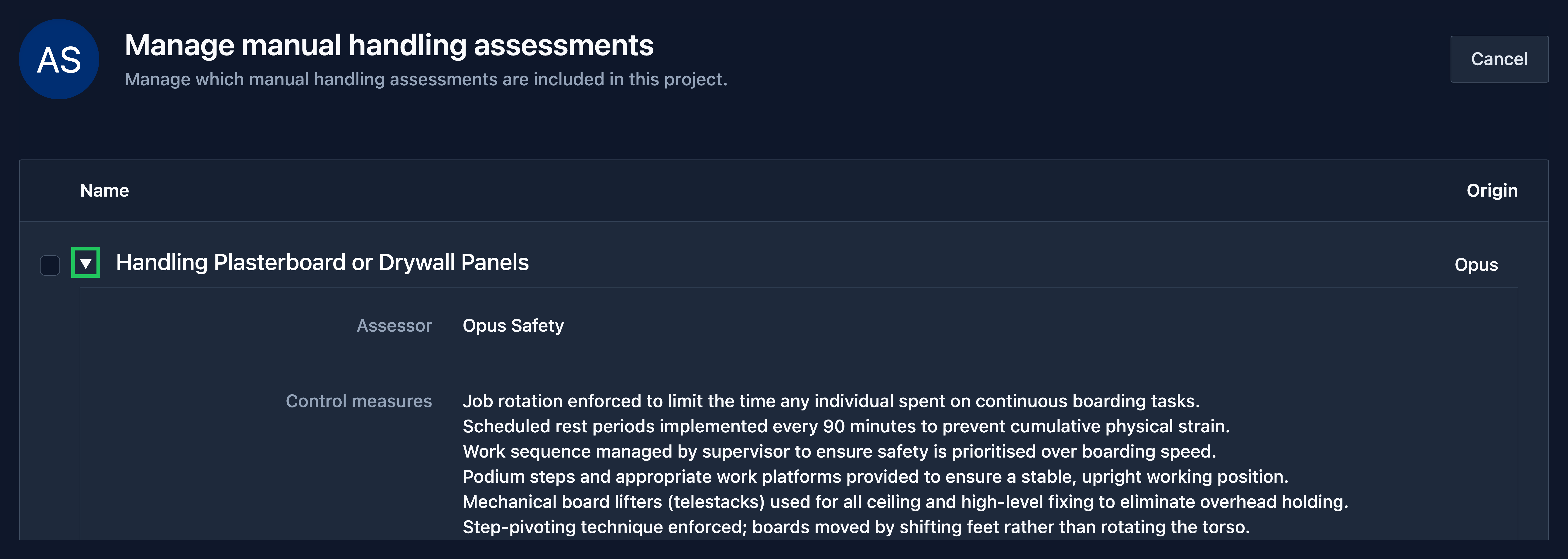
Each option can be clicked to expand a section showing information about what is included in that assessment/statement.
Step
Select Save once you have made your selection.
Repeat these steps for each relevant section of your project.


Overriding risk assessments & method statements
Risk assessments / Method statements that have been added to a project can be overridden using the Override button. This edits the content of the resource for that project only.


Info
If you are using a standard Opus assessment/statement, you may want to override it to make sure the content reflects the specifics of your project.
Promoting risk assessments & method statements
Risk assessments / Method statements that have been added to a project can be promoted using the Promote button. This duplicates the content of the resource, including any edits made via overriding, to your site so it to be used on other projects.


Example
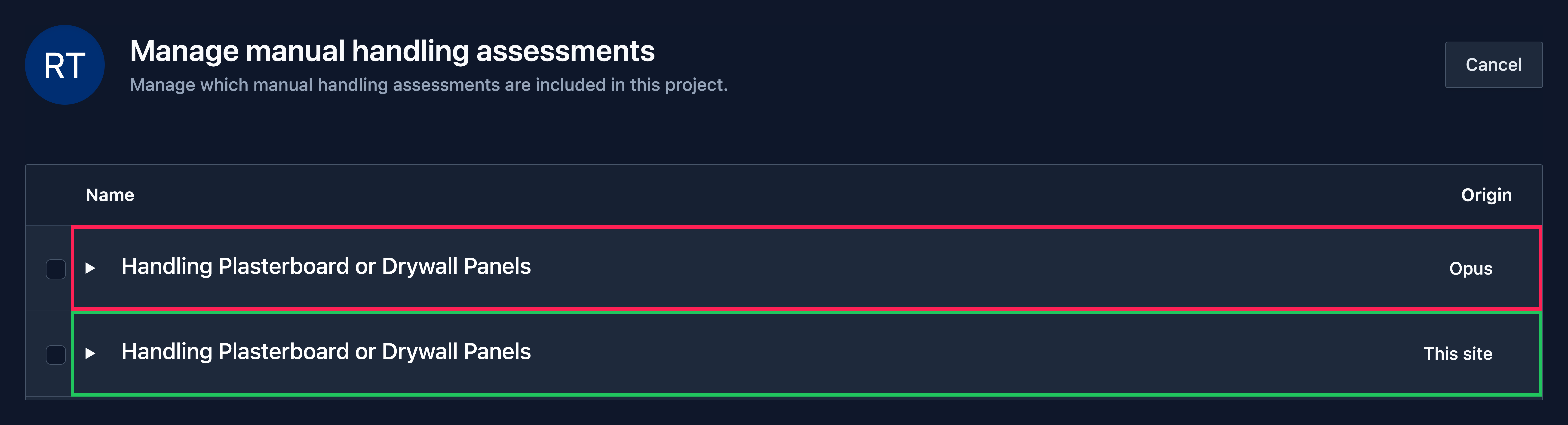
After promoting the Opus Handling Plasterboard or Drywall Panels assessment above, you will see both the original and the duplicate in the Manage list when adding assessments to other projects.
How toolbox talks are scheduled
Toolbox talks are scheduled based on the duration of your project. If the project runs for longer than the number of talks selected, the sequence will repeat.
For example, if you select 5 talks for a 10-week project, a new talk will be delivered each week for the first 5 weeks, before the sequence starts again from the beginning.