Creating a RAMS project
Written for Managers Administrators
This guide details how to create a RAMS project in Opus Compliance Cloud.
Navigating to the RAMS projects page
Step
From My Dashboard, click on Pick workspace and select the site where you want to create the RAMS project.


Step
From the site inbox, click the Switch to Manage Mode button.


Step
Select Manage RAMS


Creating the RAMS project
Step
From the project page, click the +New button


Step
Fill in the project's initial details
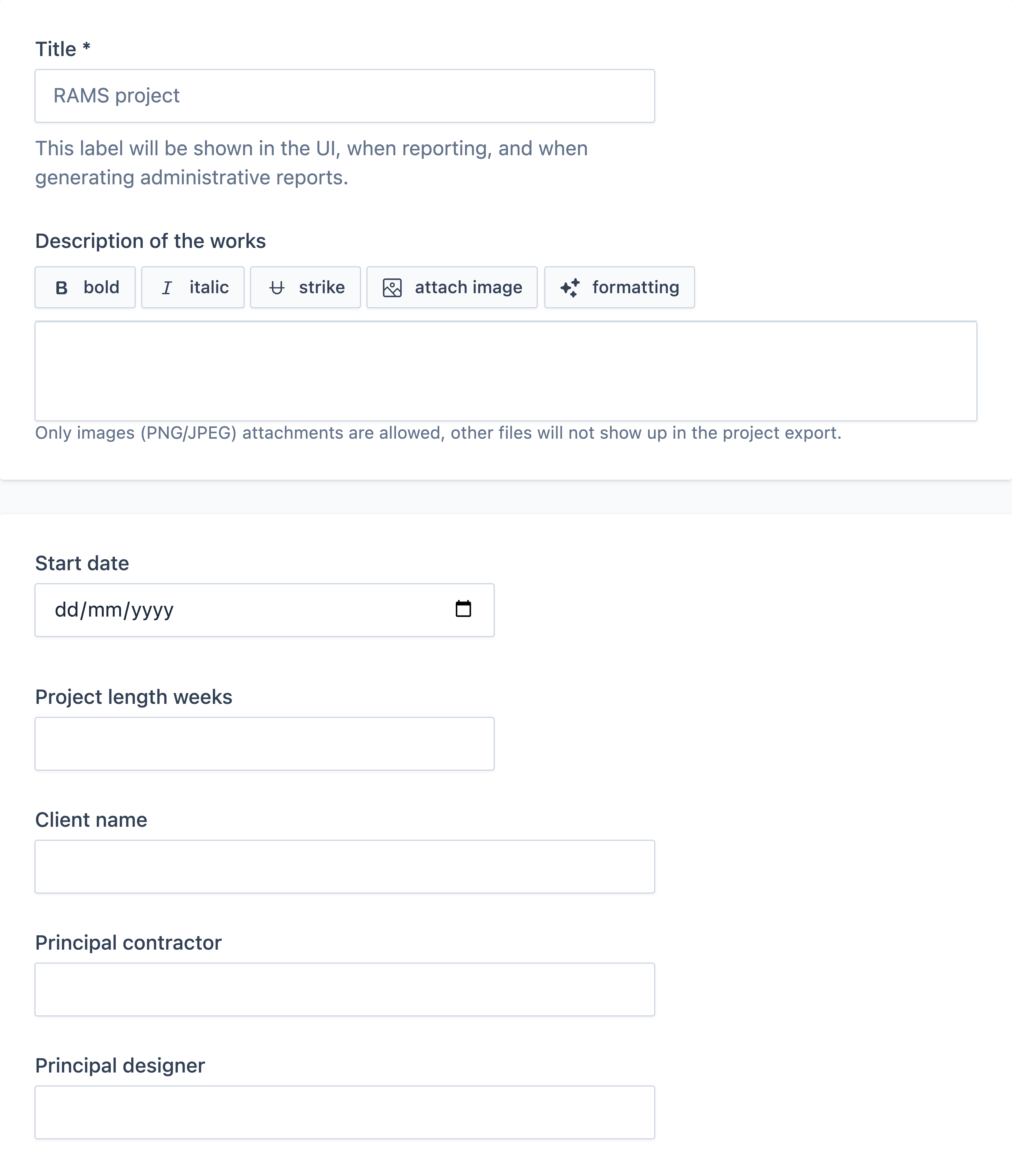
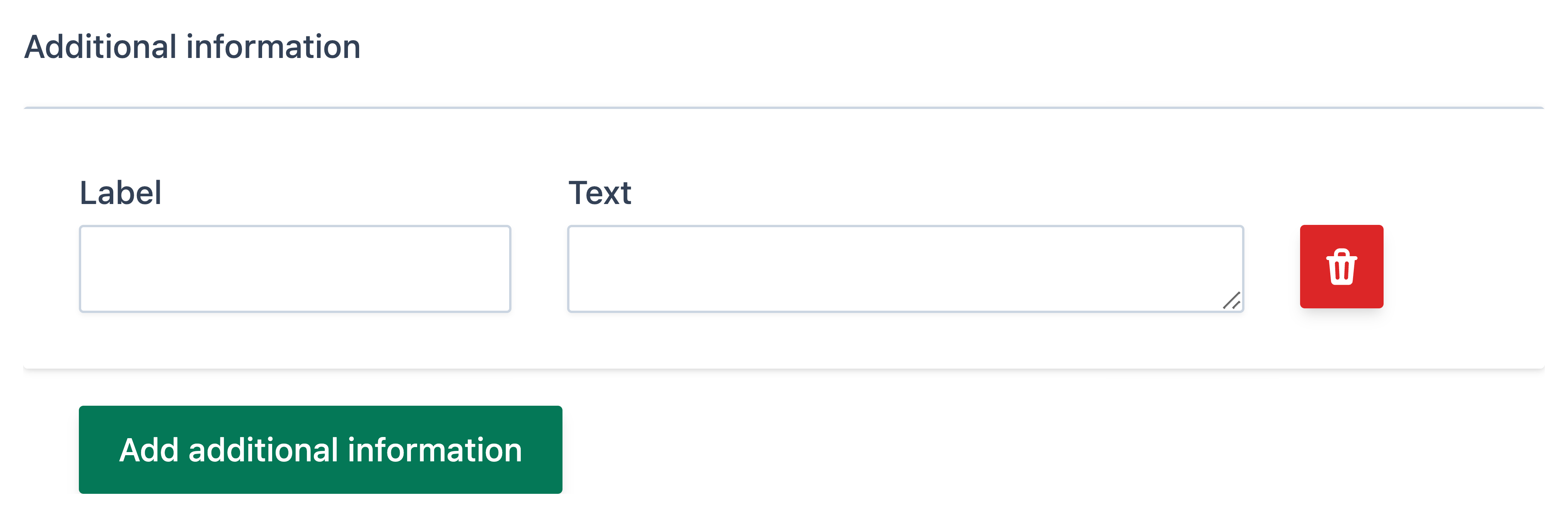
Use the Additional information section to add custom fields, e.g. "Assistant Supervisor".
Step
Upload your insurance certificate
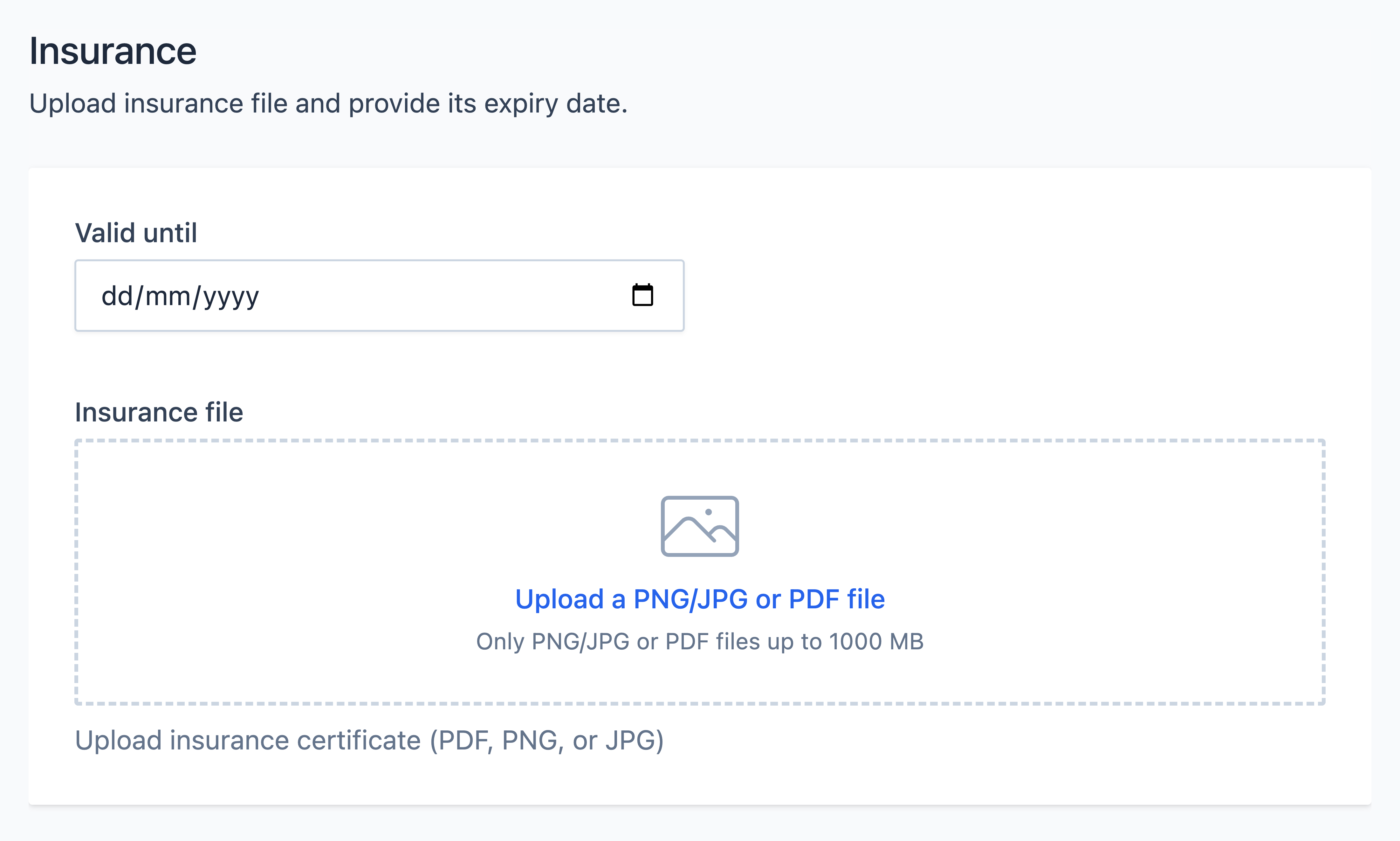
Step
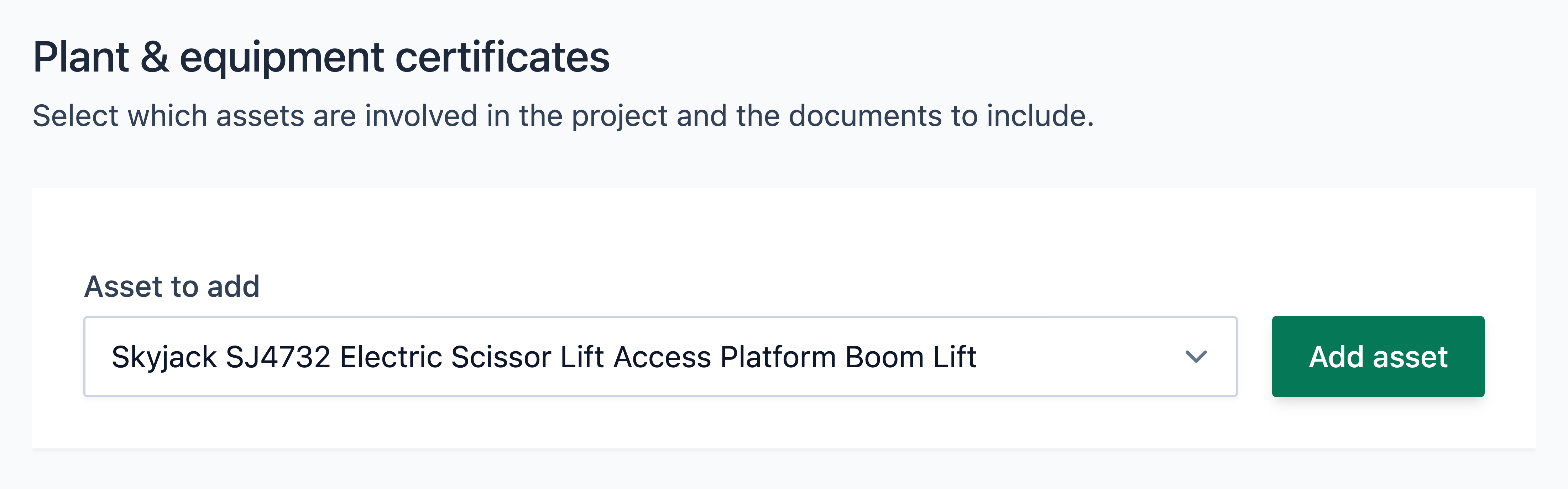
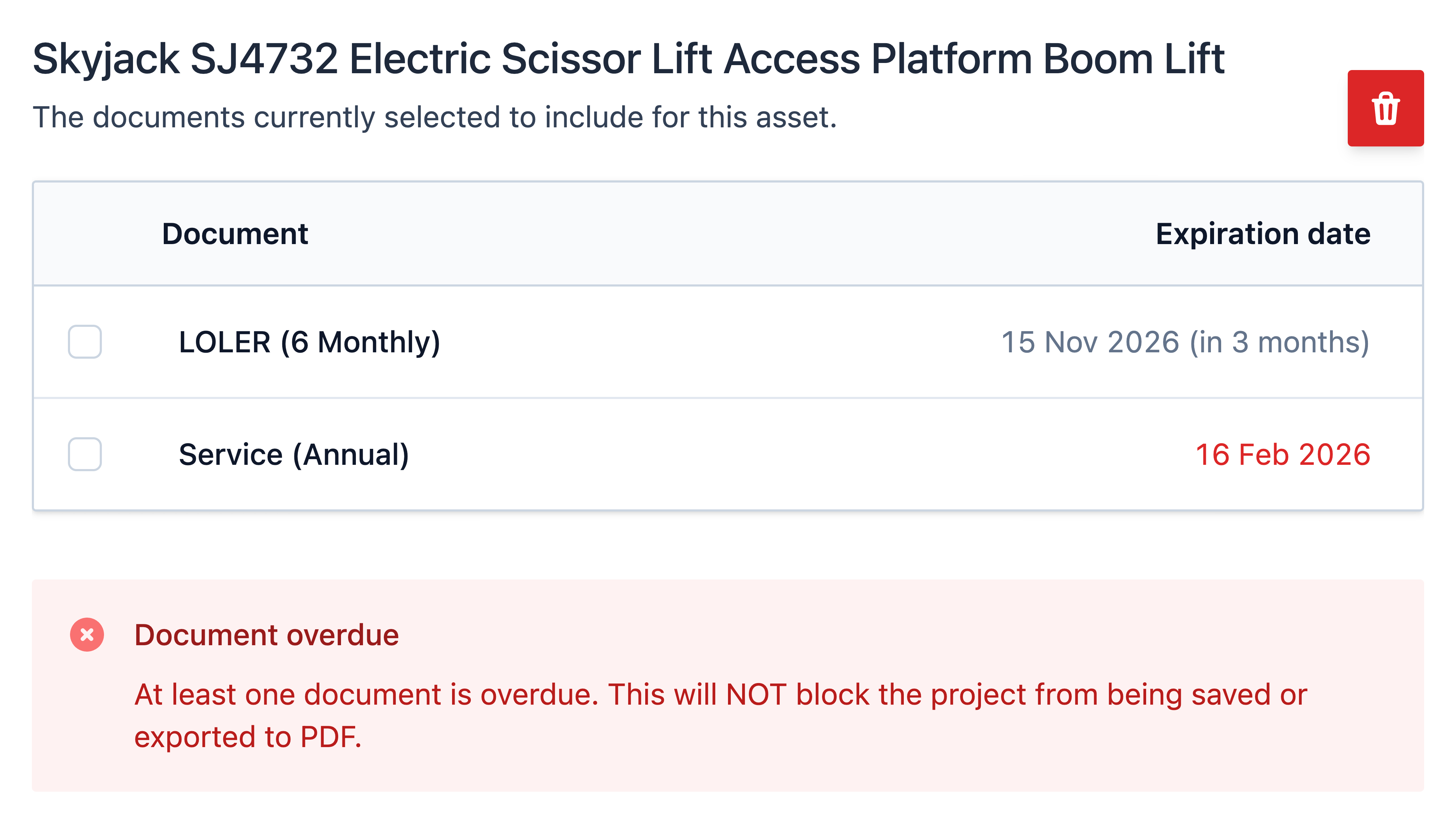
Add plant & equipment certificates directly via your existing assets on Opus Compliance Cloud. Firstly, add the asset, and then select which documents are relevant for the project.
Note
The export always uses the latest version of the certificate, so if the document is updated later, the updated version will be used.
Step
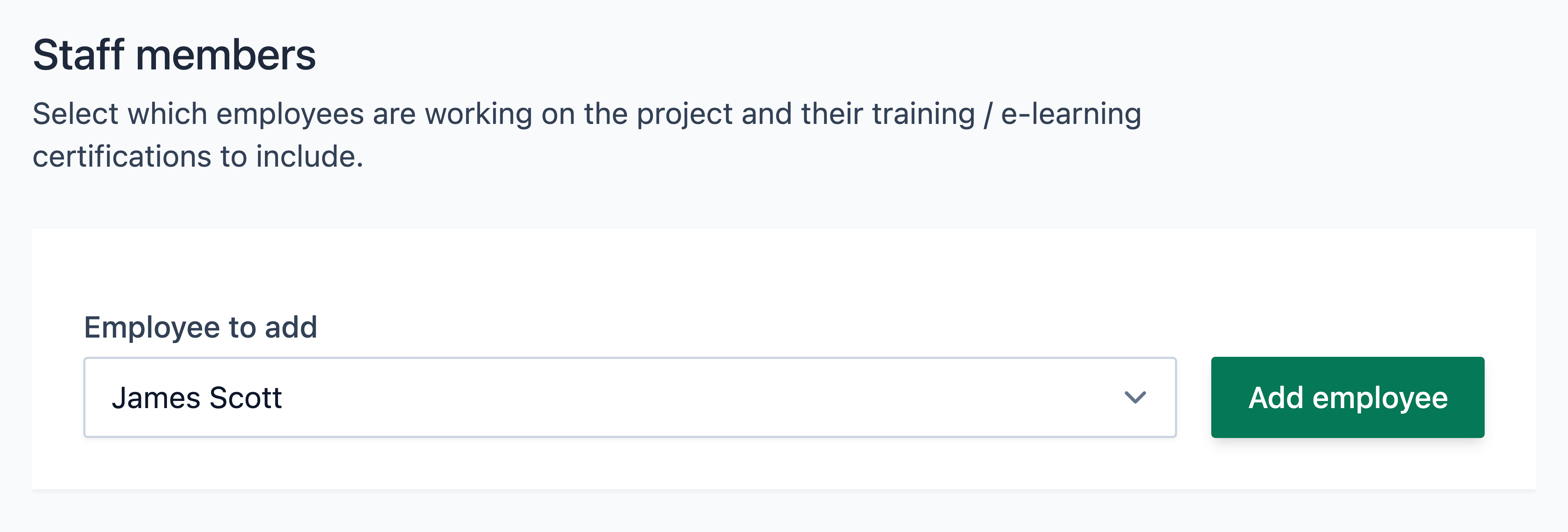
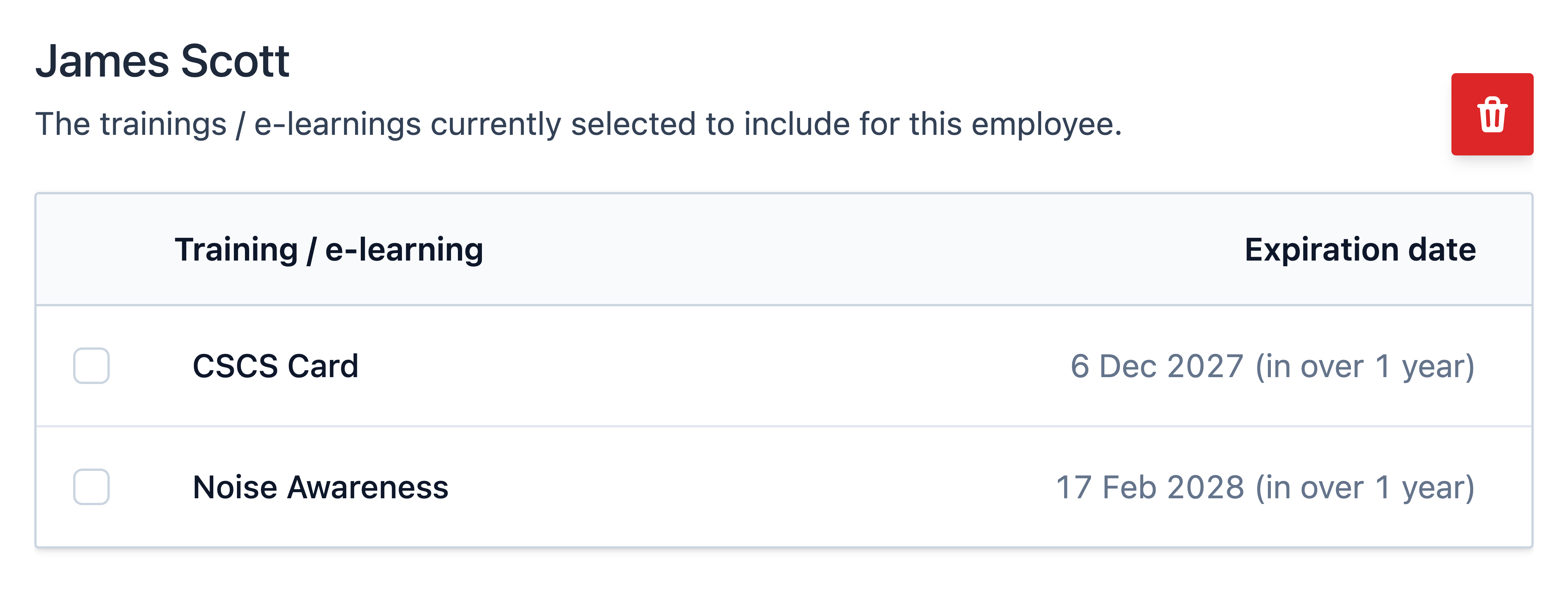
Similarly to Plant & equipment, Add employee training/e-learning certificates directly via your existing employees on Opus Compliance Cloud.
Firstly, add the employee, and then select which certificates are relevant for the project.
Step
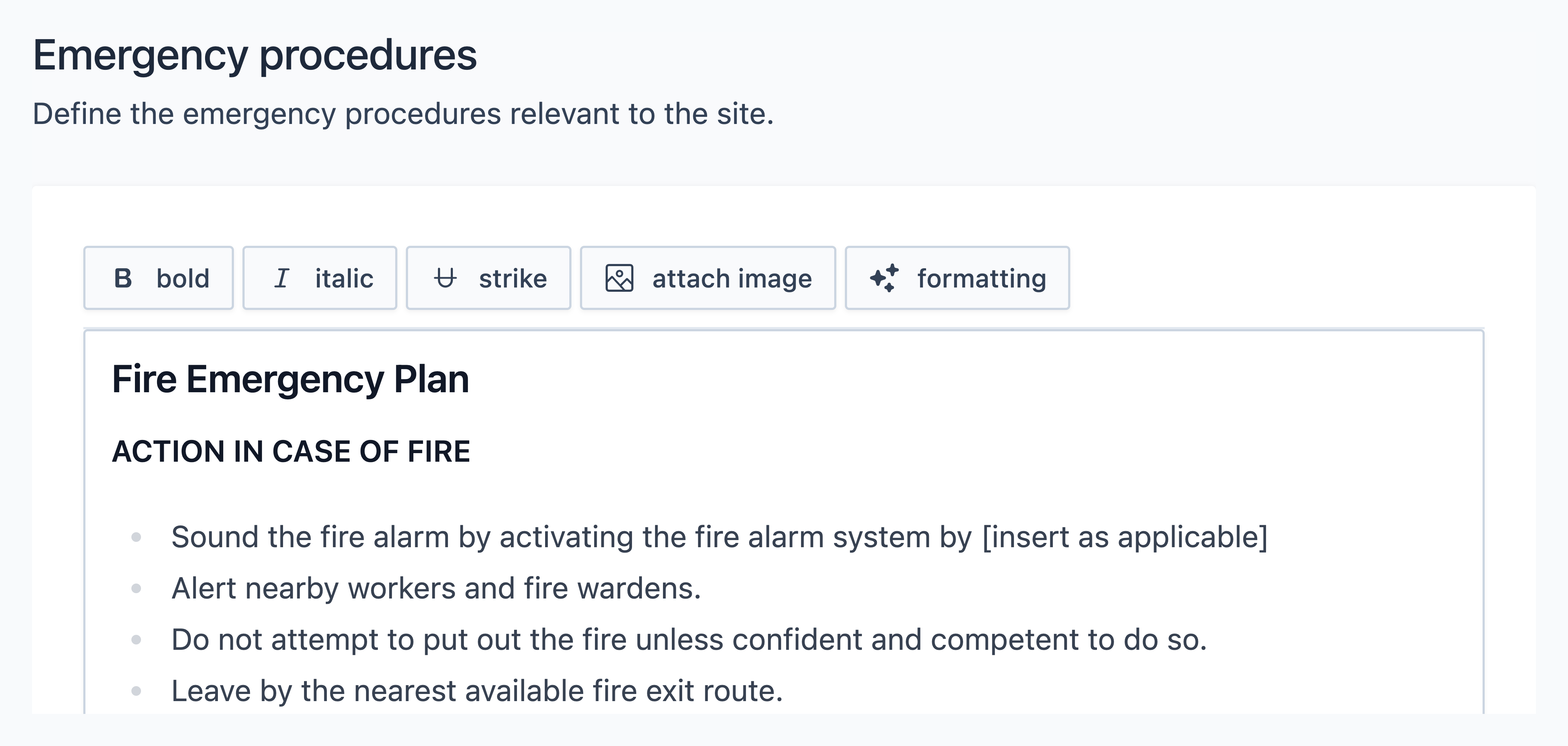
On the remainder of the page, you will need to review and confirm the content of the following sections. If any of these sections are not required for your export, you can simply skip them:
- Emergency procedures (shown below)
- Health & Safety Policy Statement of Intent
- Site induction and rules
- Site induction register
- Work activity information
Each section is pre-populated with default Opus text. Please review and amend the content as required to reflect your company, the specific project, and the work being undertaken.
Tip
To avoid having to re-edit these sections for every project, we recommend creating a template project that you can copy and reuse. You may find it useful to create several templates to cover the different types of projects you typically undertake.