Task sensitivity
Written for Managers Administrators
Certain tasks may be flagged as sensitive because they contain sensitive information. As a result, these tasks are required to have additional access controls.
Note
This guide explains how task sensitivity behaves by default. Your organisation may have modified this feature to suit its specific business needs.
What do sensitive tasks look like?
When viewing from the site inbox or task reports, sensitive tasks will appear redacted.


Kinds of sensitive tasks
By default, there are three different types of sensitive task based on the data they contain. Certain types of sensitive tasks require additional authorisation before you can access them.
| Type of task | Sensitive label | Required authorisation |
|---|---|---|
| DSE assessment corrective actions | DSE related data | Health related data authorisation |
| Health surveillance corrective actions | Health related data | Health related data authorisation |
| Resolved injury related incidents | Injury related data | No additional authorisation required |
Info
Sensitive tasks are typically confidential, meaning that only managers can see that they exist in the first place.
Authorisations
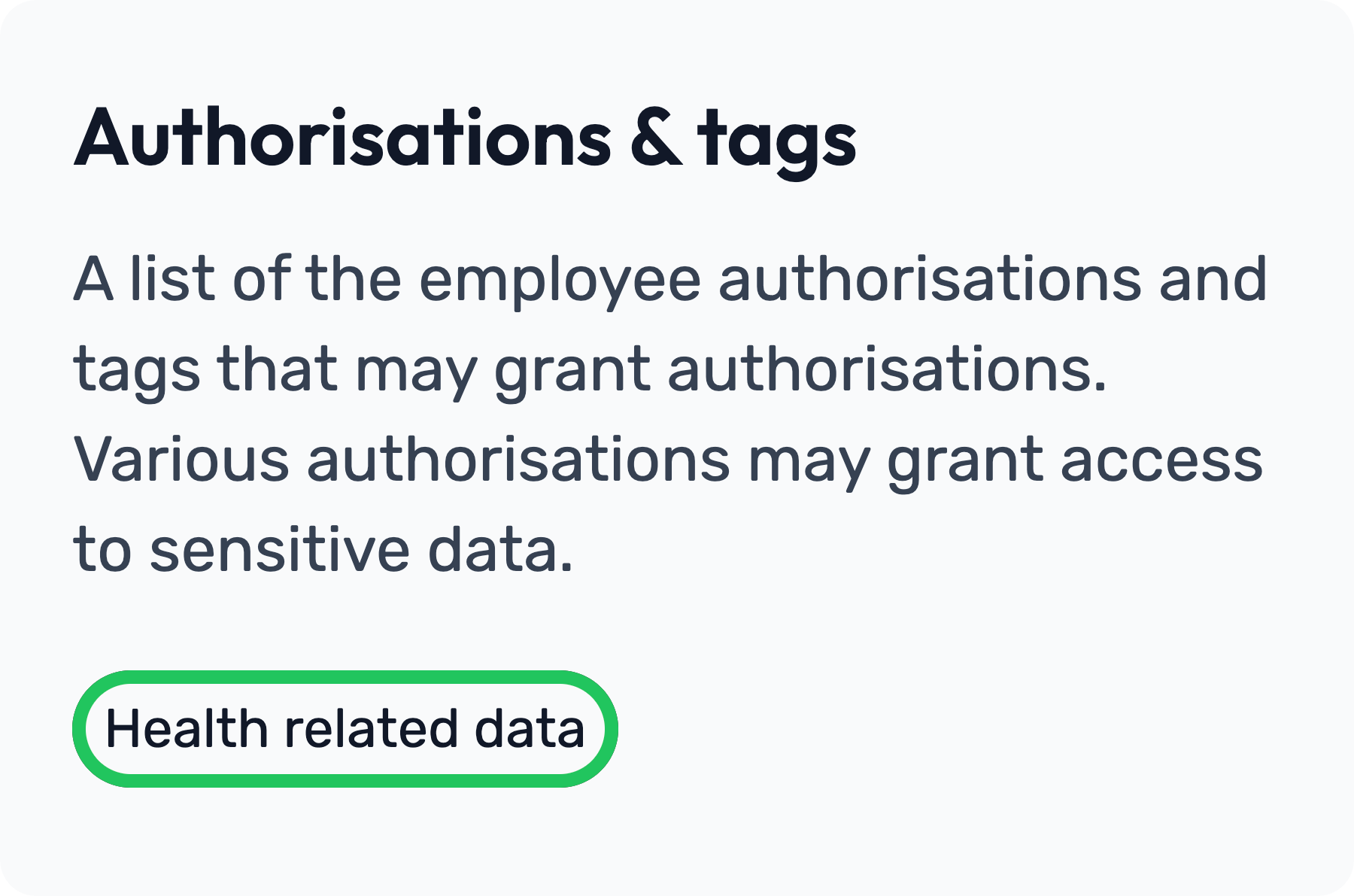
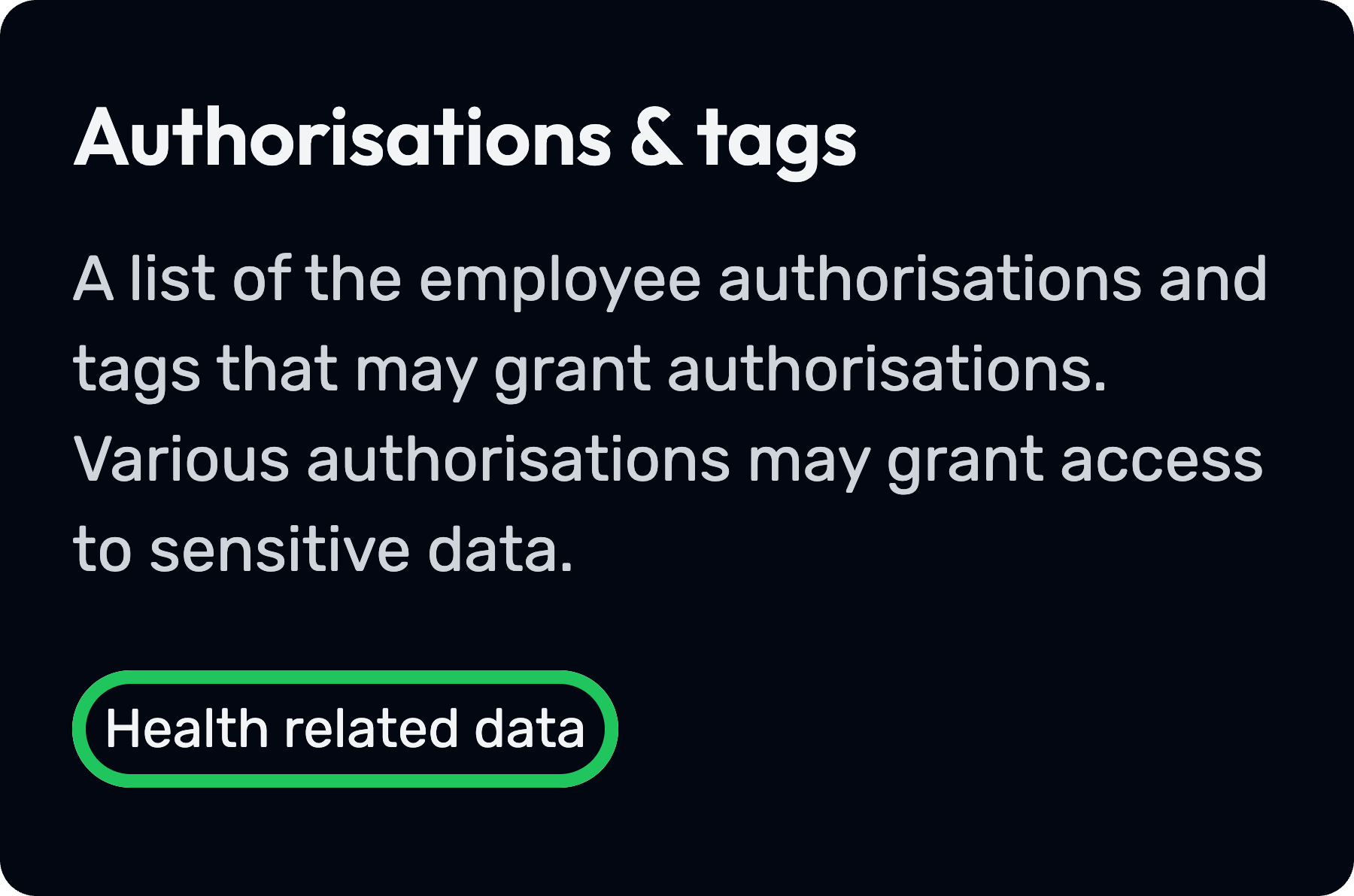
Authorisations can be assigned to employees to grant access to specific types of sensitive data. You can view the authorisations assigned to an employee on their record.
How to grant authorisations to employees
Sensitive tasks containing DSE or health-related data typically require a Health related data authorisation to be granted on the employee’s record. The steps below explain how to grant this authorisation to an employee.
The Health-Related Data authorisation is intended for relevant managers or administrators only. It should not be granted to employees with standard user access.
Warning
You can only grant this authorisation to other employees if you have the authorisation yourself. As a result, we recommend being conservative with who should be granted this access.


Step
From the site inbox, click the Switch to Manage Mode button.


Step
Click Employee records on the manage sidebar.


Step
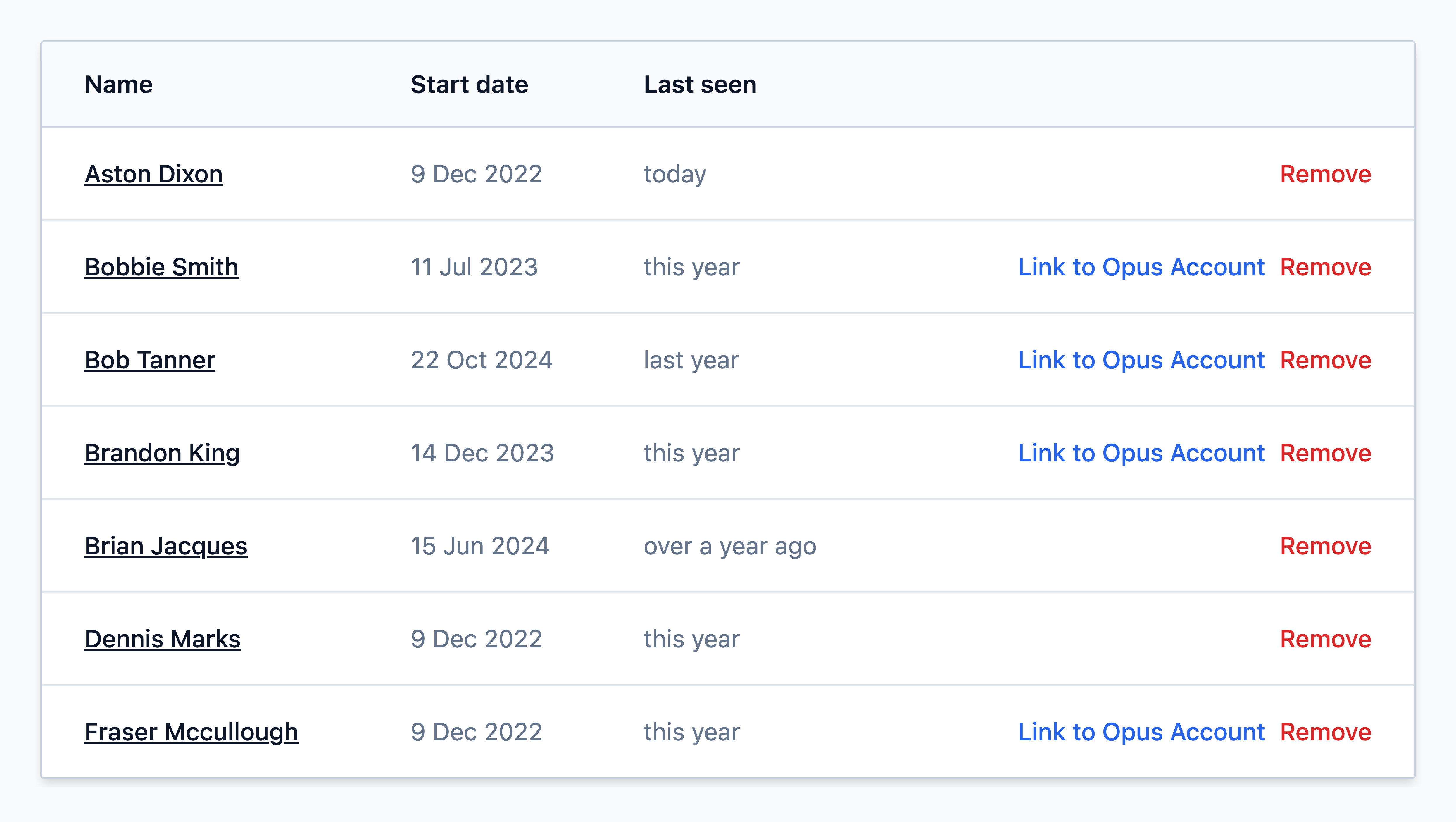
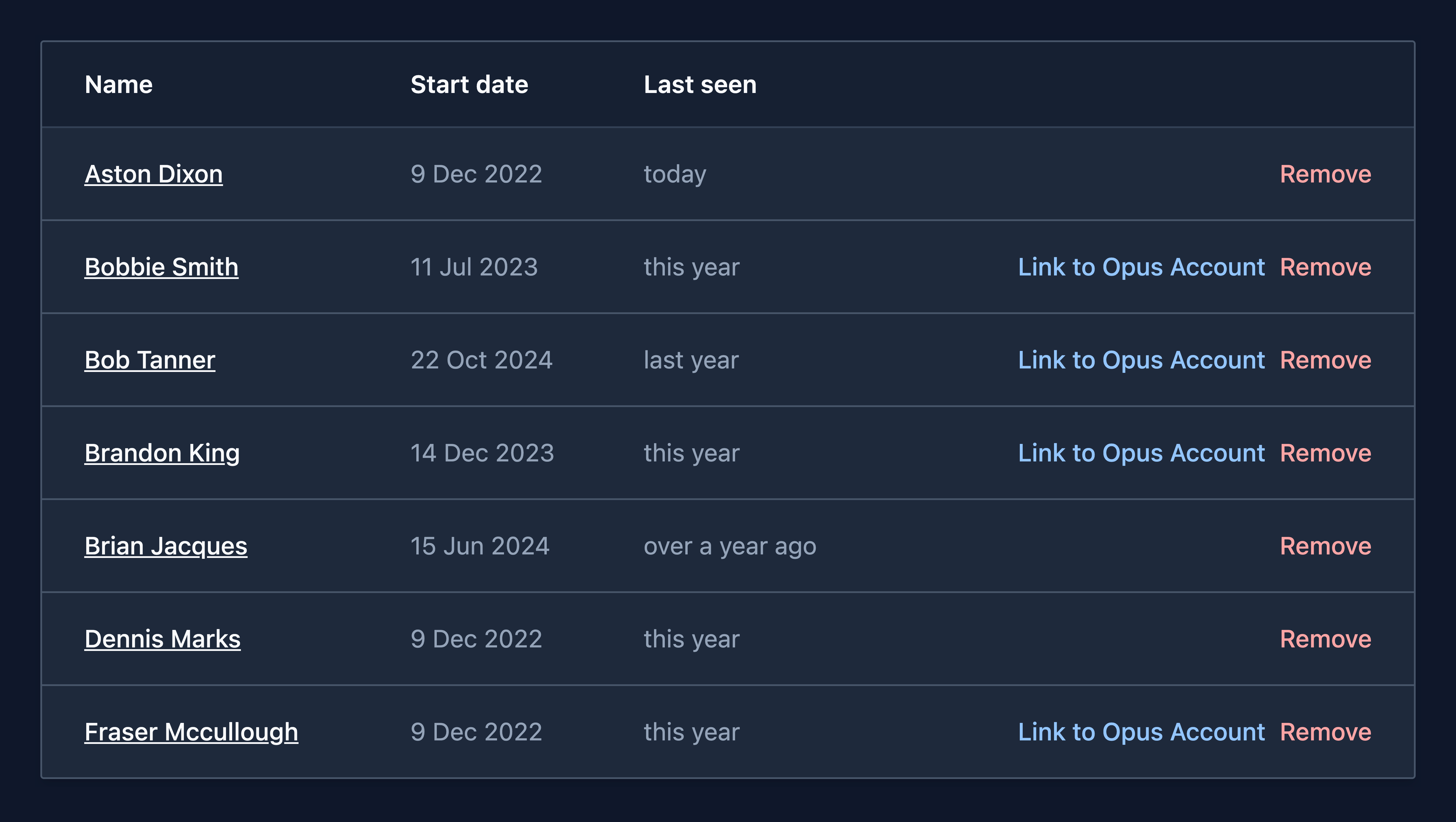
Find the employee from the list and click on their name
Step
On the employee's record, select Change access


Step
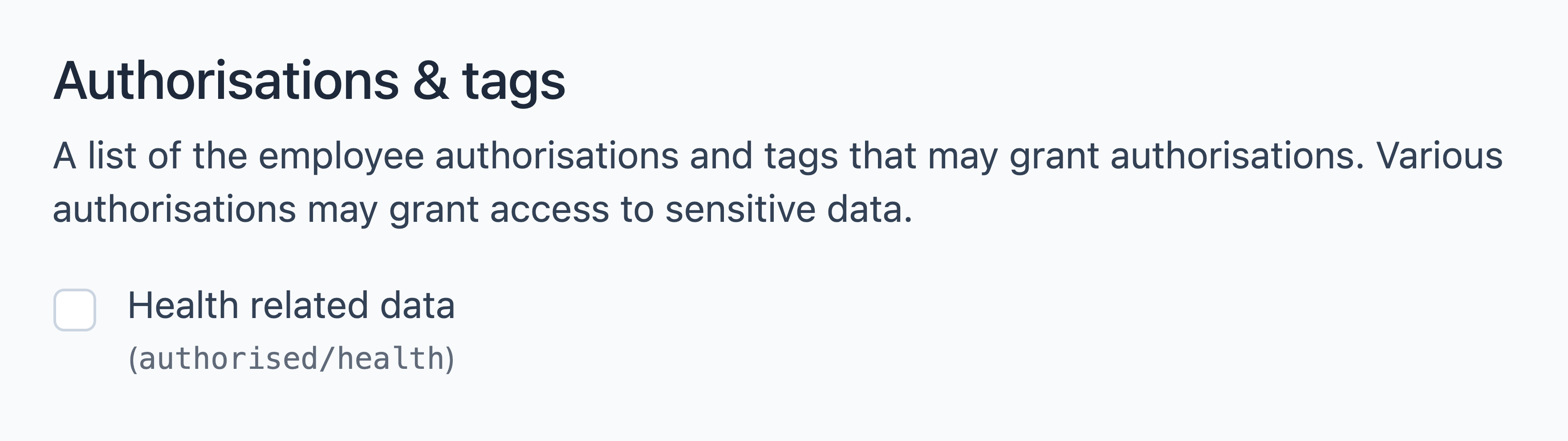
Grant the relevant authorisations or tags if the employee needs them (you can only configure this if you possess the tag yourself).
authorised/health — Assigning this tag grants the employee authorisation to access sensitive health data (e.g. Health Surveillance corrective actions) for the employees they manage.
Note
By default, all sites will have the authorised/health tag available, but depending on your site configuration you may have more.
Step
Once you have selected the authorisation(s), click Apply changes.


How to access sensitive tasks
Assuming you have the appropriate access and authorisation to view the task content, selecting the task or attempting to export task data will prompt you to complete an exception form.
The form requires you to provide the following information:
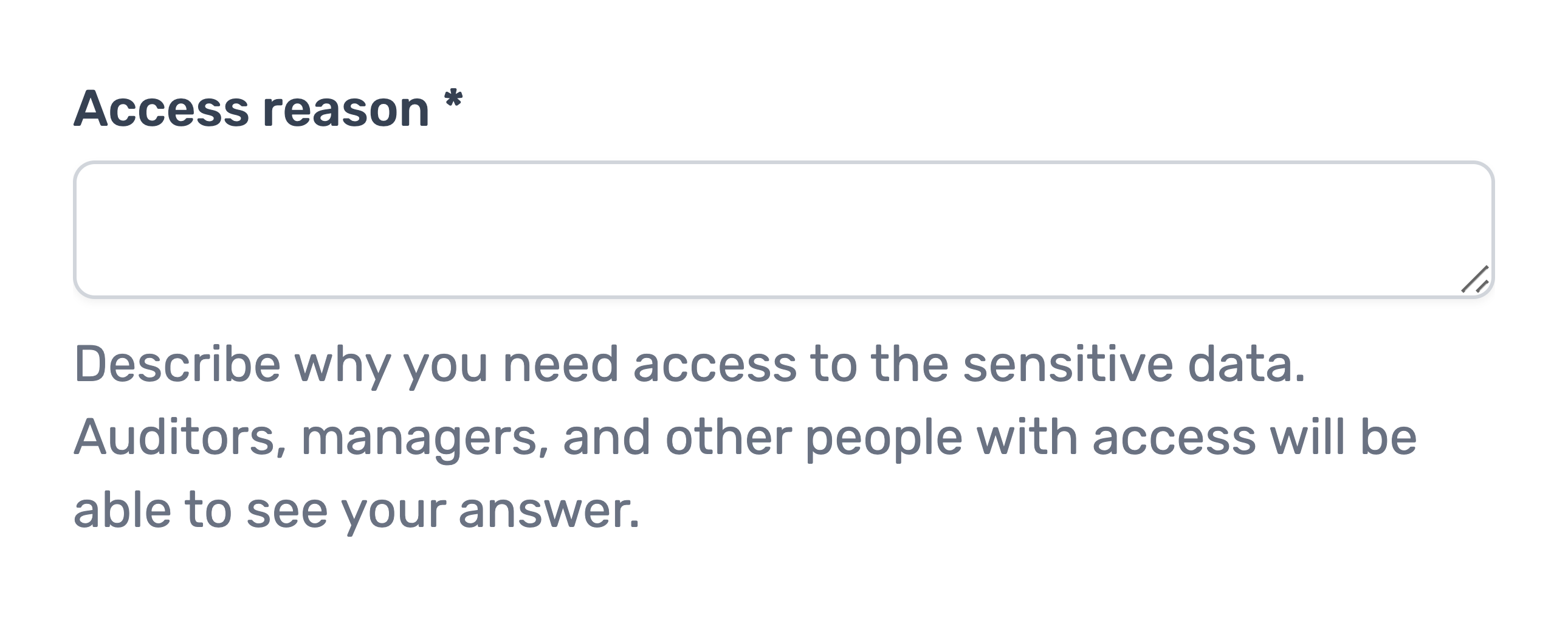
Access reason
You will be asked to provide a reason for requesting access to this data. This reason will be recorded in the system logs and visible to others who access the task, supporting transparency and accountability.
Important
Please provide a clear and legitimate reasons for accessing sensitive data. Unnecessary or unjustified access to sensitive data may have consequences under your organisation’s policies.
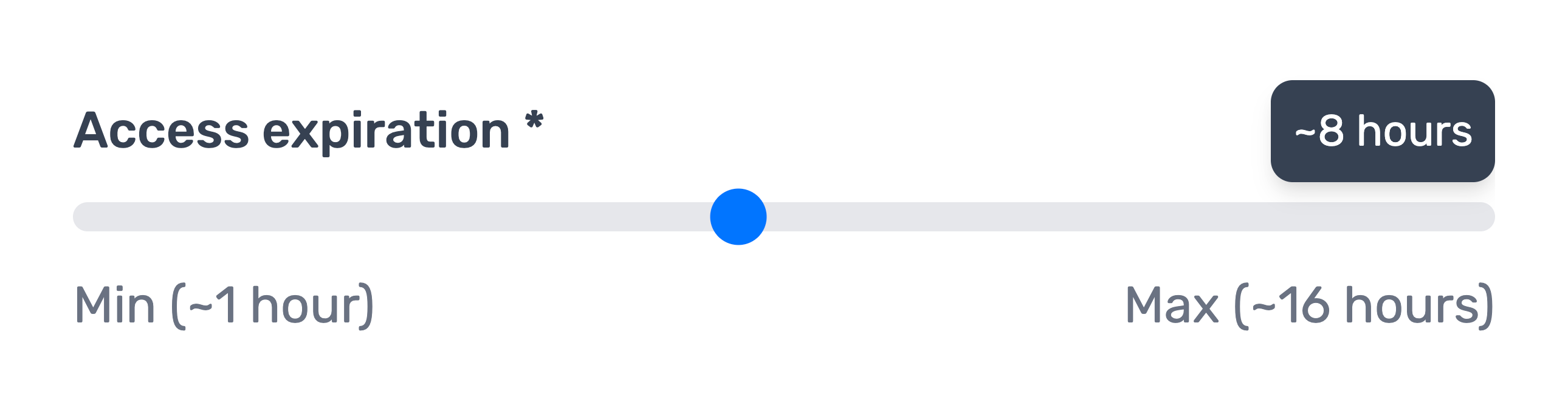
Access expiration
This allows you to specify how long you would like to retain access to the data before you are required to complete another exception form.
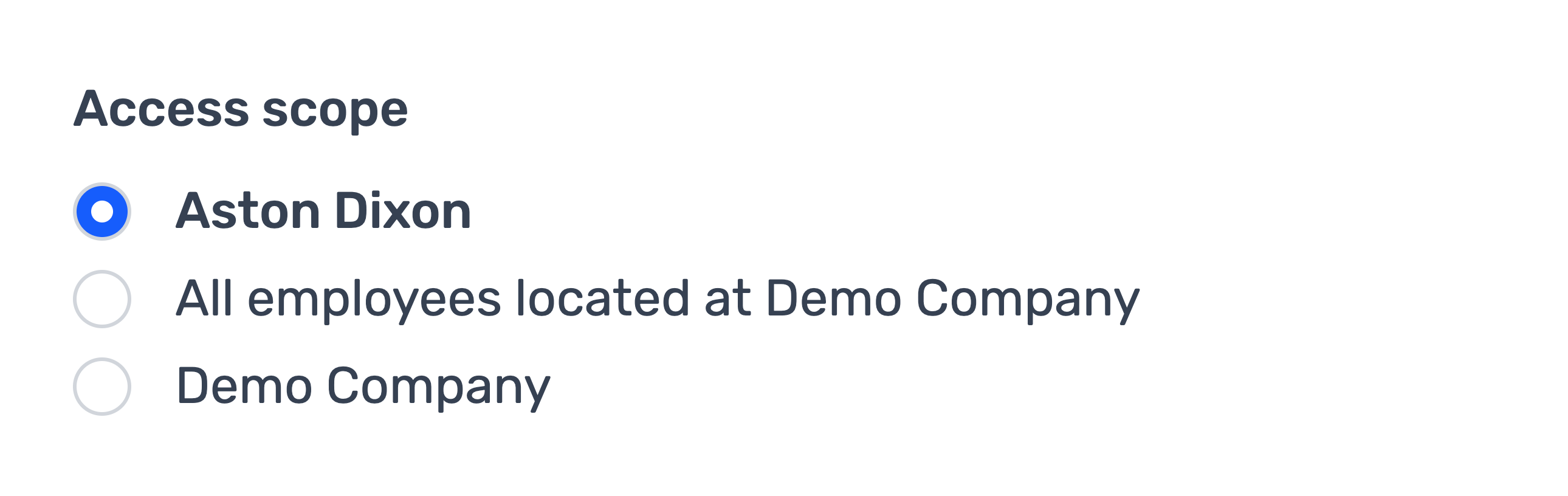
Access scope
Define the access scope of this exception.
Tip
The scope defines the area covered by a single exception request. For example, when accessing sensitive employee tasks, you can broaden the scope to include all employees or an entire site. This eliminates the need to submit a separate exception request for each employee.