Managing a task
Written for Managers Administrators
This guide follows on from the Interacting with a Task guide and covers the additional task features that are available exclusively to managers and above.
Editing the Task Title or Severity
As a manager, you can edit the title or the severity of an individual task by following the below steps.
Step
When on a task, click the Edit button in the top right-hand side of the page.
Step
You can now change the title of the task.


Step
Click the drop-down box on the left to change the severity.


Step
Click Save after making your changes.


Assigning Tasks
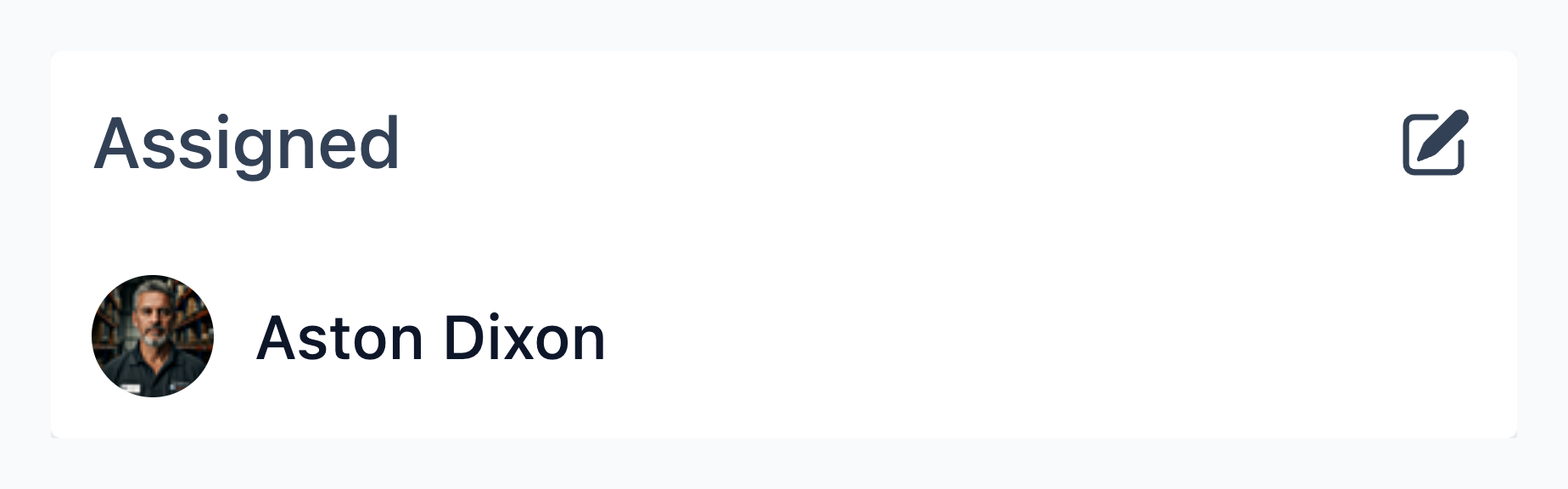
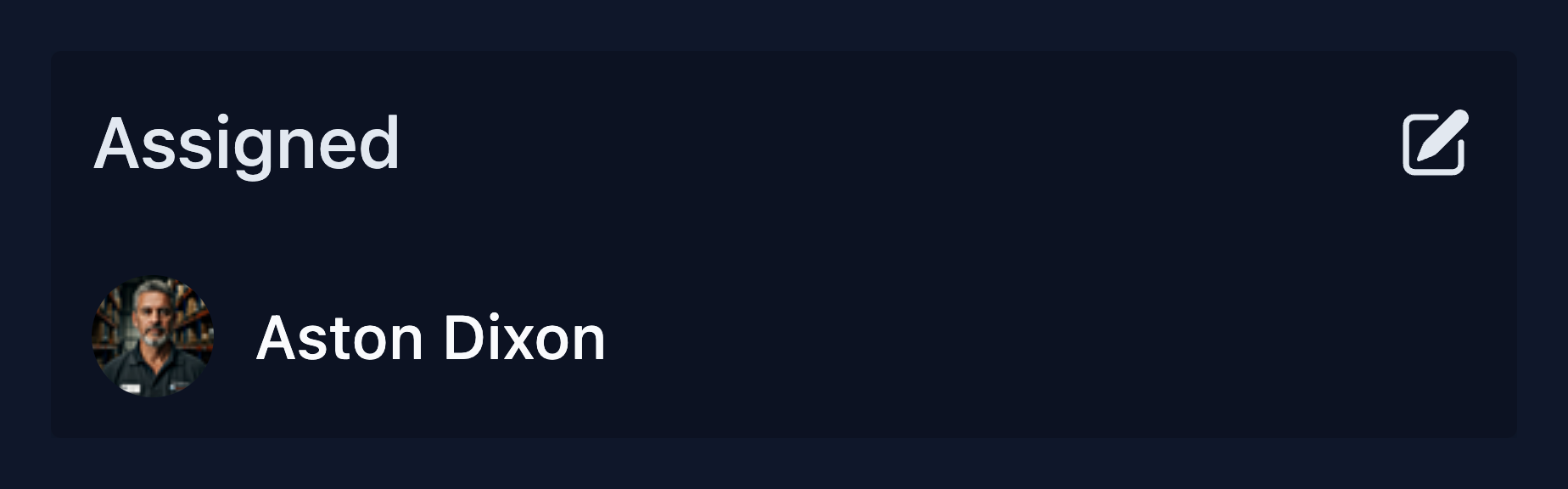
As a manager, you can assign tasks to others using the assignment feature. The assignee will receive a notification and the task will appear in their My assigned tasks / My tasks lists.
Note
You can only assign a task to an employee if:
- They are registered / have a linked Opus account.
- They have access to the site where the task is located.
If you can't see an employee in the assigning list, it will be for one of the above reasons.
Warning
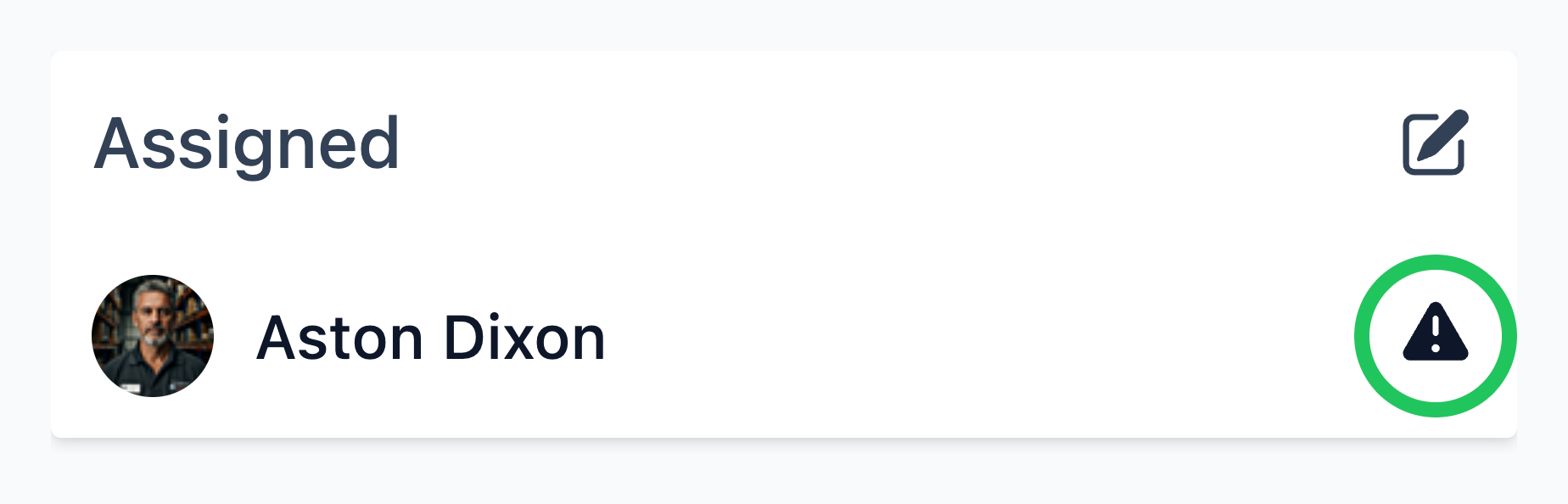
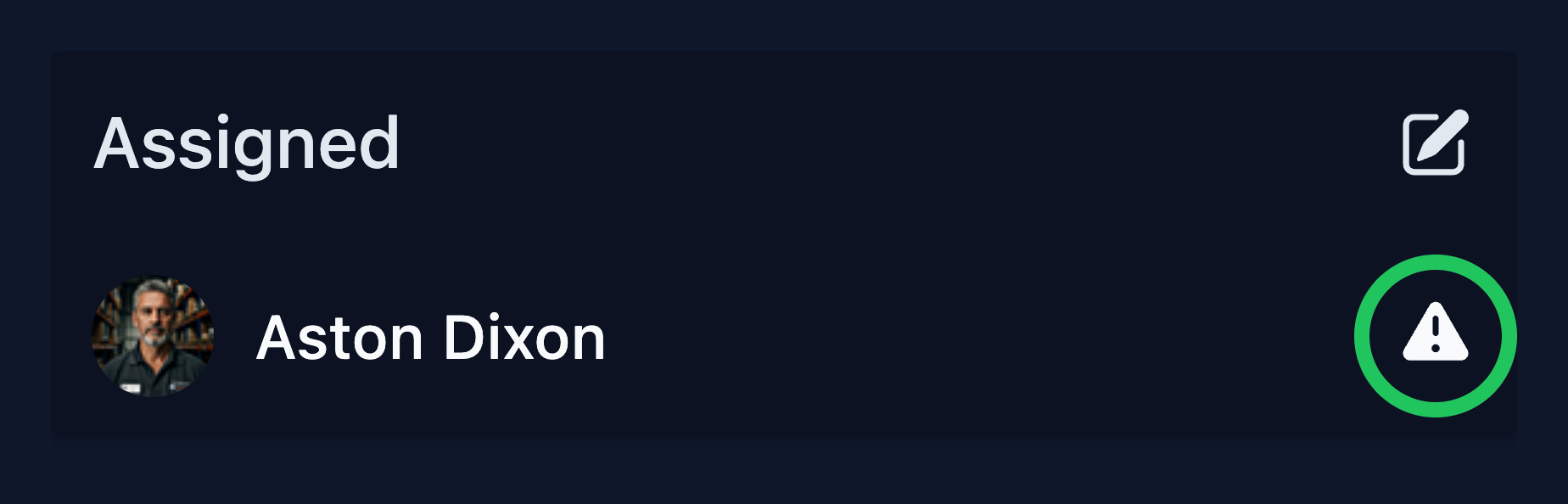
You may see a warning icon next to an assigned user. This indicates that the user may not be able to complete or resolve the task - for example, if the task relates to another user's e-learning or requires permissions they do not have.
Task Labels
Labels are a way of tagging tasks with information which can be used when searching / running reports on your tasks.
Example
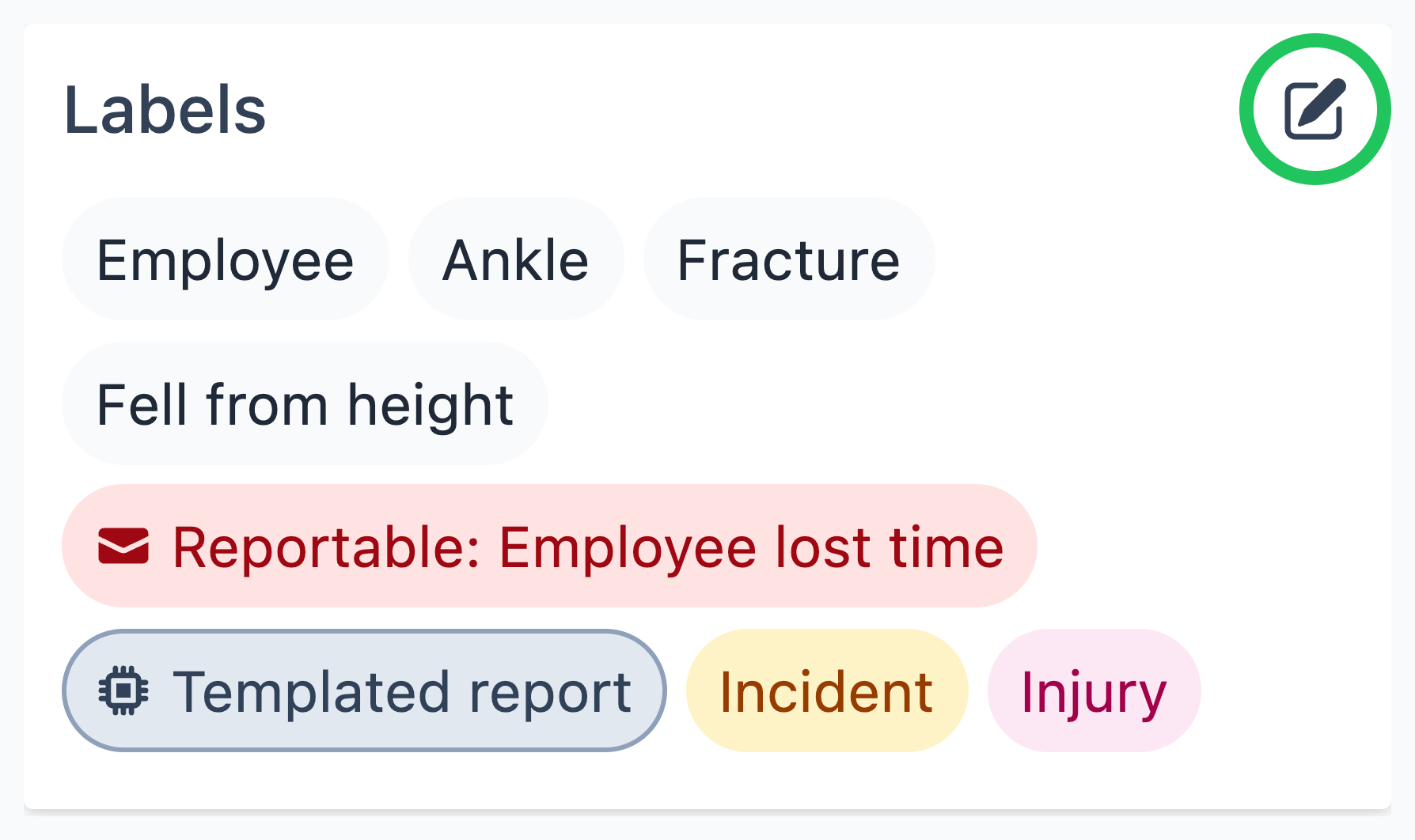
The incident report utilises labels such as:
- What type of incident is it? (e.g. injury or near miss)
- What type of injury? (e.g. burn, sprain, cut)
- Which body part(s) were injured? (e.g. hand, head, foot) These labels are critical for any kind of querying/reporting/analysis using features such as the incident report.
How to add labels to tasks
Although labels are sometimes applied to tasks automatically based on the task status or the answers provided to questions, you can also add them manually.
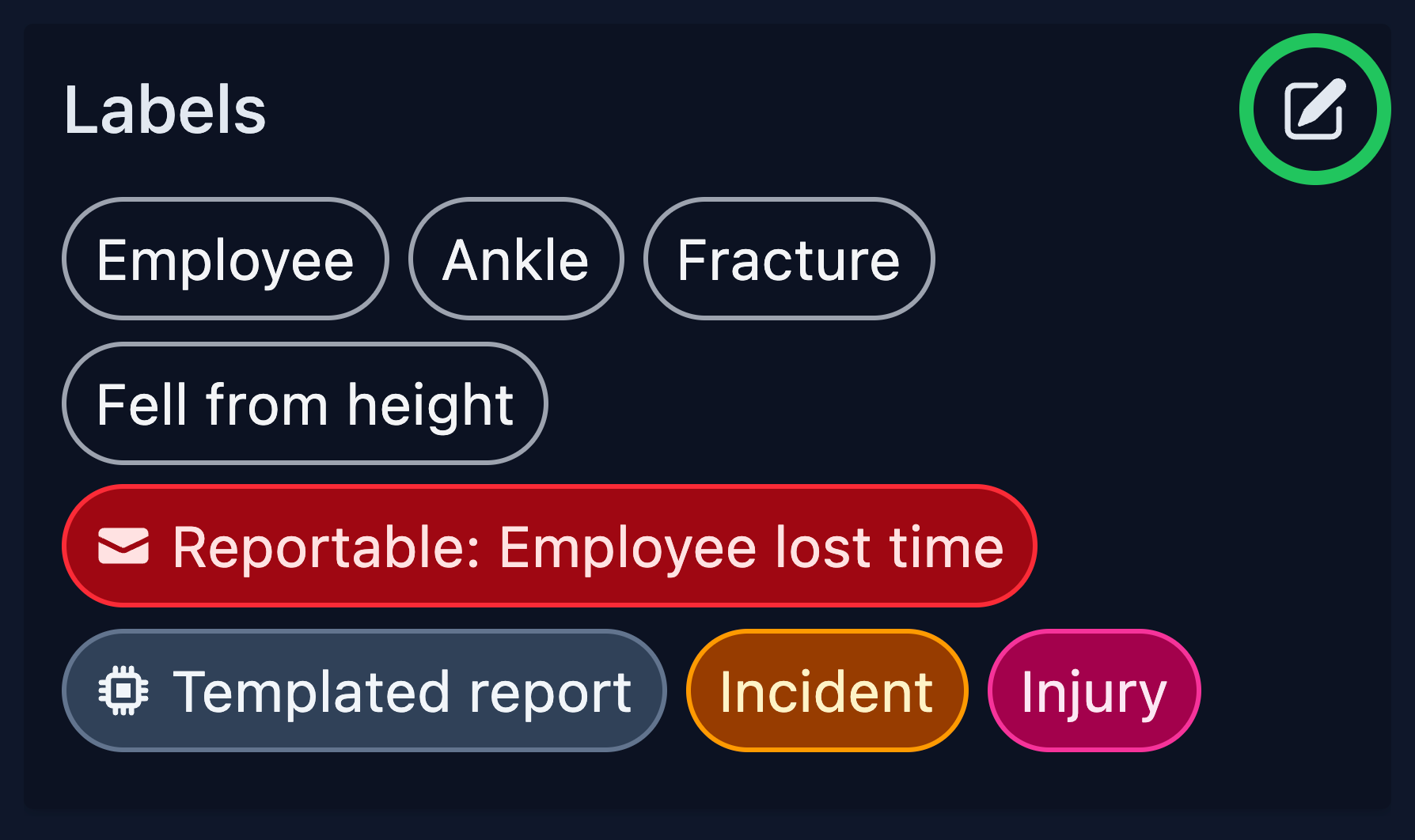
To add a label manually, select the edit button in the Labels section.
Exporting Tasks
An Export button can be found at the top of any task.
This feature allows you to create a tailored, filtered view of the task, which ensures the recipient only sees the information you choose to share.
Step
When on a task, click the Export button in the top right-hand side of the page.
Hide comments or messages that were written after a specific date by using the date filter.


Tip
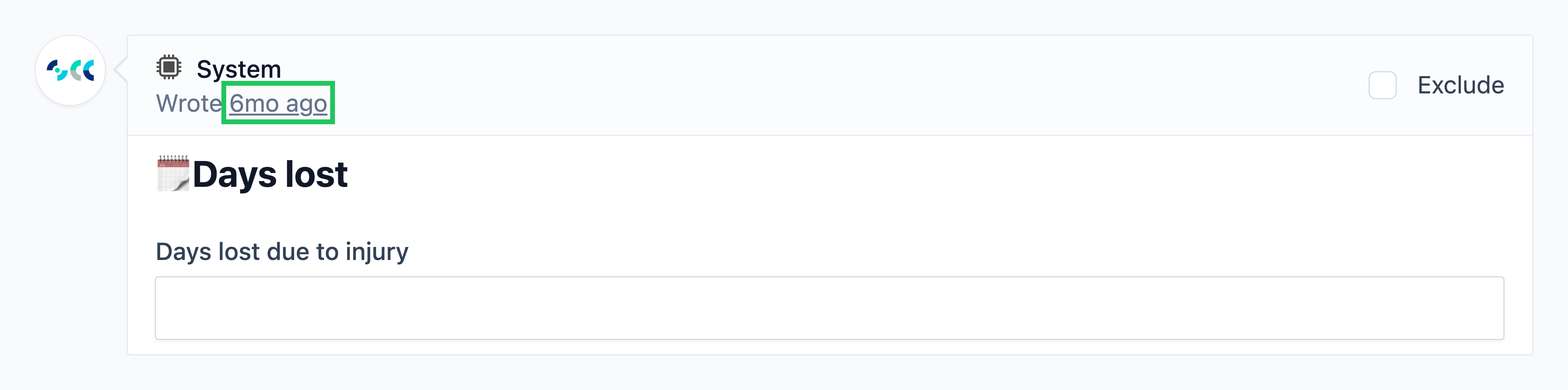
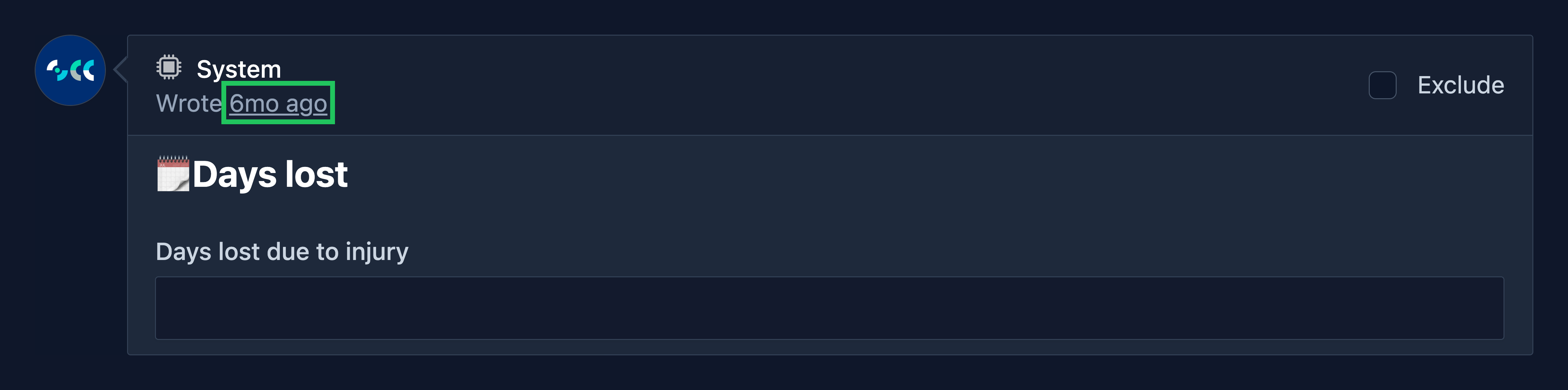
To find the exact date a comment was created, hover your mouse pointer over the relative timestamp.
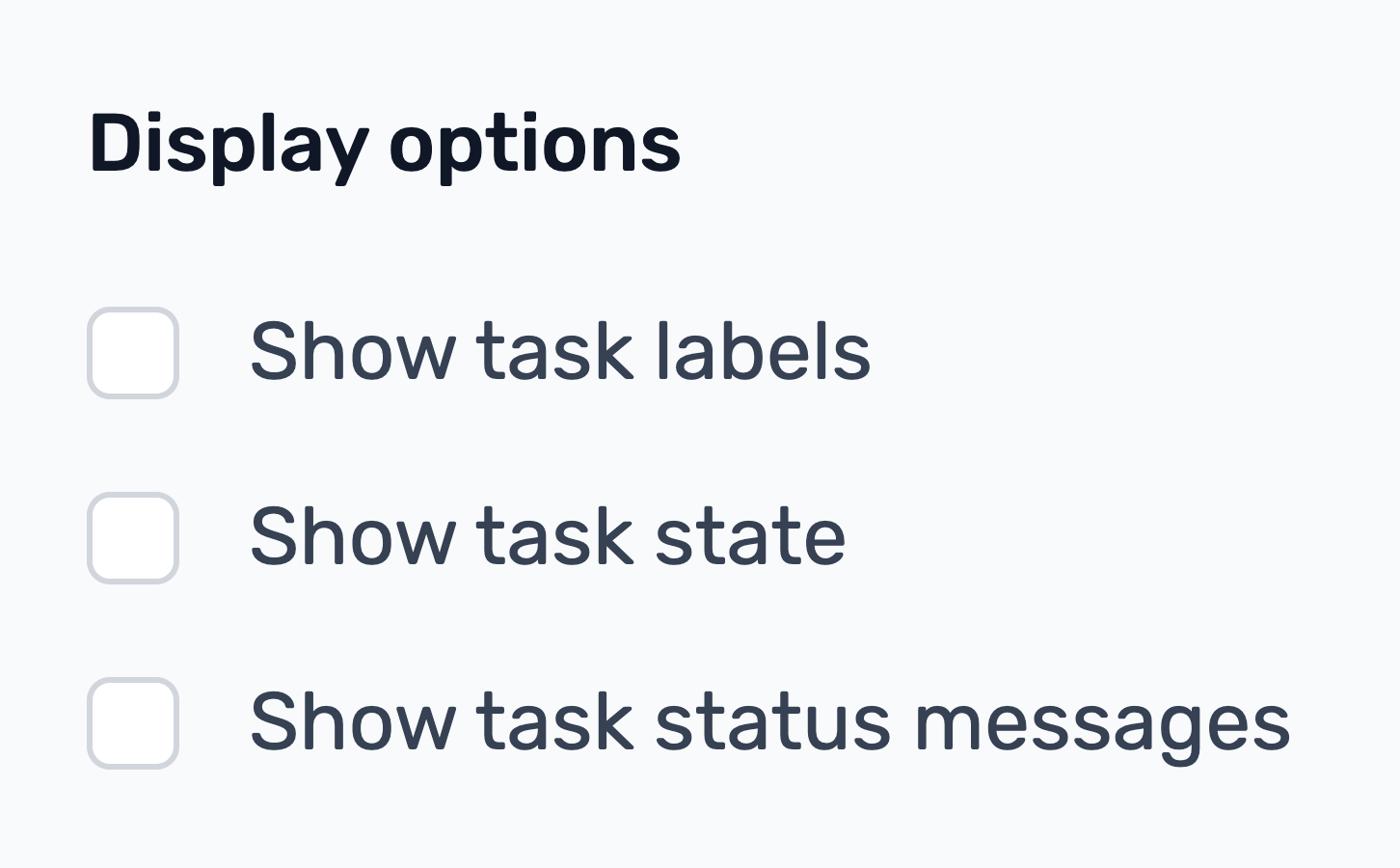
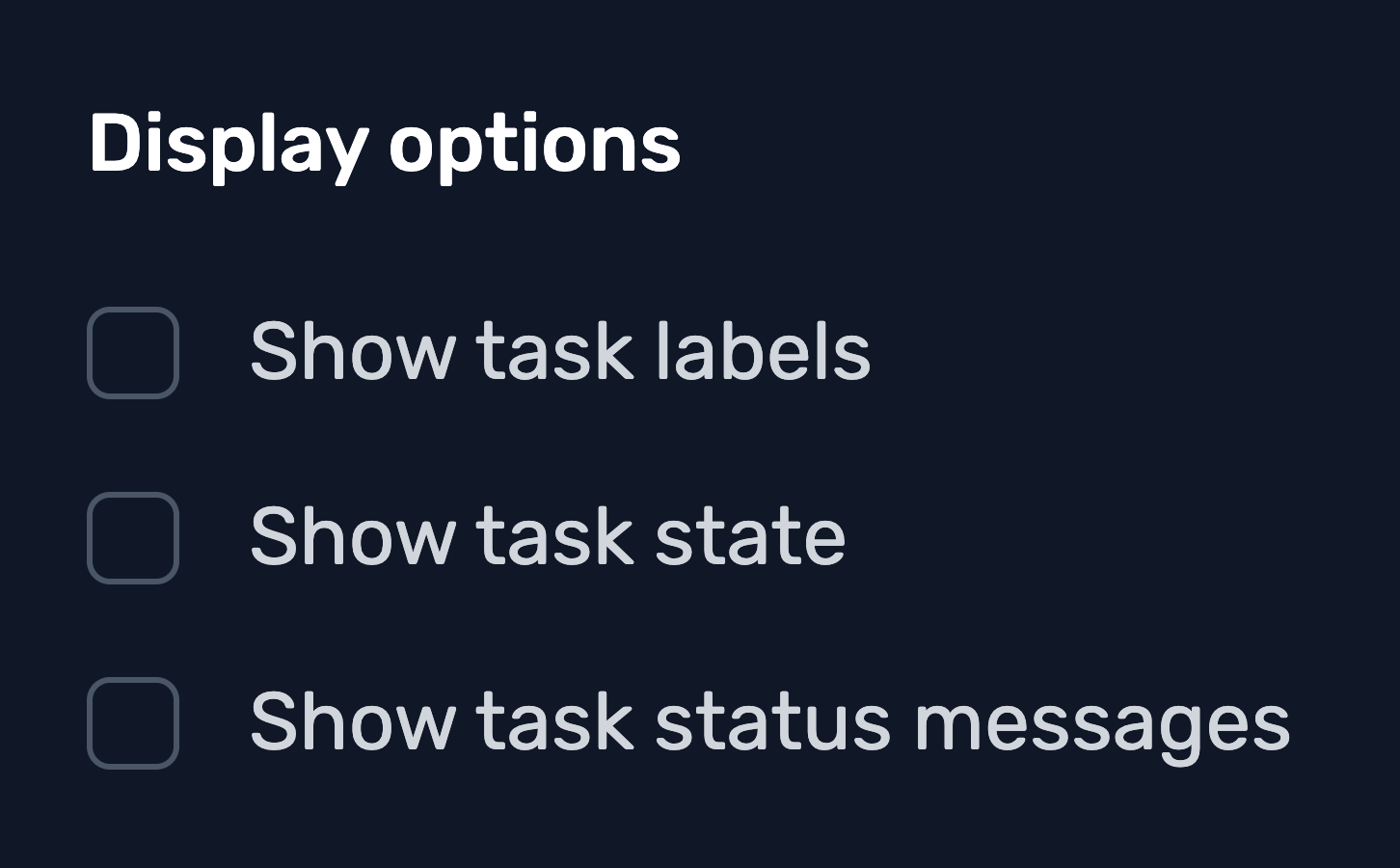
Select any additional display options you would like to add to your export.
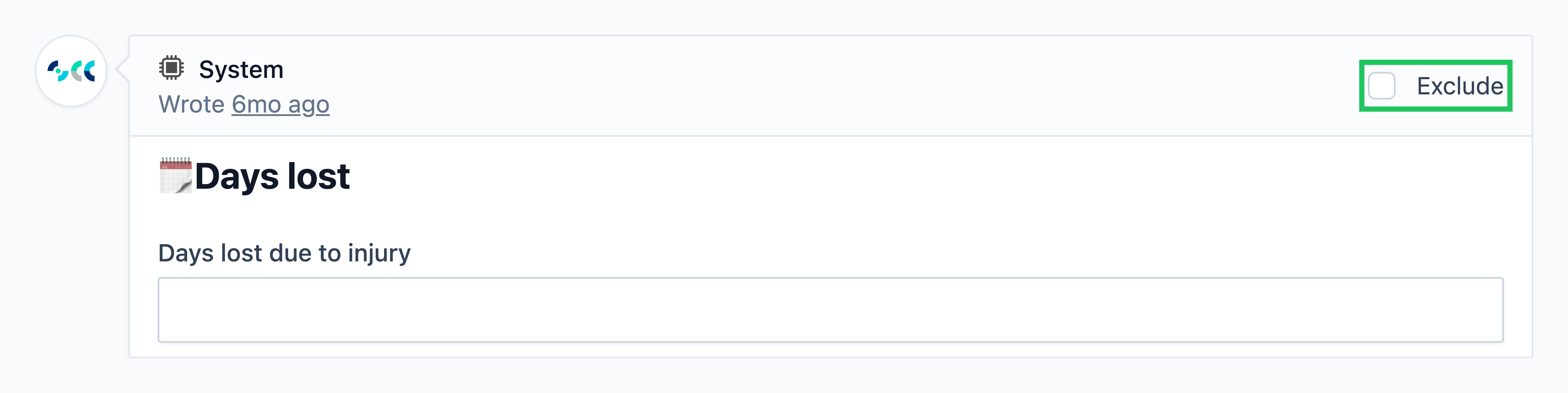
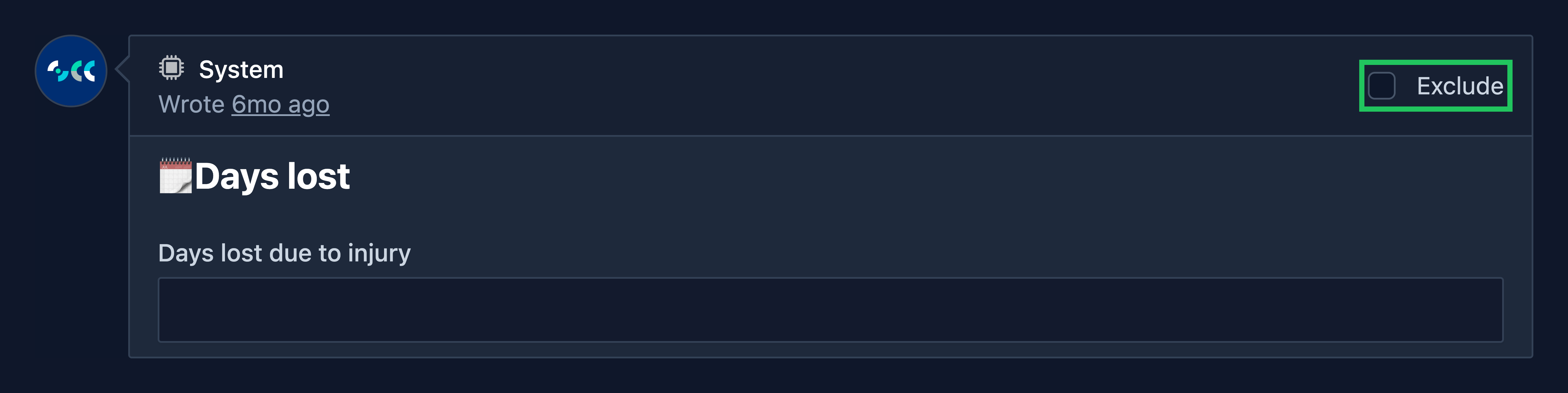
Select the Exclude option on any message to hide it from the export.
Step
Once you're happy with your choices, select Apply options and excludes.


Step
Click the Print this page button to open the print menu, where you can print the task or save it as a PDF.
Moving Tasks
Managers/administrators have the ability to move tasks to another site. This is useful if a task has been reported in the wrong location.
Note
This functionality requires manager or administrator access to both the site where the task currently exists and the destination site.
Important
We strongly recommend against moving system-generated reminder tasks. Moving a task may result in it being transferred to a site without access to the task requirement, preventing it's resolve.
Moving tasks is more appropriate for reported events, such as incidents logged against the wrong site.
Confidential Tasks
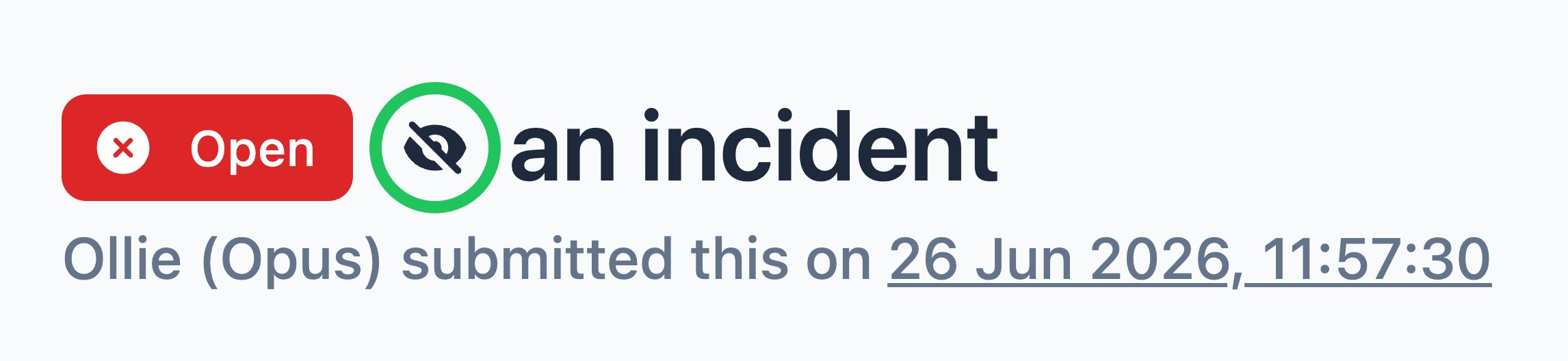
Tasks can be marked as confidential. Many reported events, such as incidents, are confidential by default. Confidential tasks can only be accessed by employees with Manager access or above at the site where the task is located.
Confidential tasks are identified by the slashed-eye icon.
Tip
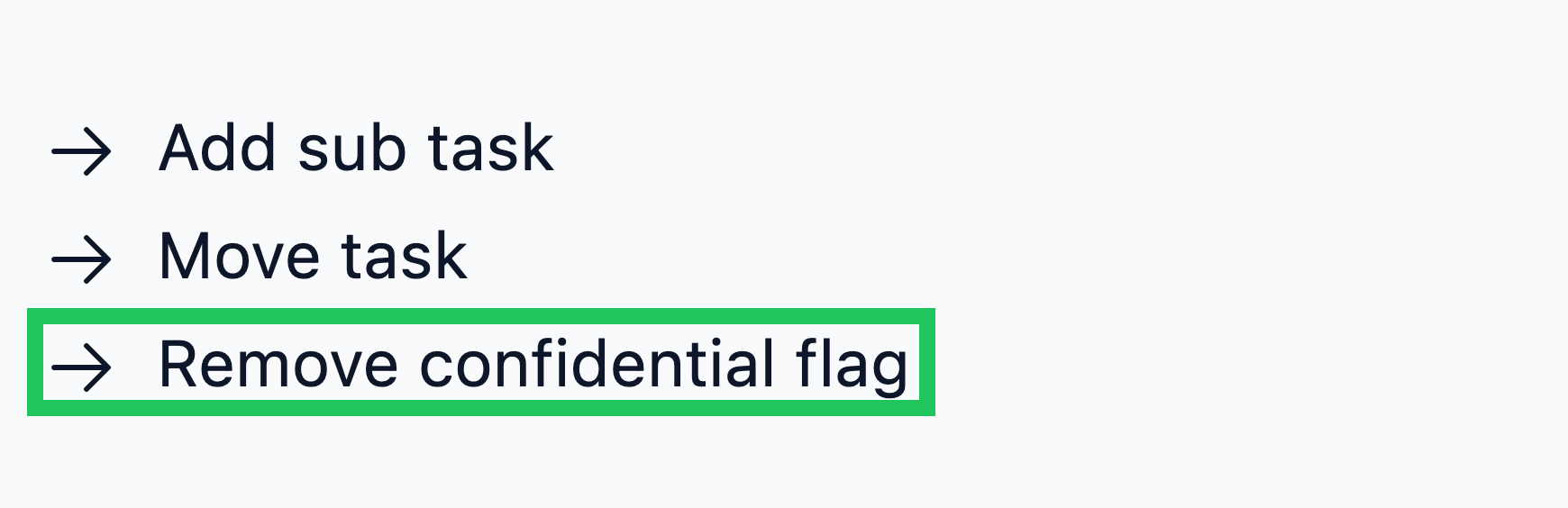
You can manually add or remove the confidential flag from any task using the option in the Actions panel.
Sensitive Tasks
As a manager, you may need to access sensitive tasks, such as health-related corrective actions or historical injuries.
For more information, see the Task sensitivity guide below.