Unlinking an employee
Written for Managers Administrators
Sometimes you may need to unlink an employee record from its linked account.
Follow the steps below:
---
config:
  layout: elk
---
flowchart RL
    n3["Site(s)"] --- n2["Employee record"]
    n4["E-learning"] --- n2
    n5["Checklists"] --- n2
    n2 -. ✄ Unlink .- n1["Opus account"]

    n3@{ shape: rect}
    n2@{ shape: rect}
    n4@{ shape: rect}
    n5@{ shape: rect}
    n1@{ shape: rect}
    classDef question stroke:#6b7280,fill:#f3f4f6,stroke-width:2px
    classDef action stroke:#16a34a,fill:#dcfce7,stroke-width:2px
Steps


Step
From the site inbox, click the Switch to Manage Mode button.


Step
Click Employee records on the manage sidebar.


Step
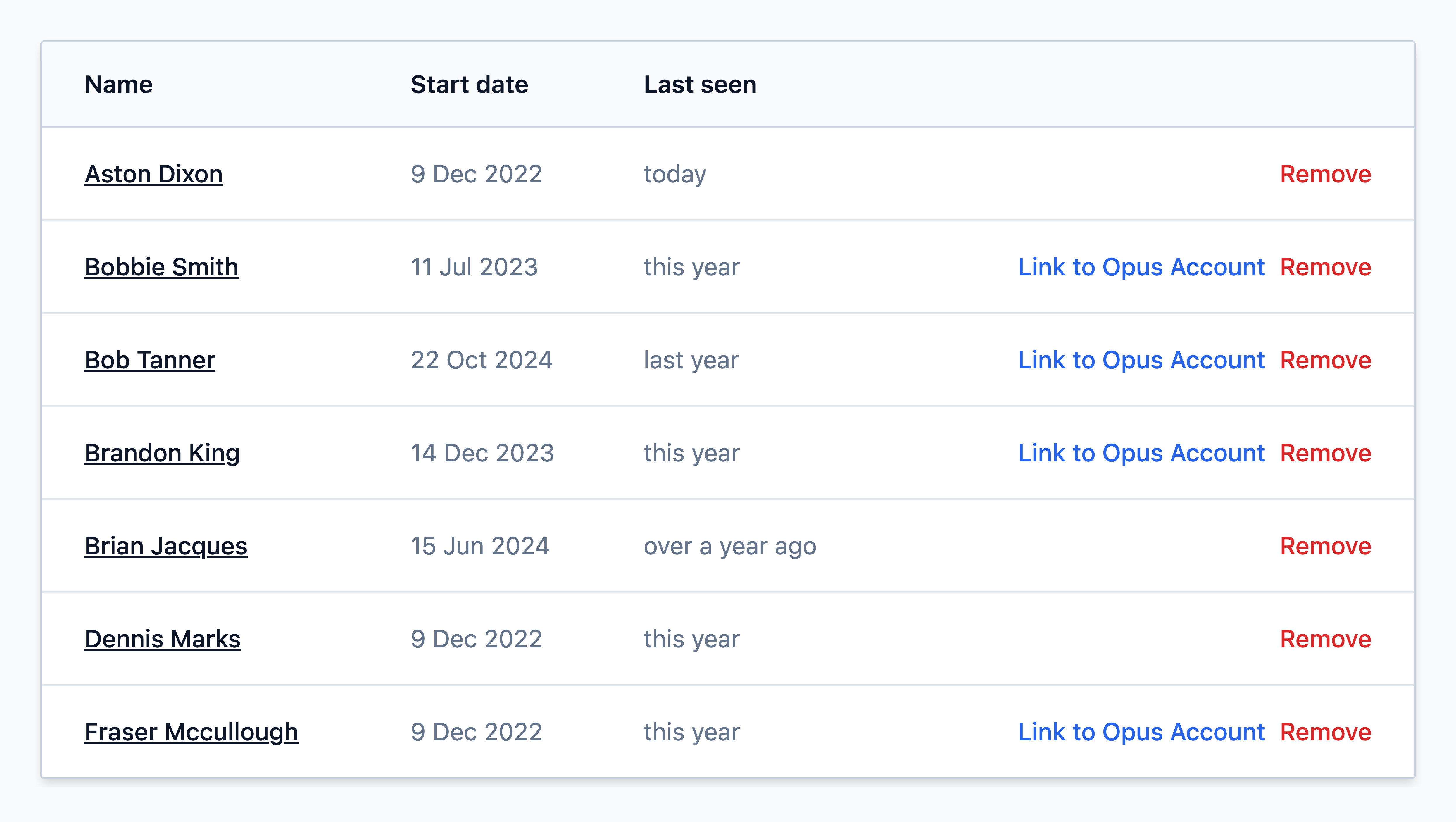
Find the employee from the list and click on their name
Shortcut!
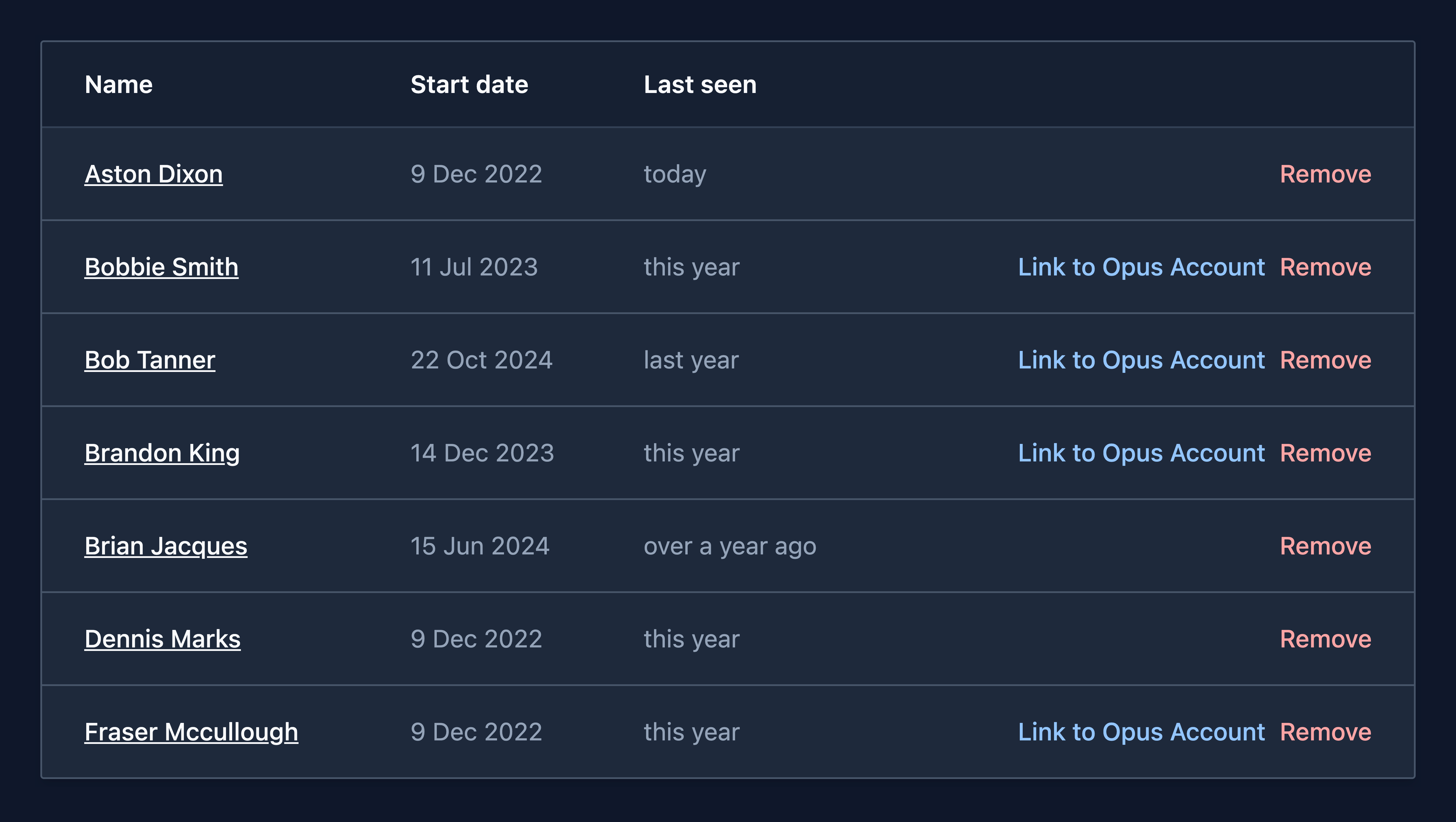
If you see the red Remove button next to the employee’s name in the list, you can click this instead to schedule the employee to be archived at the end of the day. You can then skip the remaining steps.
If you need to set a specific end date for the employee (for example, if their leaving date is in the future or was in the past), continue with the steps below.
Step
Click Unlink user account on the record


Step
On the confirmation page, read the information and warnings carefully to ensure you understand the implications of unlinking the record.
If you’re happy to proceed, select Confirm unlinking


Complete!
The account has now been successfully unlinked from the record. If needed, you can now re-register/link this employee following our Registering an employee guide below.