Snapshot
Written for Managers Administrators
The Snapshot is a valuable reporting tool that enables managers and administrators to gain a clear, high-level overview of the current state of sites, employees and assets, while also providing the flexibility to generate targeted, filtered reports.
Warning
The Snapshot should not be used as a replacement for the Site Inbox. It is designed to provide a high-level overview rather without some of the detail needed for day-to-day management of the system.
The Snapshot does not include all kinds of task and does not provide prioritisation. While it is a useful reporting and monitoring tool, we recommend using the Site Inbox for general task management.
How to run the Snapshot against a site
Step
From My Dashboard, click on Pick workspace and select the site where you wish to run the report.


Step
From the site inbox, click the Switch to Manage Mode button.


Step
In the sidebar, under Reporting, click Snapshot.


The Snapshot overview page
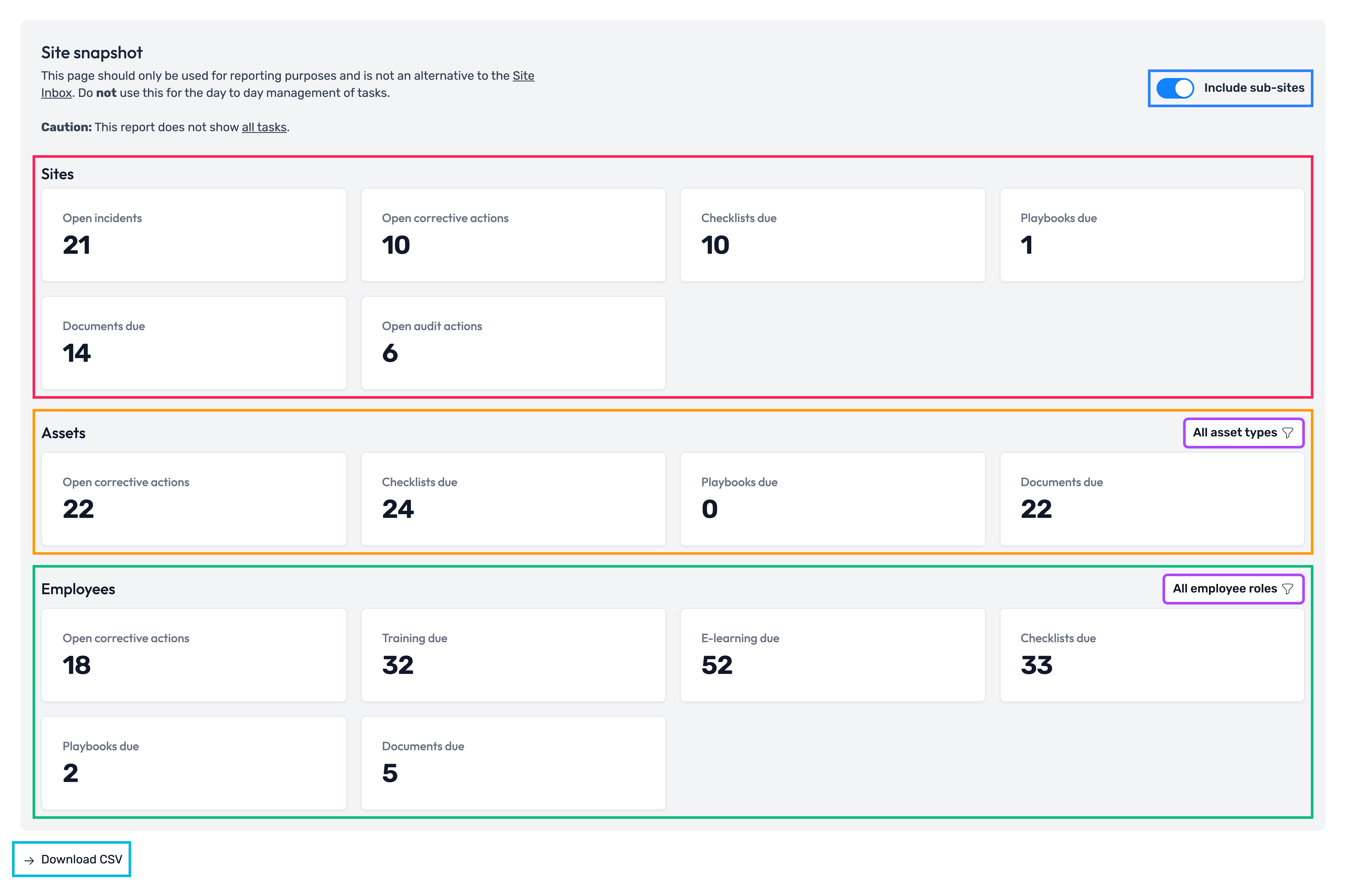
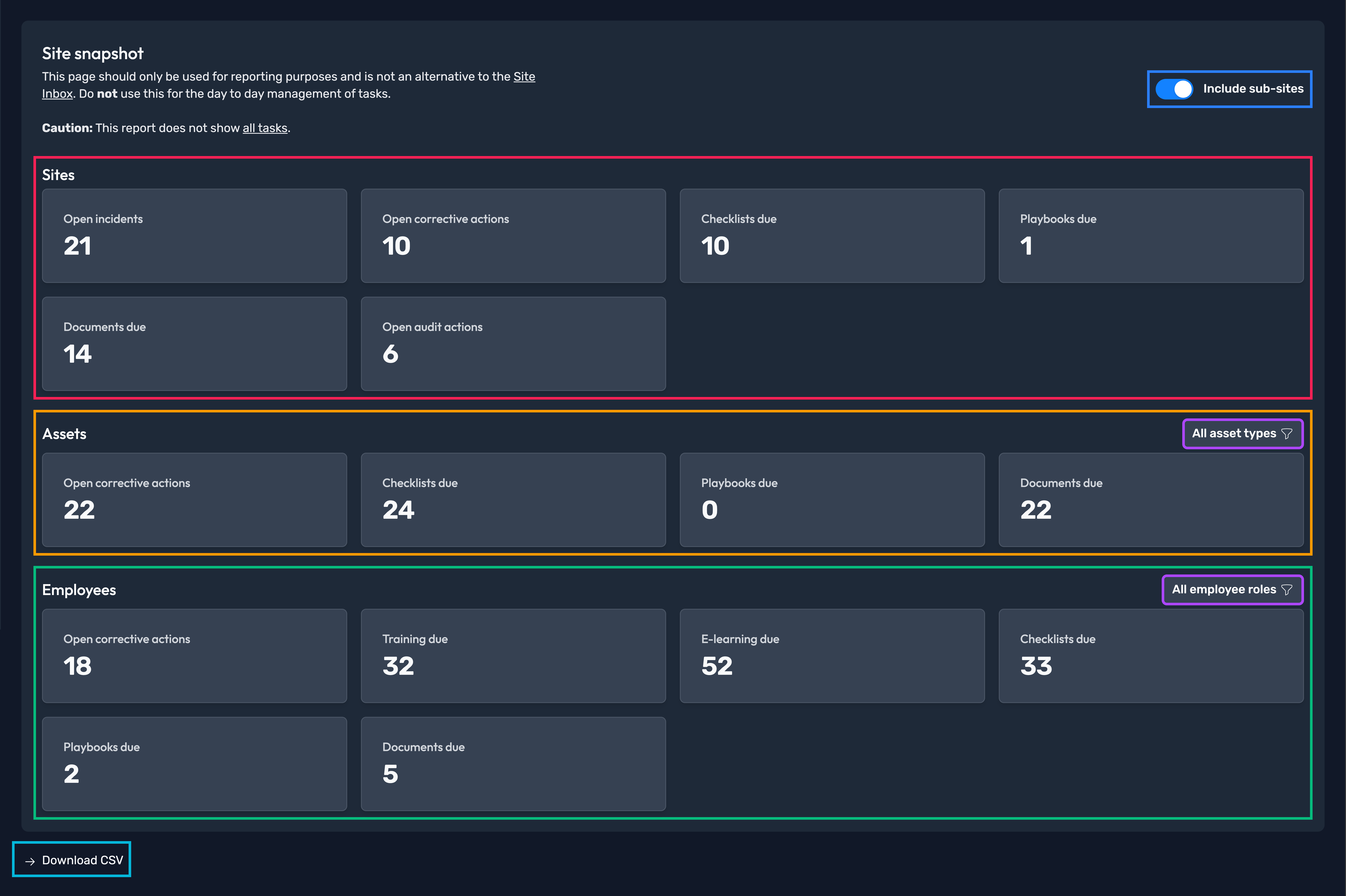
The overview page provides a series of “due counts” across a range of requirement and task types, giving you a good summary of outstanding items.
| Highlighted element | Description |
|---|---|
| Include sub-sites toggle | Toggle this option to enable or disable the inclusion of data from sites beneath the current site. |
| Sites section | This section displays different categories of site-related requirements and tasks, along with their corresponding due counts. |
| Assets section | This section displays different categories of asset-related requirements and tasks, along with their corresponding due counts. |
| Employees section | This section displays different categories of employee-related requirements and tasks, along with their corresponding due counts. |
| Asset type / Employee role filters | Use these options to filter the due counts by selected asset types and/or employee roles. |
| CSV export | Export the data to a CSV file containing a detailed breakdown of the Snapshot figures for each individual site. |
The Snapshot report page
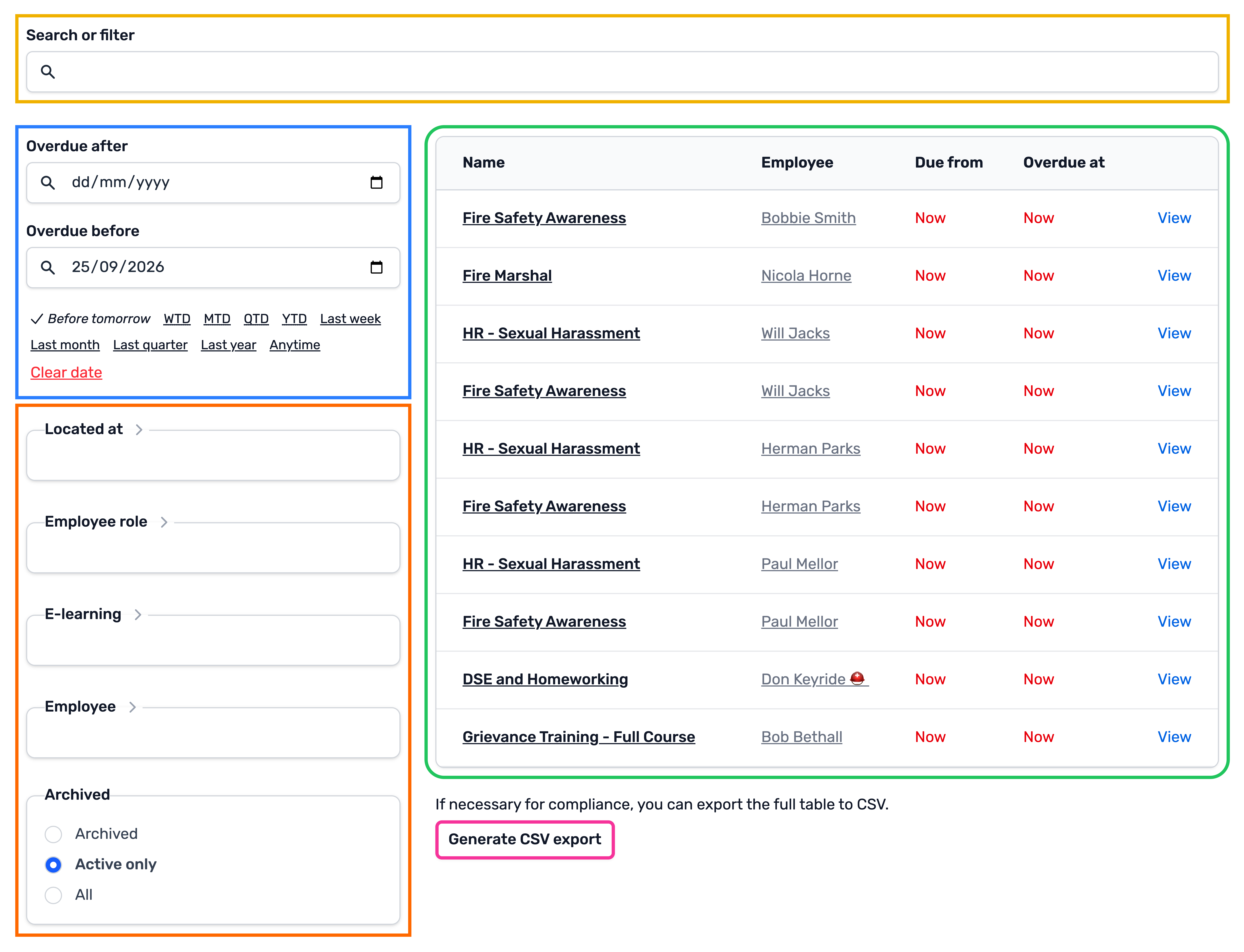
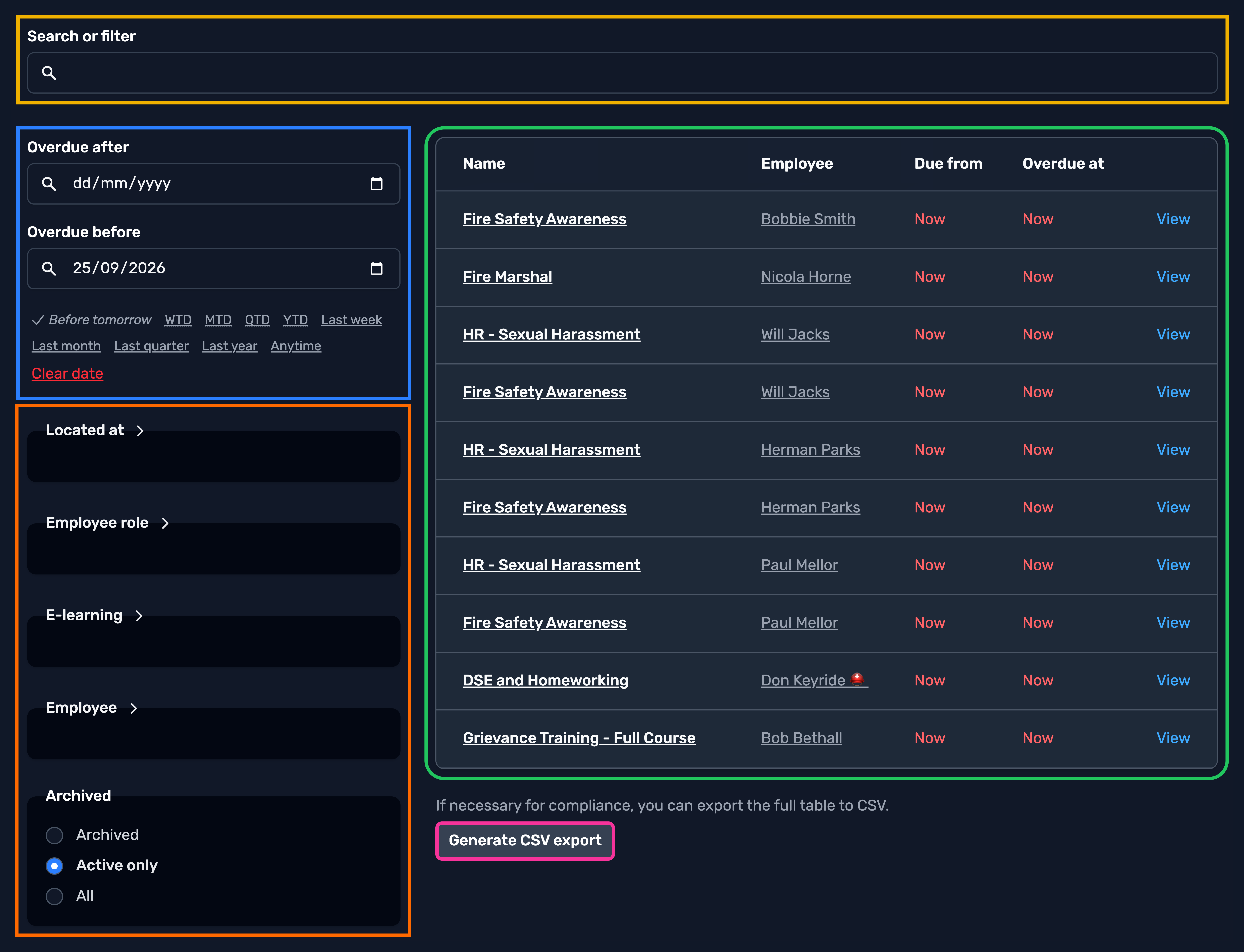
The report page is displayed after selecting a tile from the overview page. By default, it lists all currently overdue items within the selected category, however provides additional filters and options to refine the results further.
| Highlighted element | Description |
|---|---|
| Search bar | Use the search bar to find or filter for specific results. |
| Overdue date range | Adjust the overdue date range to customise the results shown. By default, this is set to show anything overdue before tomorrow (i.e. everything currently overdue). Tip Clear the date range to show all available results. |
| Results table | All relevant results, based on the filters you have applied, will be displayed in this table. |
| More filters | Apply additional filters using this section, including filters for role/type, site, employee/asset and more. |
| CSV Export | Export the results table as a CSV file containing a more detailed breakdown of the data. Tip These CSV exports are commonly used to provide evidence for submissions across a range of employees and assets. |