MFA
Written for Users Managers Administrators
Multi-factor authentication (MFA) adds an extra verification step when you sign in. It may be mandated by your organisation, or something you can enable yourself on your account.
Setting up MFA/2FA
If mandated by your organisation, skip to step 4.
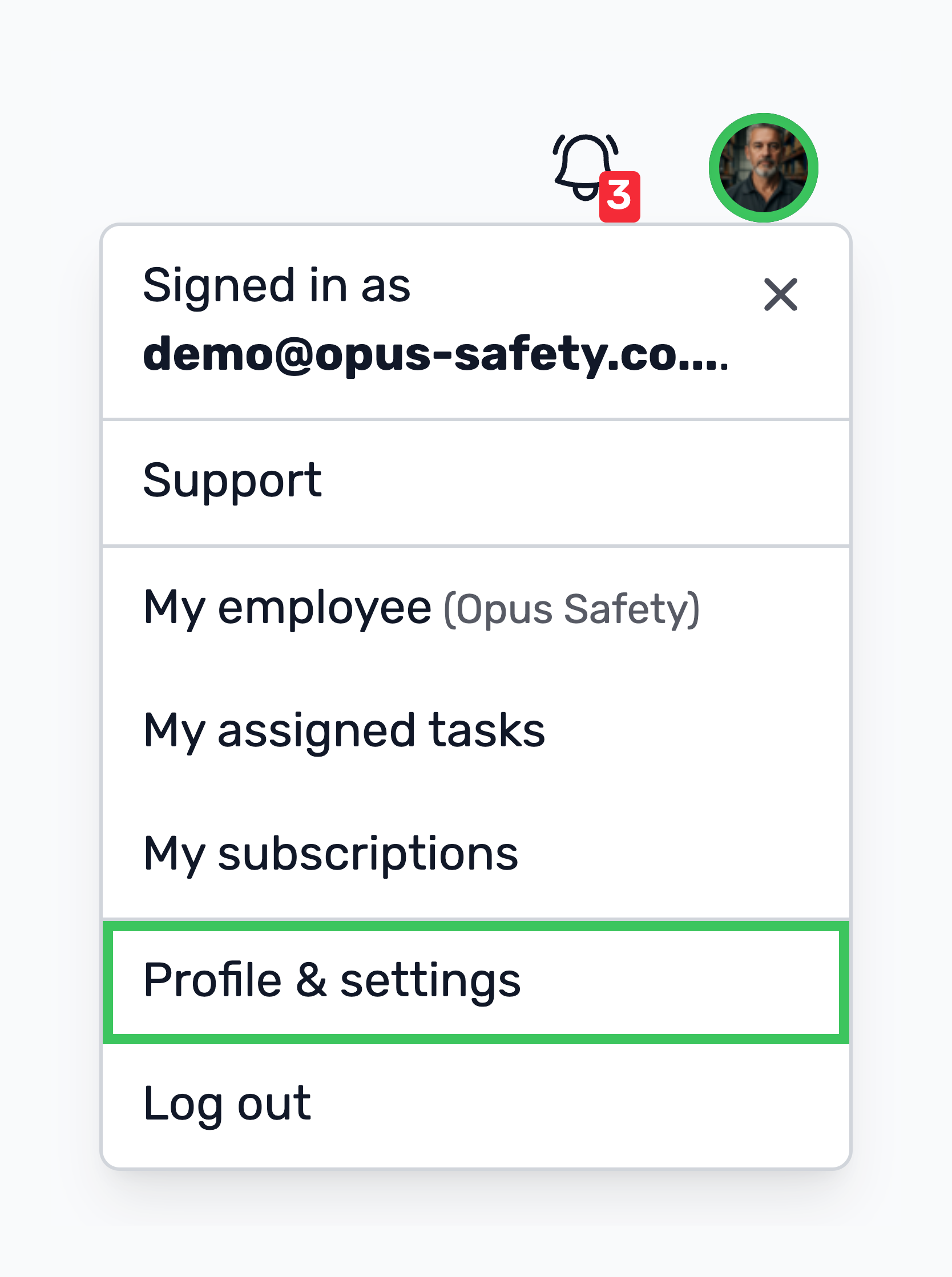
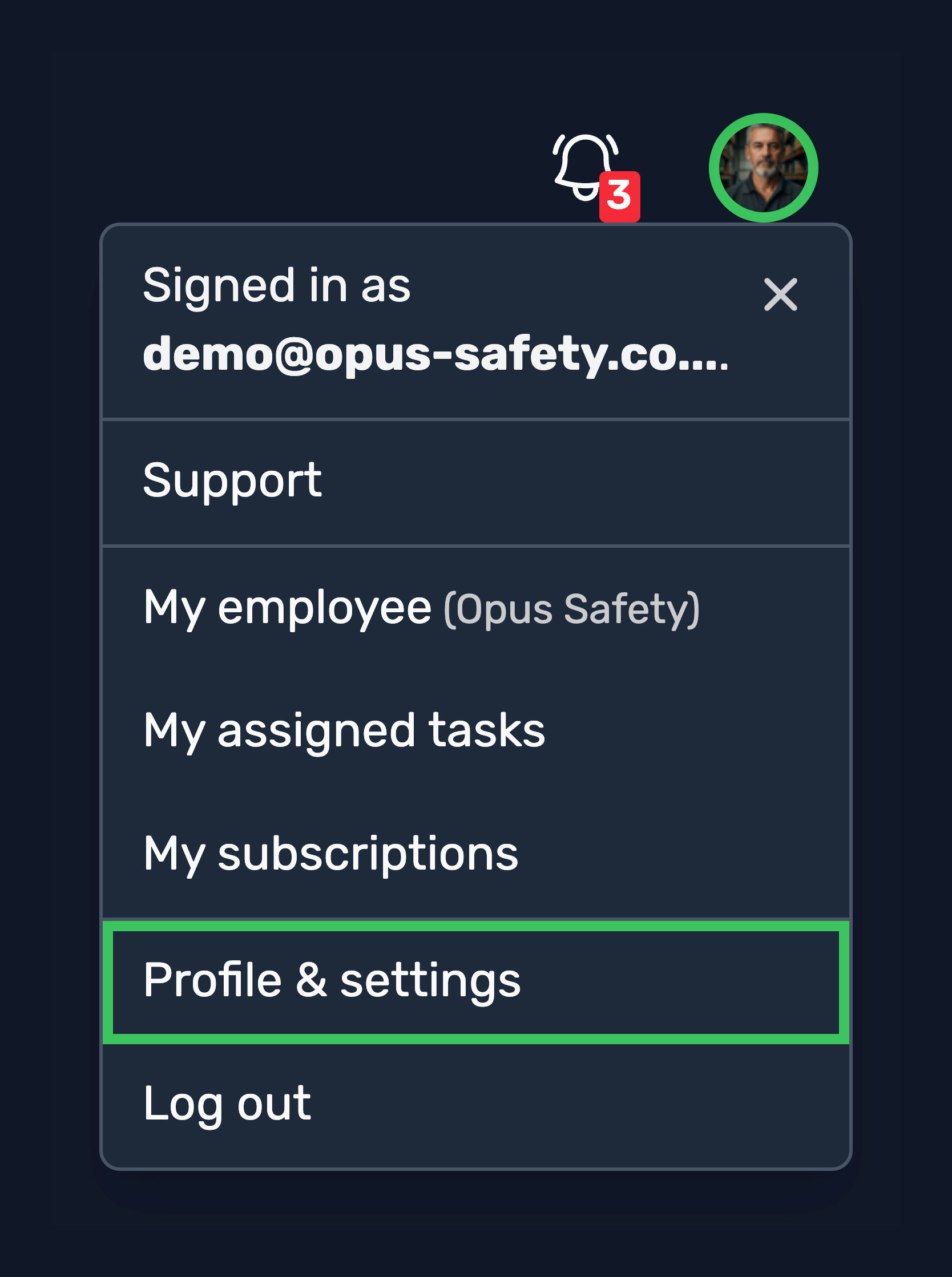
Step
Select the Security tab at the top.


Step
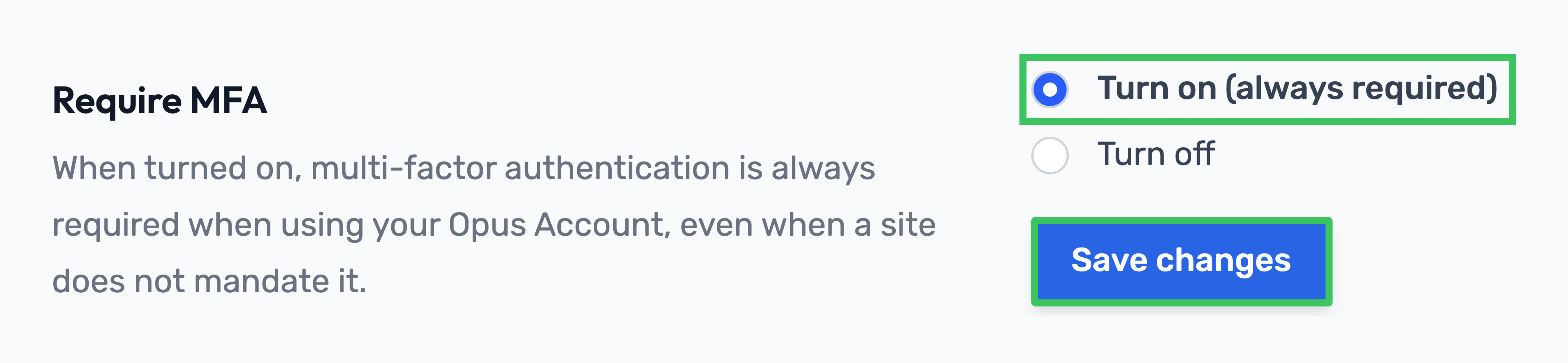
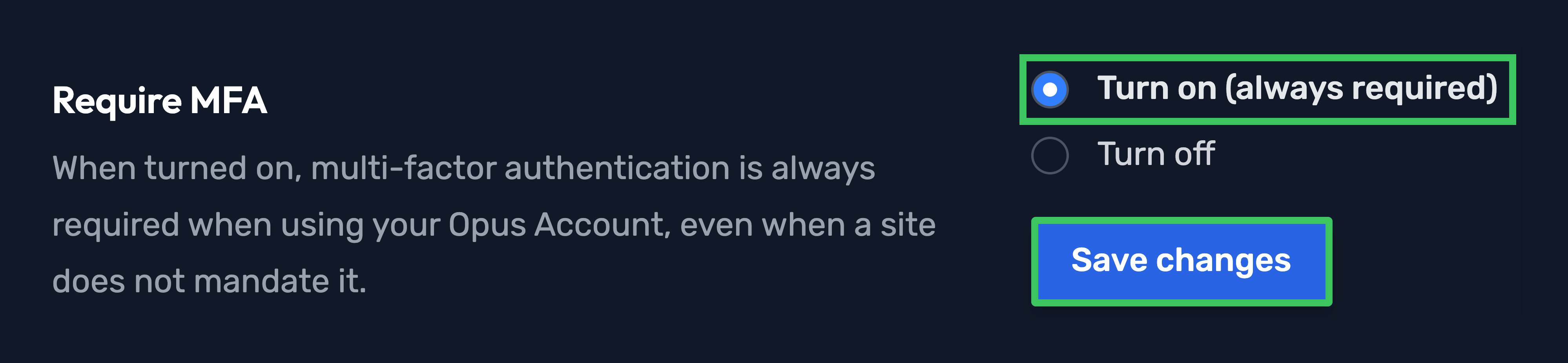
In the Require MFA section, select Turn on (always required) and then Save changes.
Step
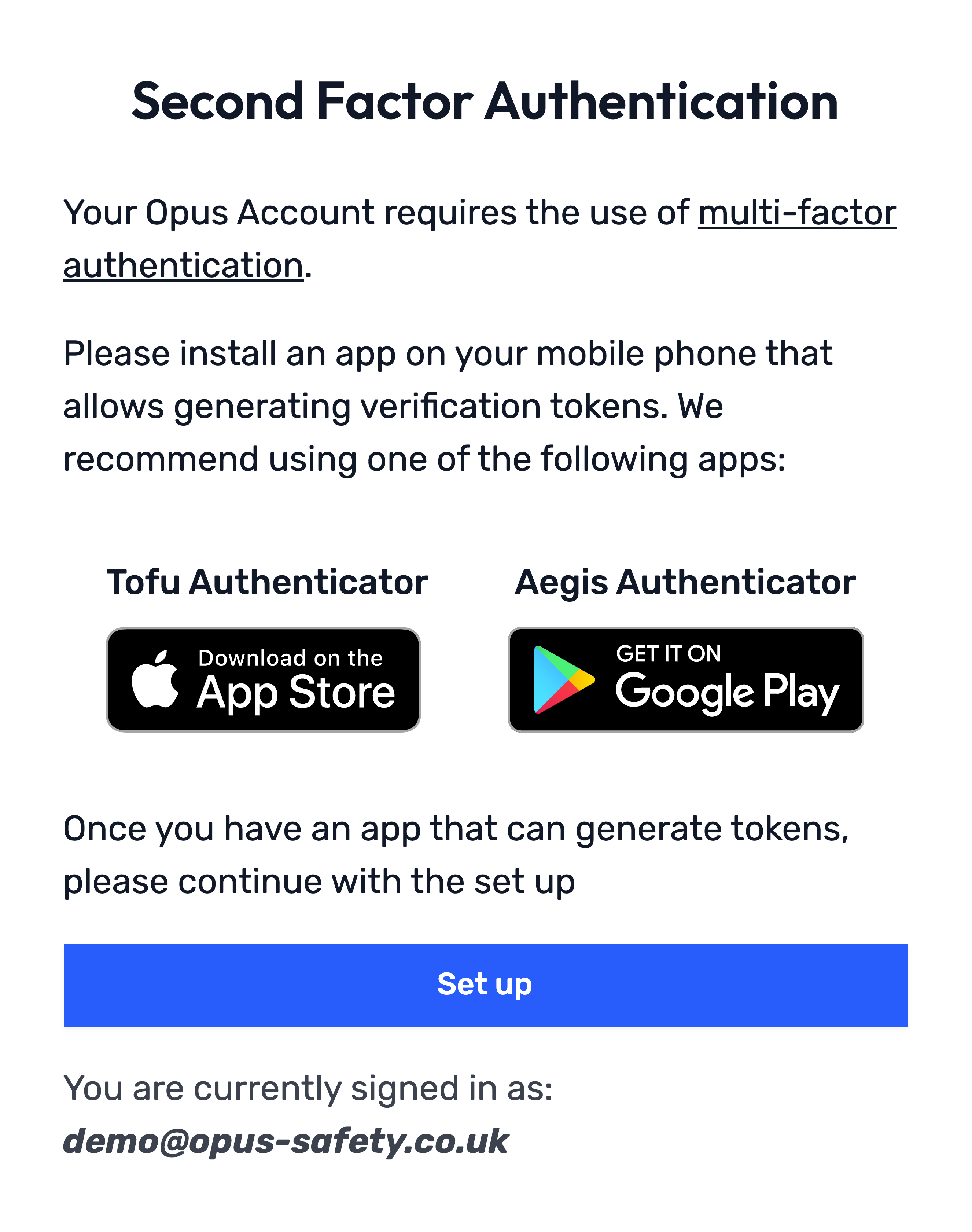
Navigating back to My Dashboard will prompt you to setup 2FA/MFA.
Make sure your mobile device has an authentication app installed. Your organisation may require you to only use certain authentication apps.
Step
Click Set up.


Step
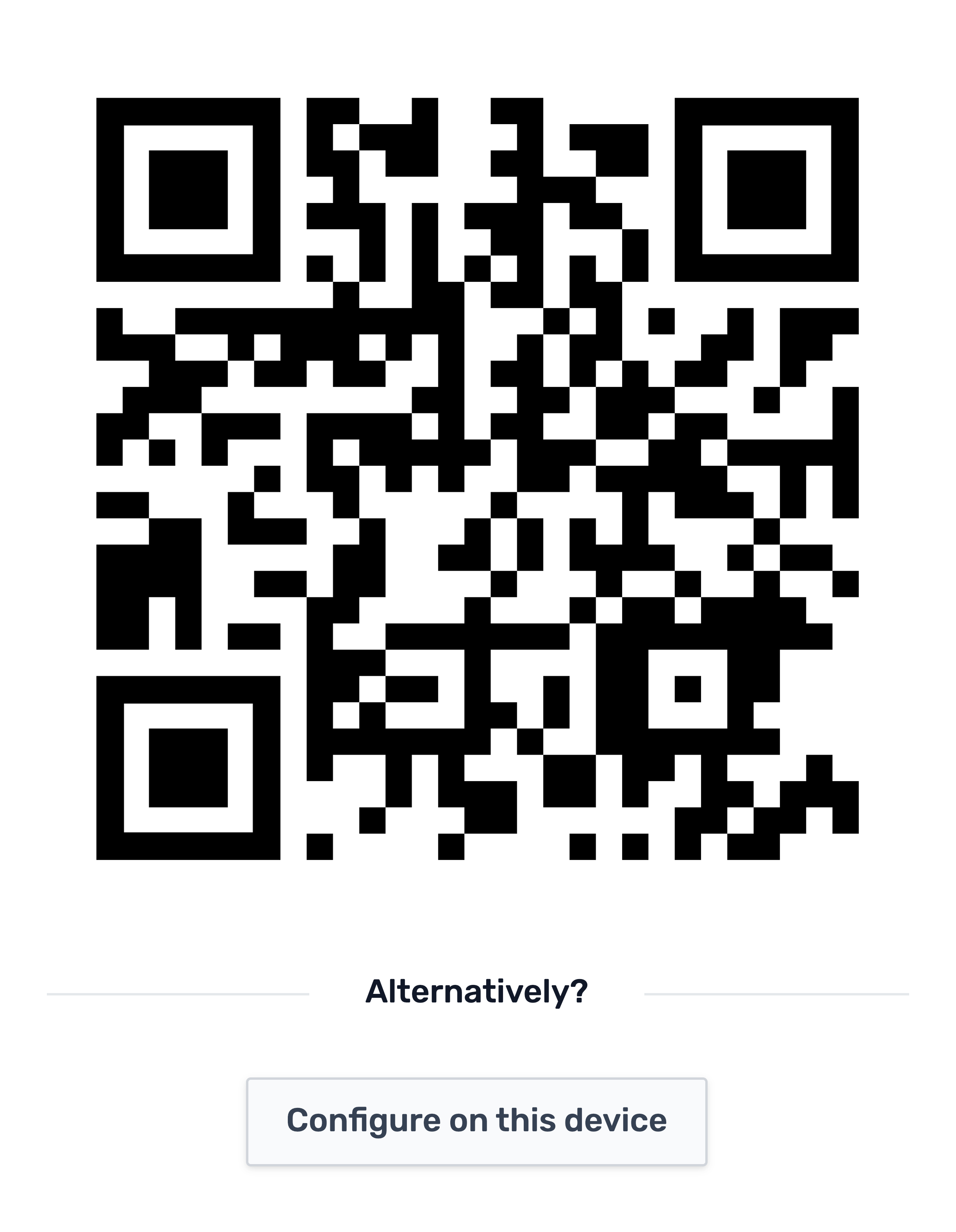
Scan the QR code that appears using your mobile device, or select Configure on this device if you're setting up MFA on the device you're currently using.
Step
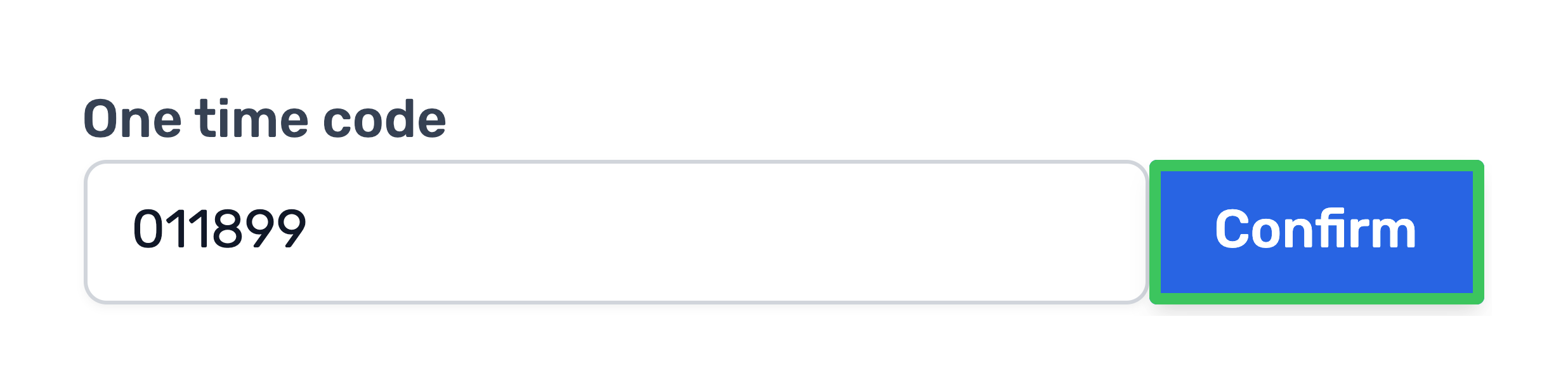
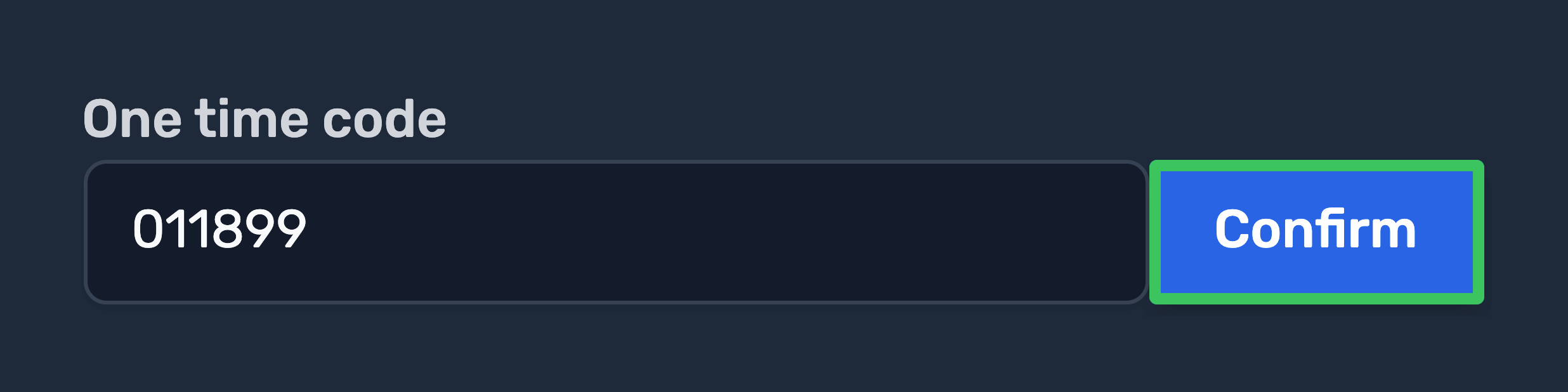
Enter the code shown in your authenticator app and select Confirm.
Step
A series of backup codes will be displayed. Please store these somewhere safe.
Each backup code can only be used once to authenticate. These can be used to regain access to your Opus account if you lose/reset your authentication device.
Once stored, click I have stored them.


Complete!
You've now setup MFA/2FA on your Opus account.