Creating & linking your Opus Account
Written for Users Managers Administrators
Follow this guide to help you with creating and/or linking your Opus Account.
This guide assumes you have already received a registration link or QR code from the relevant manager. If you have not received one, please refer them to this guide for instructions on how to provide it to you.
Account setup
Follow the steps below to create a new Opus account and complete registration.
Step
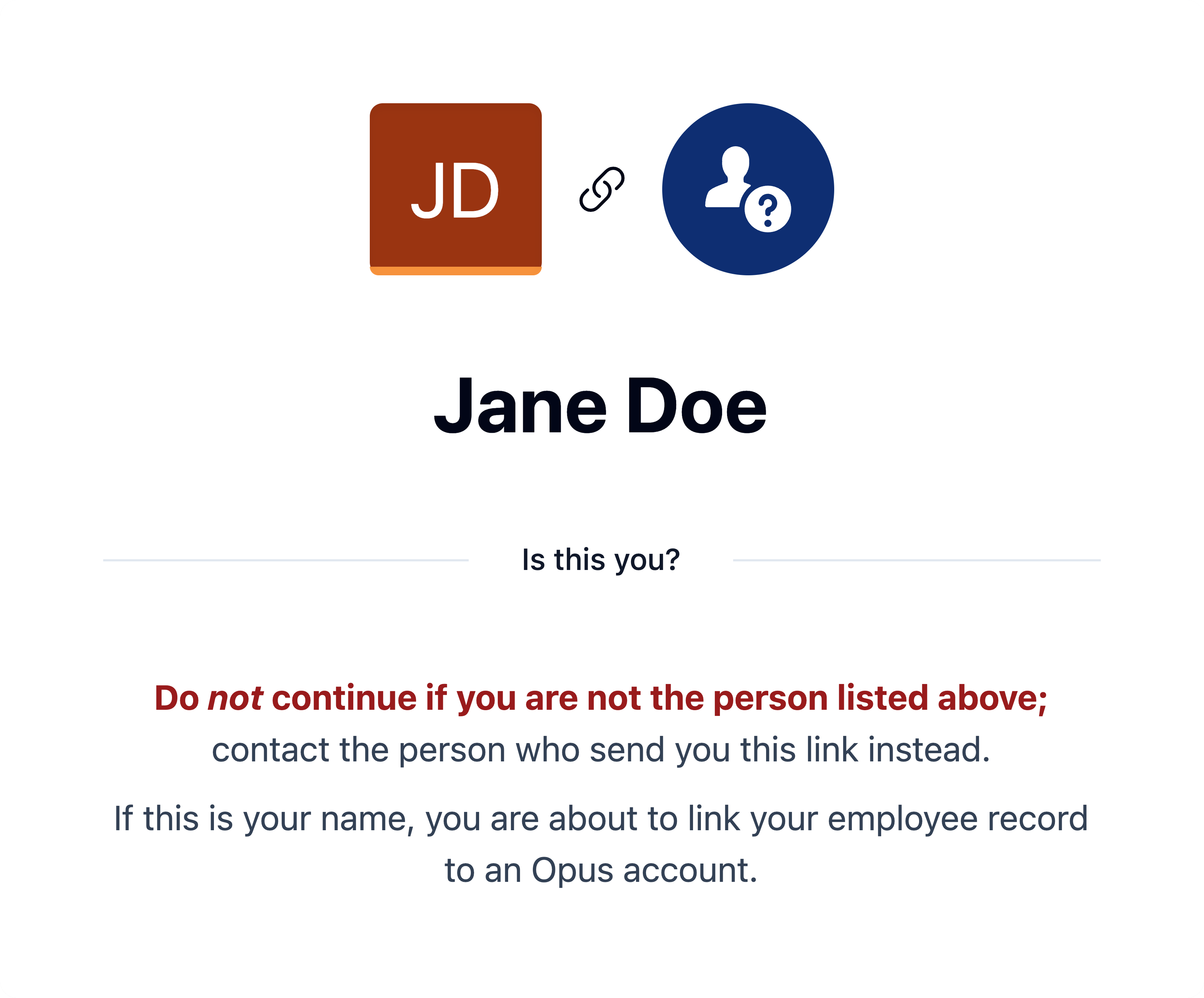
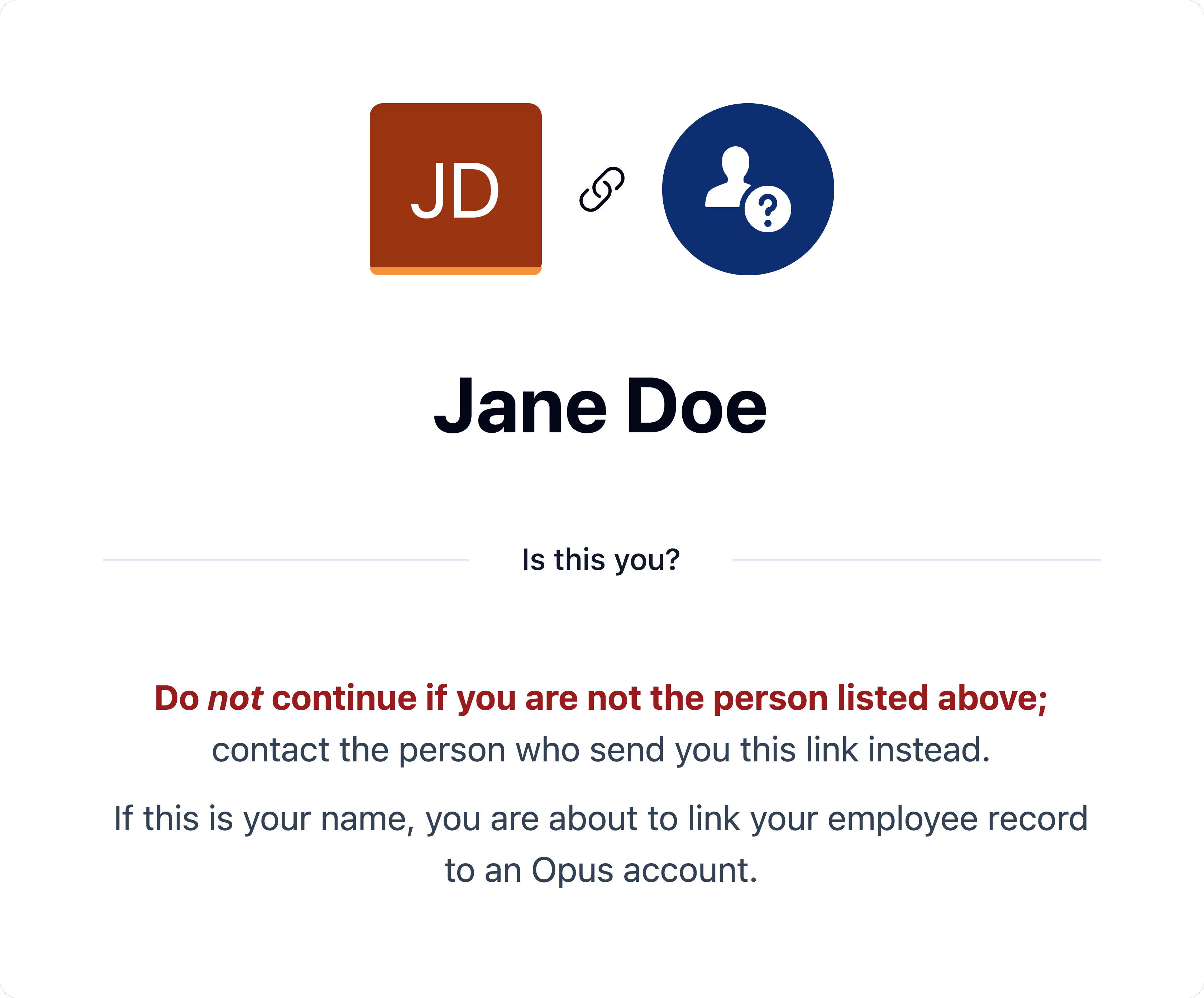
After following the link or scanning the QR code, you will be asked to confirm that you are linking to the correct employee record. Please ensure that your name is displayed on the confirmation page.
If your name is not shown, you may have been provided with an incorrect registration link or QR code. In this case, do not proceed and contact the person who provided it to you immediately.
Step
Click Sign up
Step
Create your Opus account using an email and password.
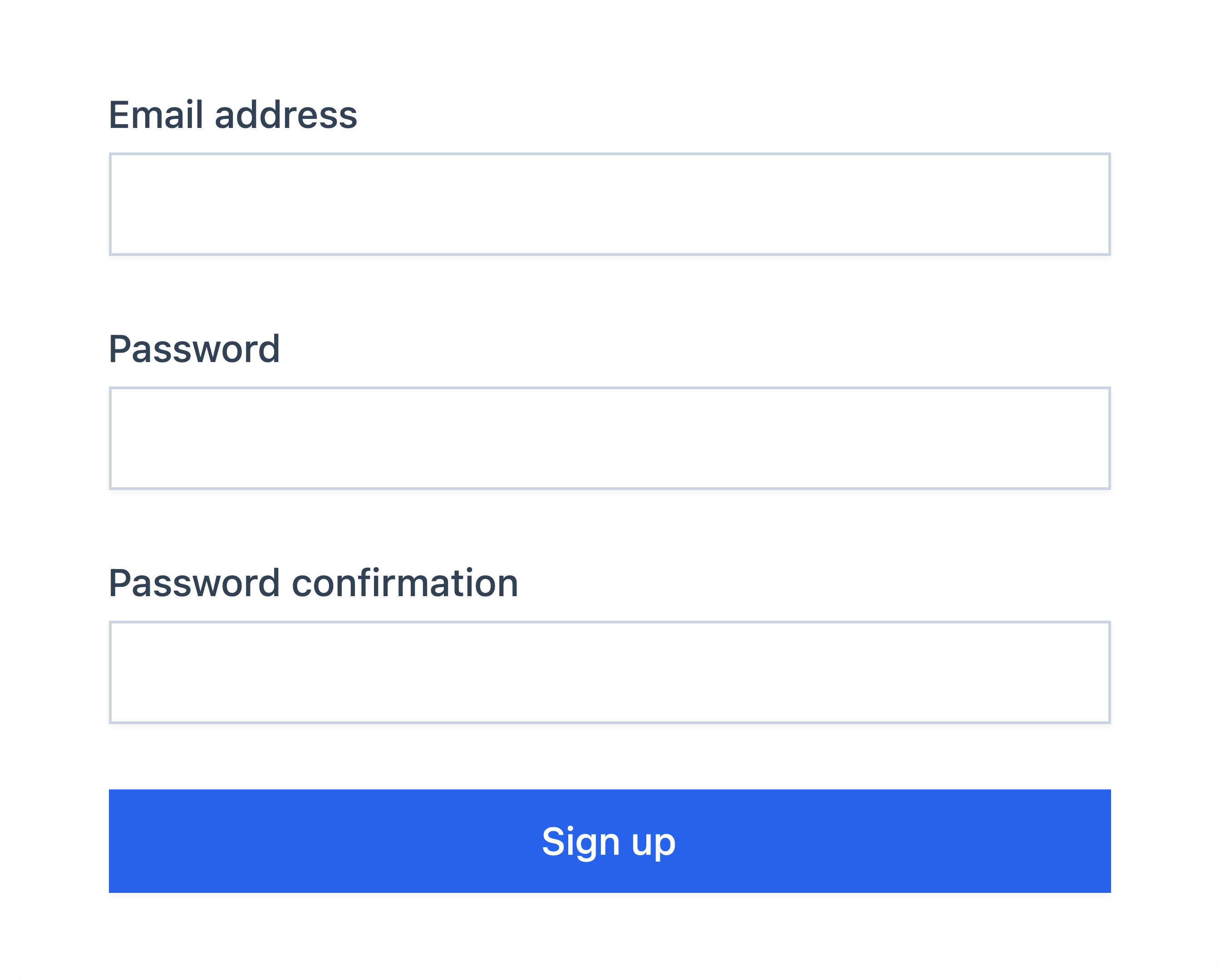
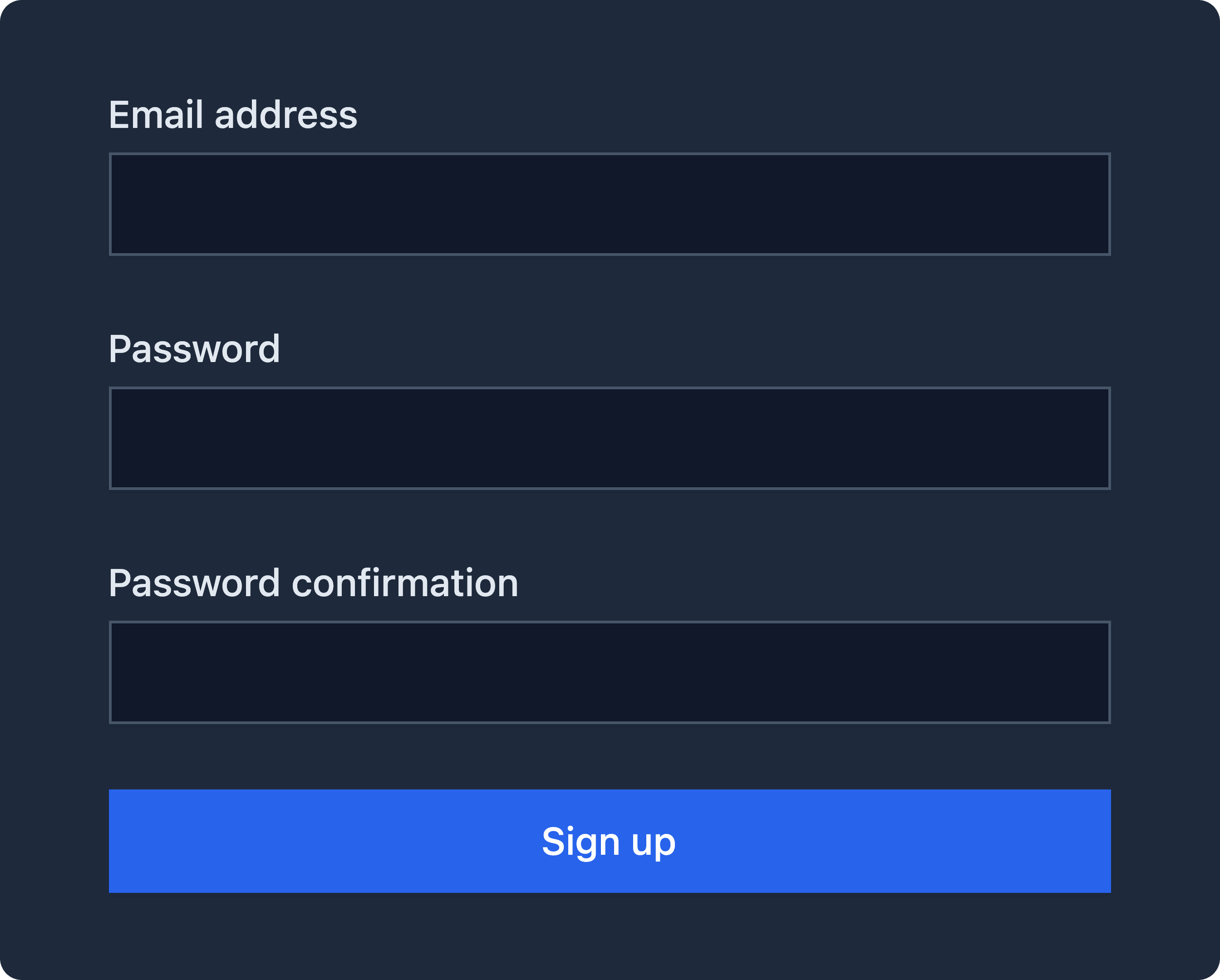
You will now see a Link Confirmation page displaying your name. Click Link My Opus Account to continue.


Step
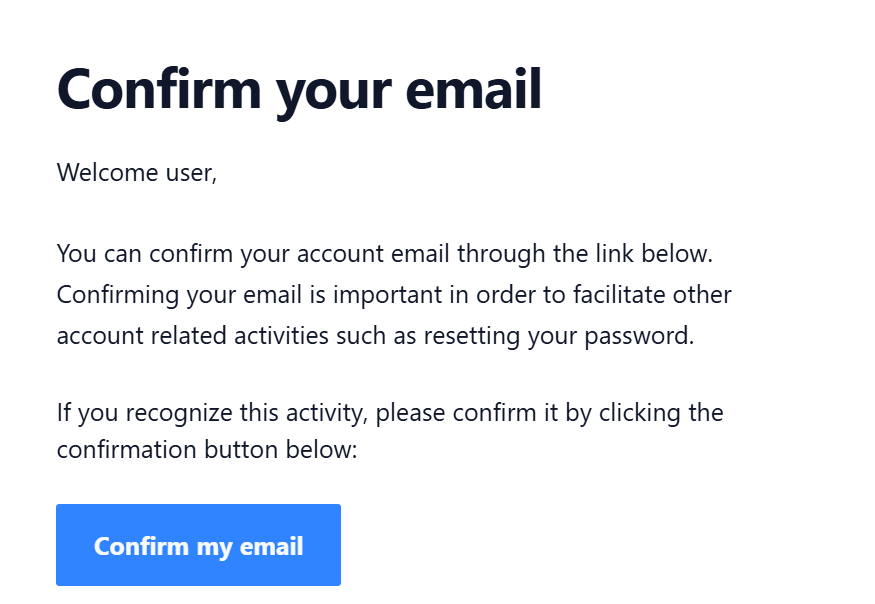
After registering, you will receive an email confirmation. Click the Confirm my email button in your email.
Follow the steps below to complete registration with an existing Opus account.
Step
After following the link or scanning the QR code, you will be asked to confirm that you are linking to the correct employee record. Please ensure that your name is displayed on the confirmation page.
If your name is not shown, you may have been provided with an incorrect registration link or QR code. In this case, do not proceed and contact the person who provided it to you immediately.
Step
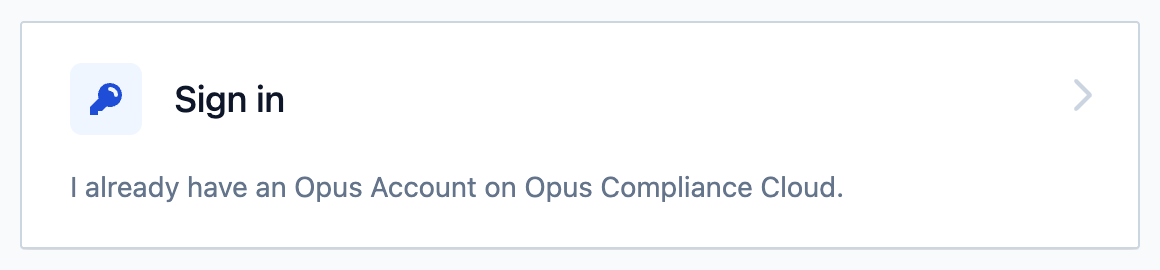
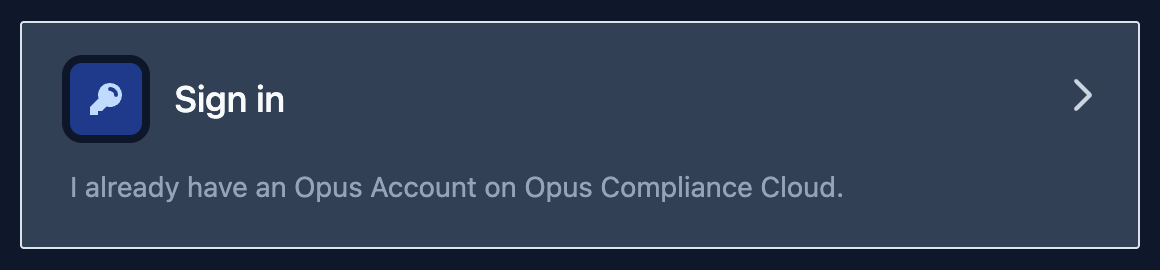
Click Sign in
Step
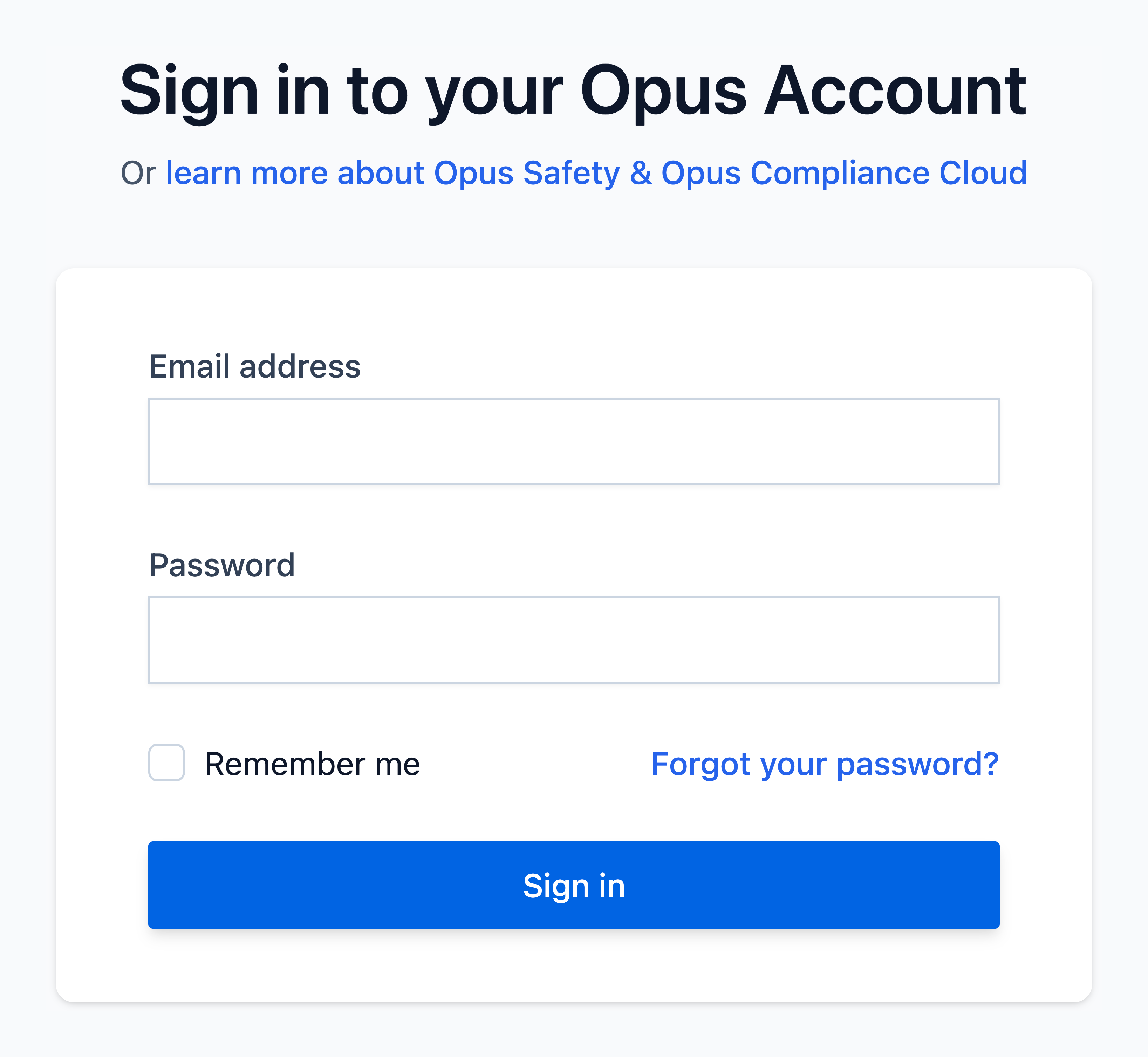
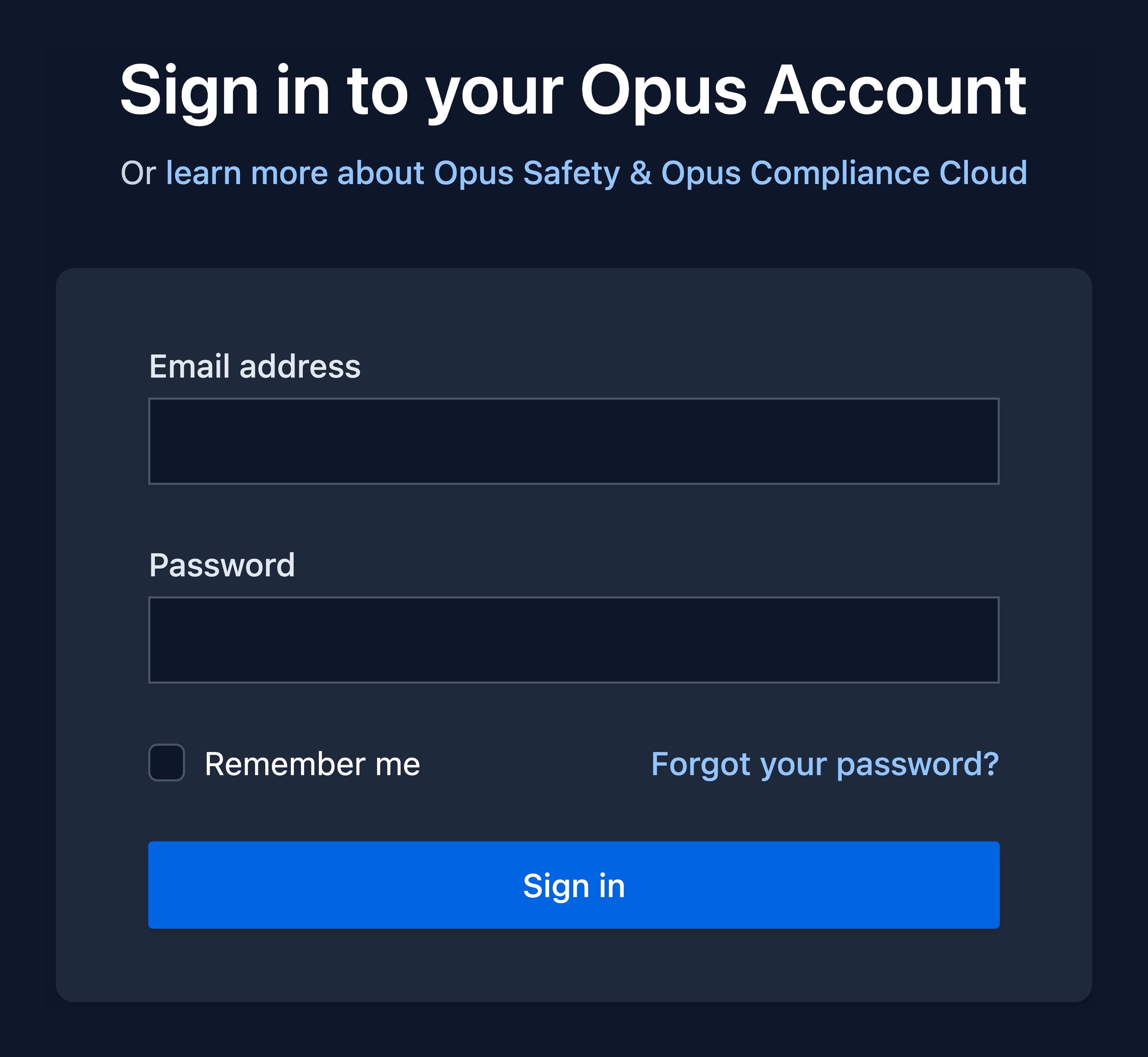
Sign in with your existing Opus account.
Forgot your password?
Use the Forgot your password? link and follow the instructions to reset your password.
You will now see a Link Confirmation page displaying your name. Click Link My Opus Account to continue.
Configuring your profile, subscriptions and notifications.
If you’re a new user, you’ll be guided through the subscription wizard below immediately after linking. If you're an existing user, you can retake the subscription wizard at any time from your subscriptions page.
Step
Set your Display name.
This is the name associated with your account as seen by your colleagues.


Change your Avatar.


Step
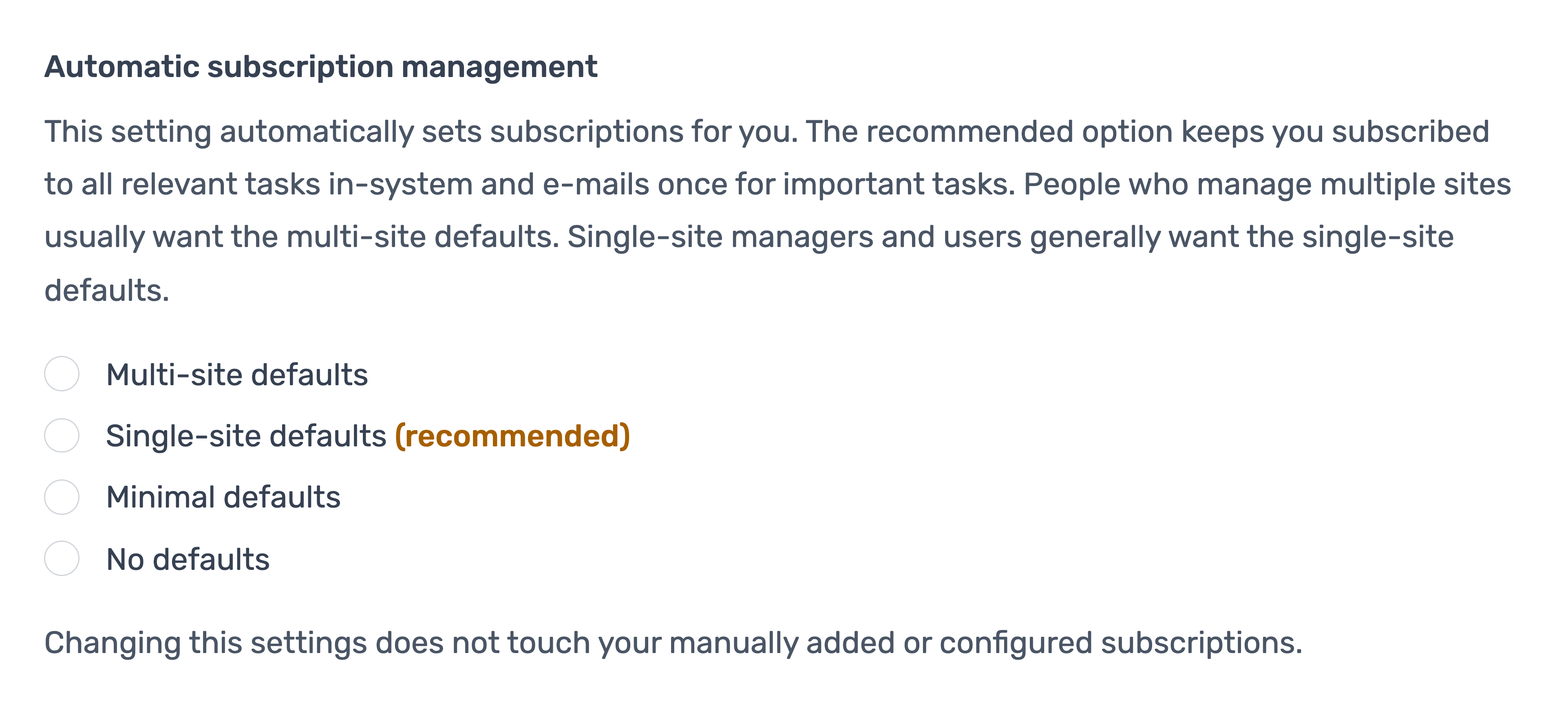
Configure your subscriptions using one of our presets. Based on your configured access, the system will recommend the most suitable preset for you.
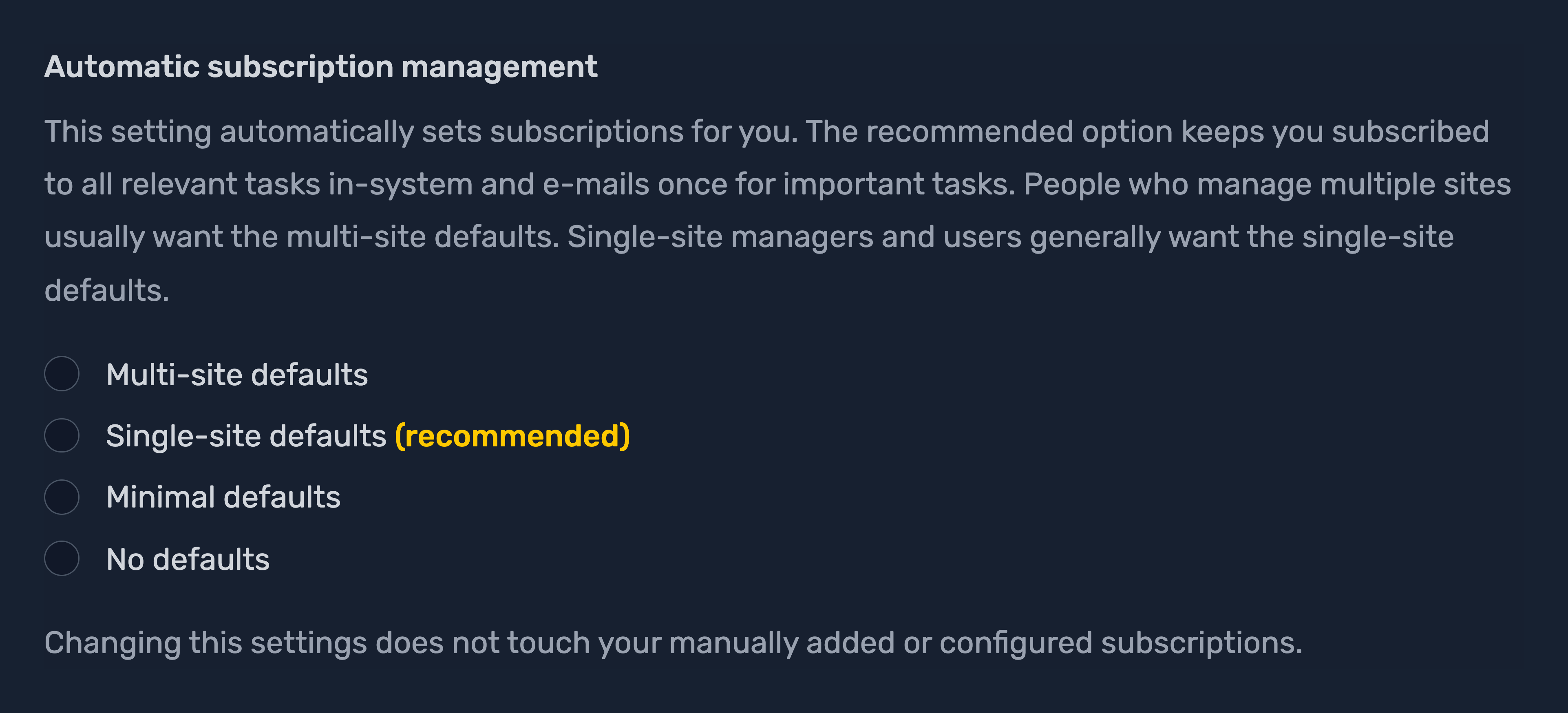
What are Subscriptions?
Subscriptions are an account configuration that allows you to receive in-system and email notifications about events that happen in Opus Compliance Cloud, such as reminders when your e-learning is due or notifications when incidents occur.
Step
Choose whether you wish to share your subscription configuration with your manager(s).


Warning
It may be an employment contract requirement to turn this on.
Step
Configure your notification preferences, including the digest email.


What is the Digest Email?
The digest email brings together all your unread in-system notifications and sends them to you in a single daily or weekly email, making them easier to review.
Subscribe to our newsletters to stay informed about the listed topics.


Tip
The System Updates option is particularly useful if you want to stay up to date with the latest changes, features and updates to Opus Compliance Cloud.
Step
Finally at the bottom, select Save choices & continue.

