Changing an employee's access
Written for Managers Administrators
Finding the employee


Step
From the site inbox page, click the Switch to Manage Mode button.


Step
Click Employee records on the manage sidebar.


Step
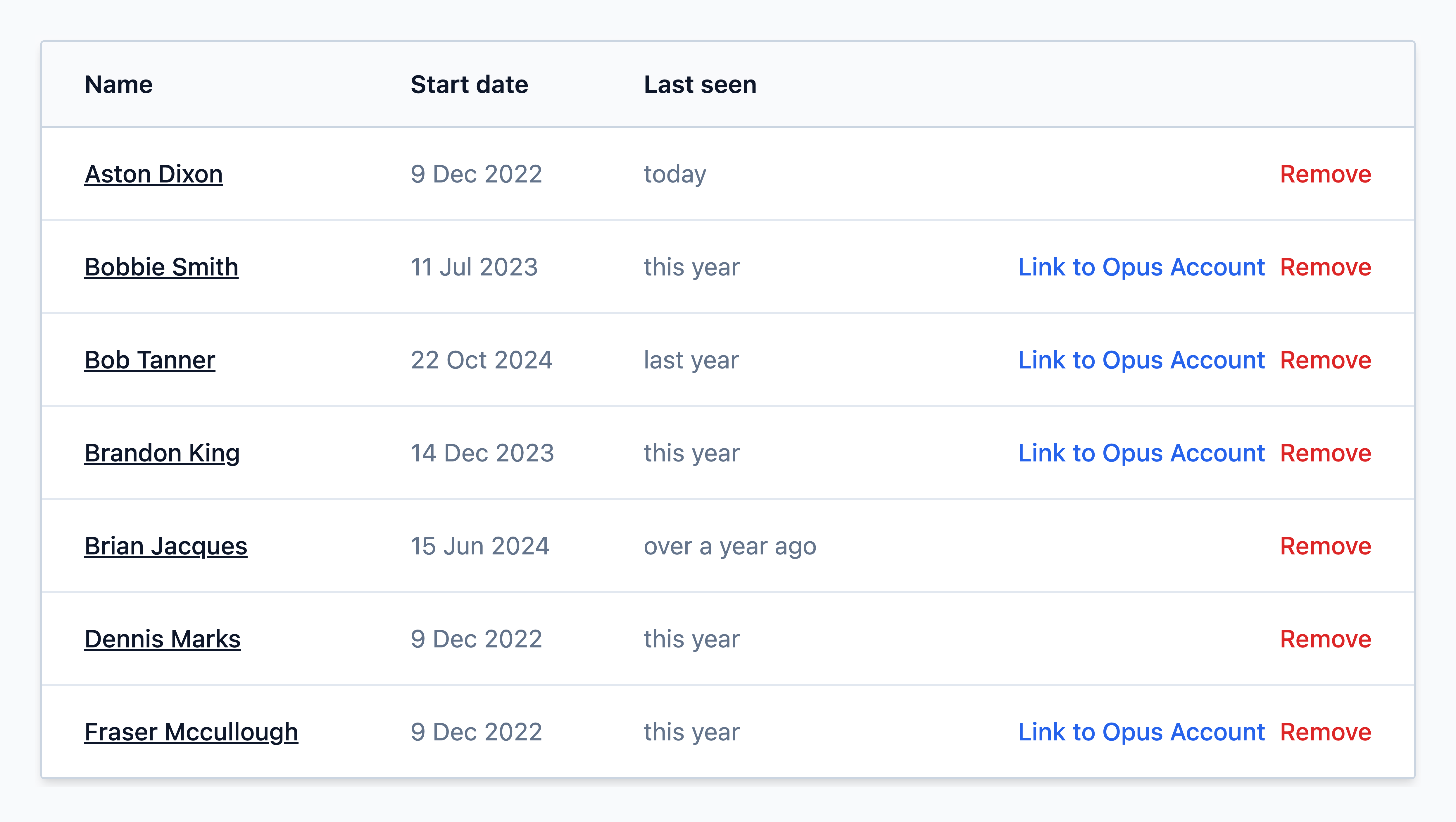
Find the employee from the list and click on their name
Changing the employee's access
Step
On the employee's record, select Change access


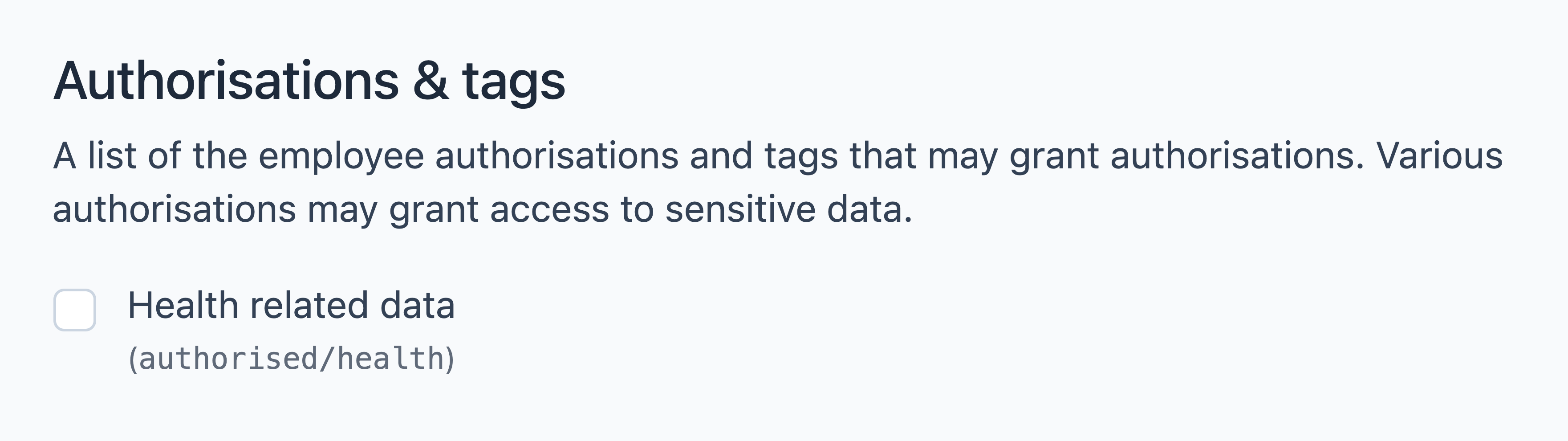
Under the Authorisation & tags section, modify the authorisations this employee holds (you can only configure this if you possess the authorisation yourself).
authorised/health — Assigning this tag grants the employee authorisation to access sensitive health data (e.g. Health Surveillance corrective actions) for the employees they manage.
Note
By default, all sites will have the authorised/health tag available, but depending on your site configuration you may have more.
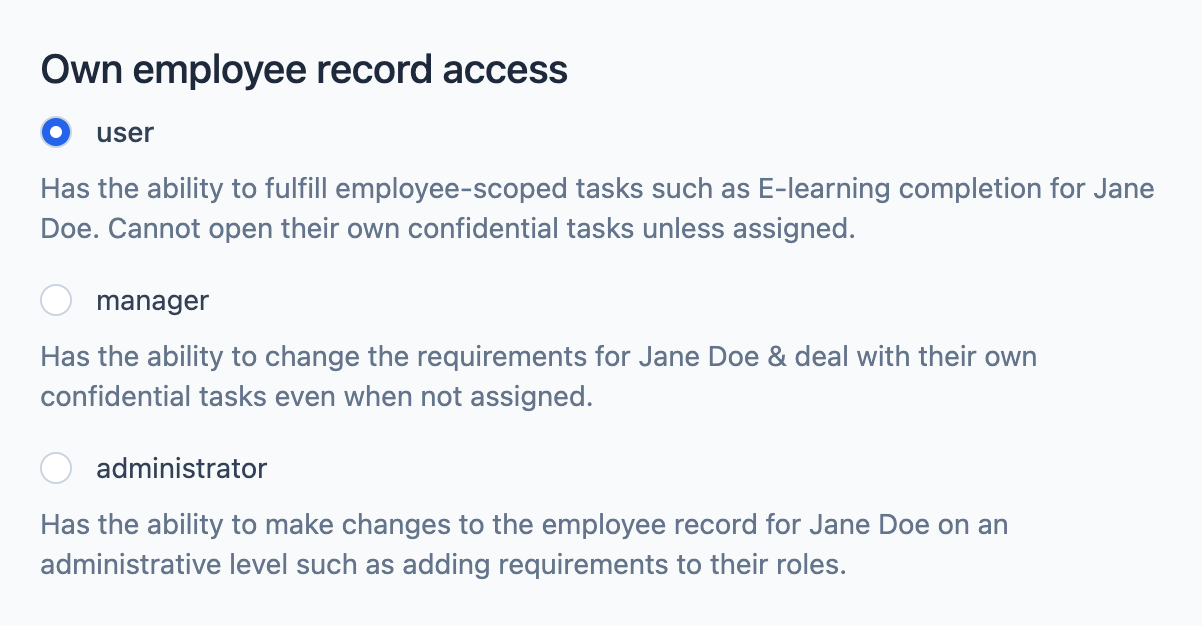
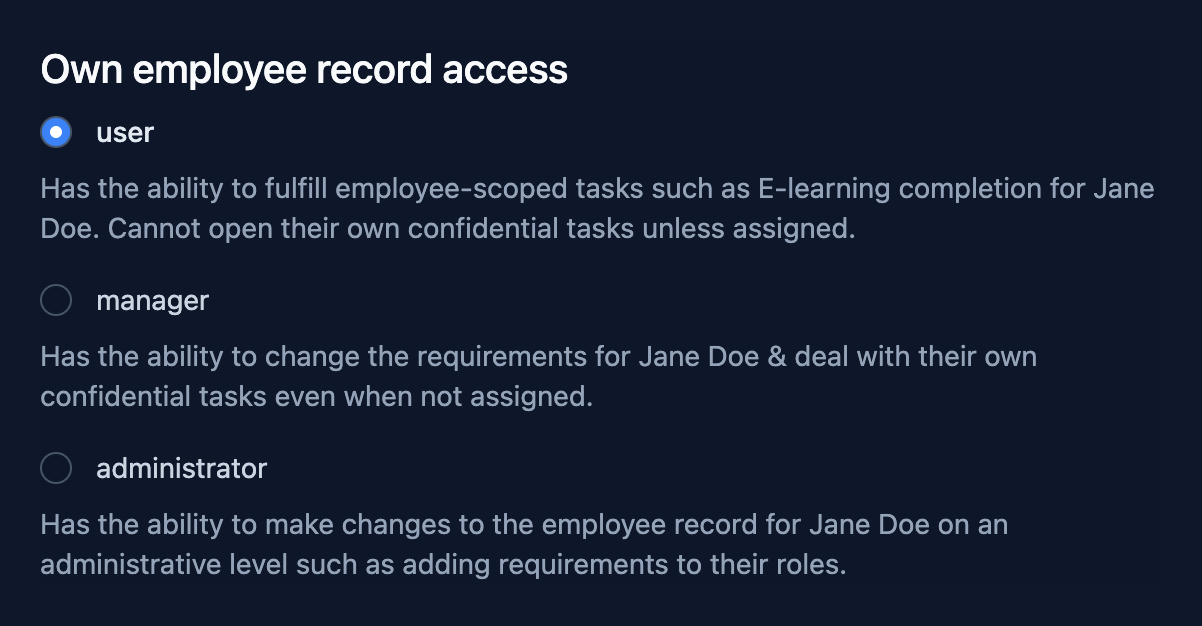
Under the Own employee record access section, modify whether this employee can manage their own record.
- User - Can fulfil employee-scoped tasks such as their own e-learning completion. Cannot open their own confidential tasks unless assigned.
- Manager - Can change their own requirements and deal with their own confidential tasks even when not assigned.
- Administrator - Can make administrative-level changes to the employee record, such as adding requirements to their roles.
Step
Under the Site access section, modify the employee's access to your site(s).
Select between User, Manager and Administrator access. To remove access to a site, select the - option from the dropdown menu.
Multi-sited?
You can navigate up and down your site hierarchy using the Up and Down arrow buttons next to a site to navigate to other sites/regions, or your entire organisation.
Tip
Access cascades down the site hierarchy. Granting access at a site automatically applies the same access to all of its sub-sites.
Step
Once you have made the changes, click Apply changes.