Line management
Written for Managers Administrators
Line management allows you to give an employee direct access to manage specific staff members within your organisation.
Follow the steps below to set this up for an employee.
Finding the employee


Step
From the site inbox page, click the Switch to Manage Mode button.


Step
Click Employee records on the manage sidebar.


Step
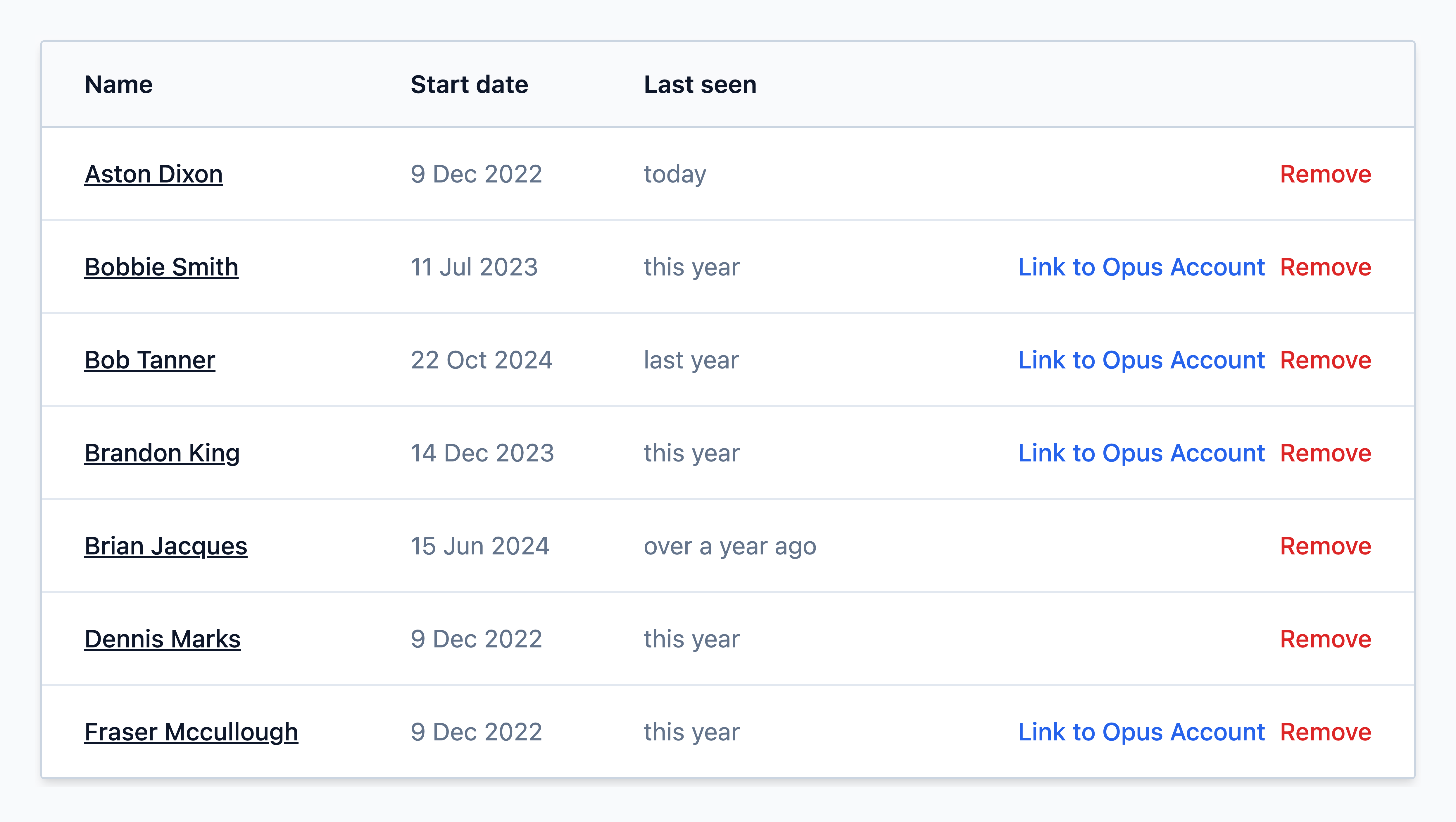
Find the employee from the list and click on their name
Configuring line management access
Step
On the employee's record, select Change access


Step
Under the Site access section, drill down into the employees at a site and configure who this employee can manage.
To remove access to an employee, select the - option from the dropdown menu.
Multi-sited?
You can navigate up and down your site hierarchy using the Up and Down arrow buttons next to a site to navigate to other sites/regions, or your entire organisation.
Step
Once you have made the changes, click Apply changes.


How to access the employees you manage


Step
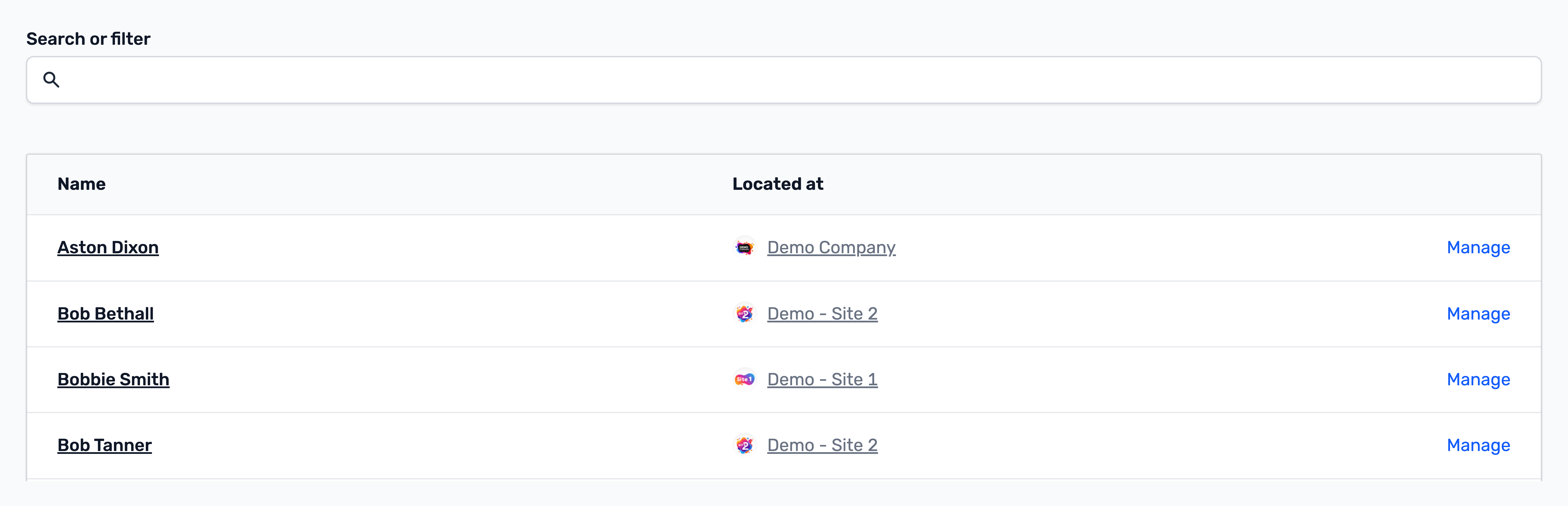
The employees you manage will be listed on the page and can be found using the search bar.
Select Manage on an employee to manage their record.