Subscriptions
Written for Users Managers Administrators
In Opus Compliance Cloud, you can configure your account to notify you when certain events happen, such as reminders when your e-learning is due or notifications when incidents occur. We call these subscriptions.
How do subscriptions work?
When a task is created, Opus Compliance Cloud checks whether you're subscribed to that kind of task. If you are, you will receive a notification. There are three ways the system can notify you:
| Type | Description |
|---|---|
| In-system notification | Appears in Opus Compliance Cloud, under the bell icon and on the notifications page. |
| Direct email notification | An email sent directly to notify you when a task-related event occurs. Ideal for keeping up to date with important events, such as incidents. |
| Digest email | A single email that collates all your unread in-system notifications. Digest emails run on a Daily or Weekly schedule. |
How to subscribe
Subscription wizard
The subscription wizard is a quick way to set up default in-system and email notifications for your account.
All new users go through the wizard when they create their Opus account. Existing users can re-run it at any time from their subscription settings, or with the button below.
Subscription wizard step-by-step instructions
Step
Enter your Display name. This is the name your colleagues see on your account.


Change your Avatar.


Step
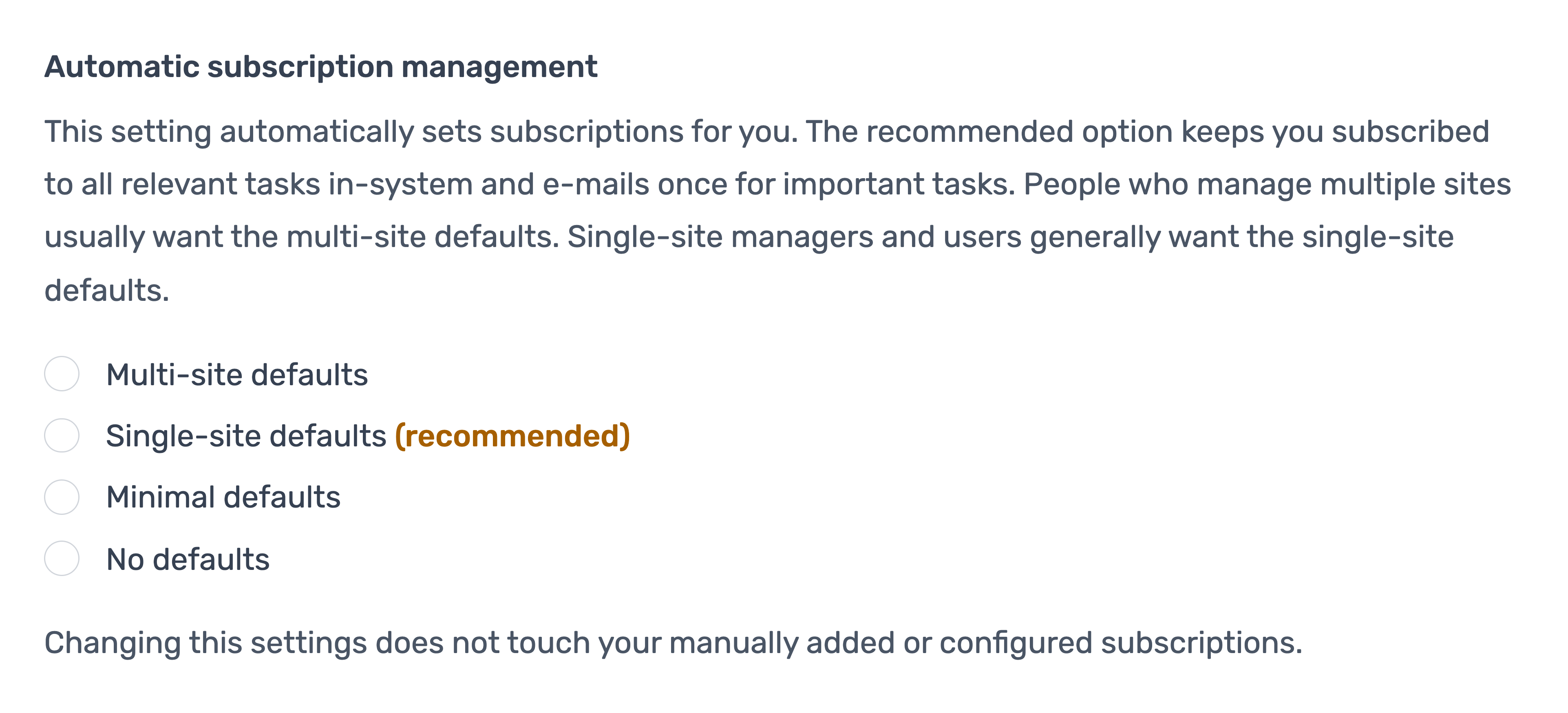
Select a preset to configure your subscriptions. Opus Compliance Cloud recommends the most suitable preset based on your access.
Step
Choose whether to share your subscription settings with your managers.


Warning
Your employment contract may require you to share this information.
Step
Set your notification preferences, including the digest email.


What is the digest email?
The digest email brings together all your unread in-system notifications and sends them to you in a single daily or weekly email, so they're easier to review.
Select the newsletters you want to receive, to stay informed about the listed topics.


Tip
The System Updates option is particularly useful if you want to keep up with the latest changes, features and updates to Opus Compliance Cloud. You can also browse past announcements on the System Updates page.
Step
Click Save choices & continue at the bottom of the page.


Manually subscribing
If you wish to setup/modify your subscriptions manually. You can do this following the steps below.
Manual subscription step-by-step instructions
Step
From My Dashboard, click on Pick workspace and select the site where you would like to subscribe.
Info
Where you subscribe is important. If you have access to multiple sites, subscribing at a particular site will automatically subscribe you to all sub-sites beneath it.
Step
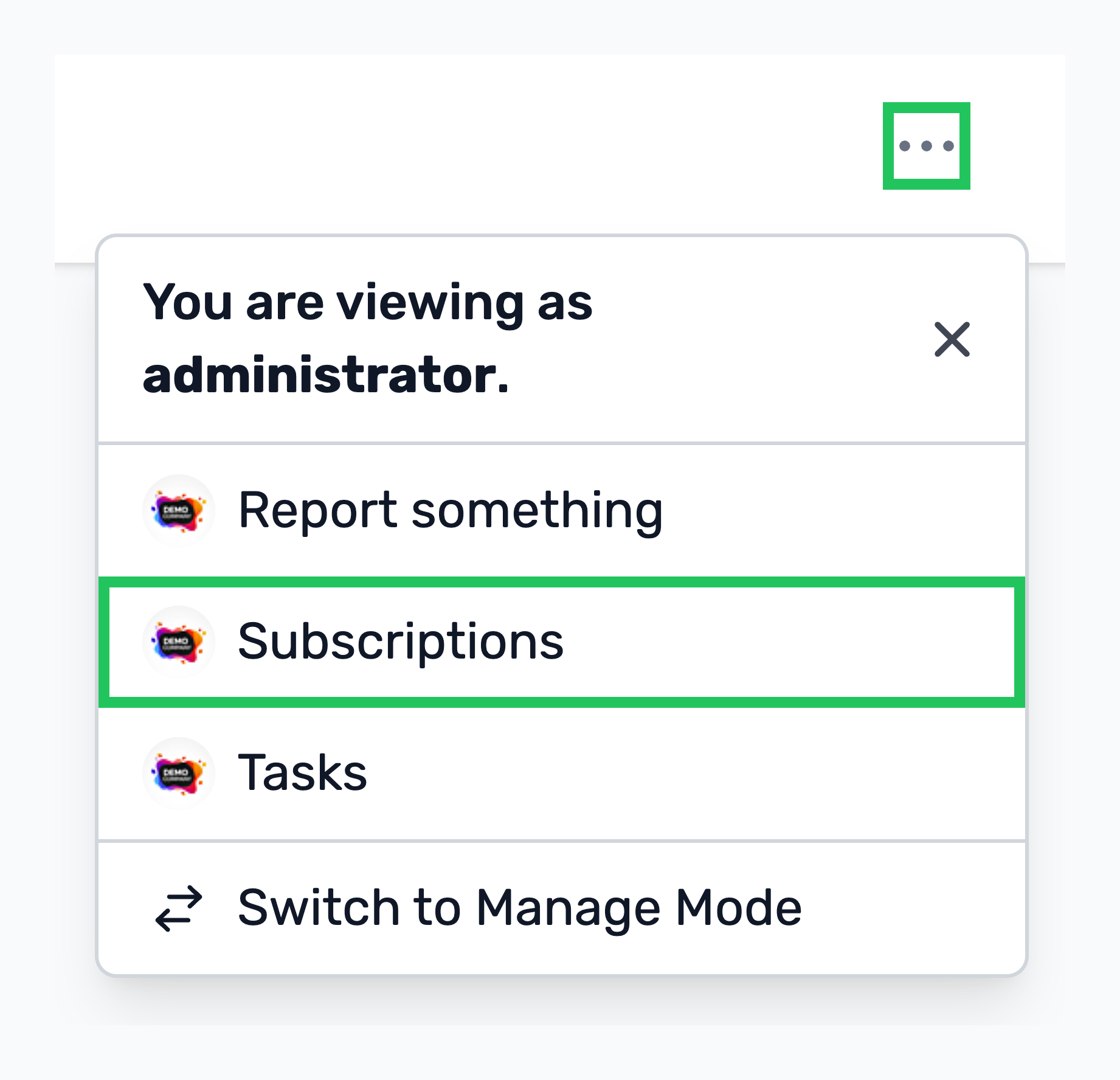
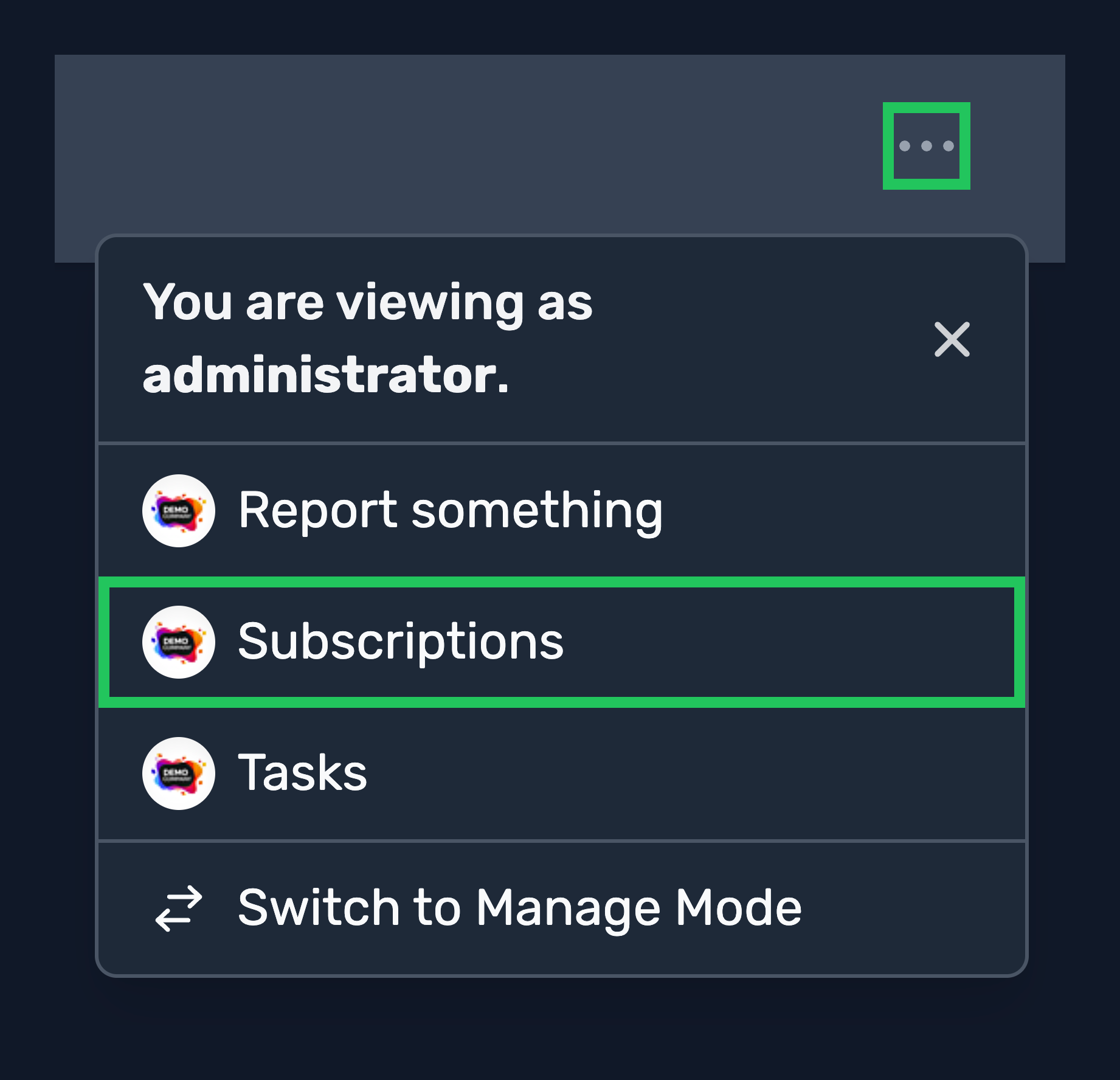
From the tabs at the top, select Subscriptions.
Step
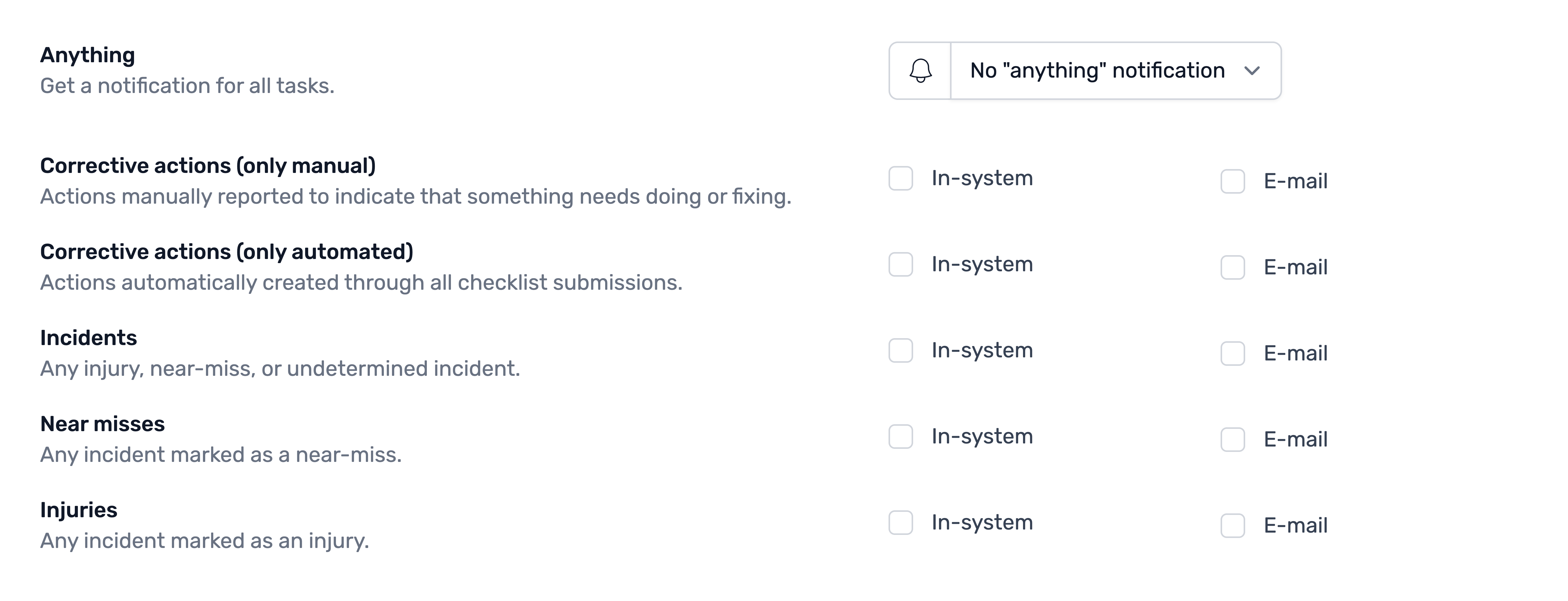
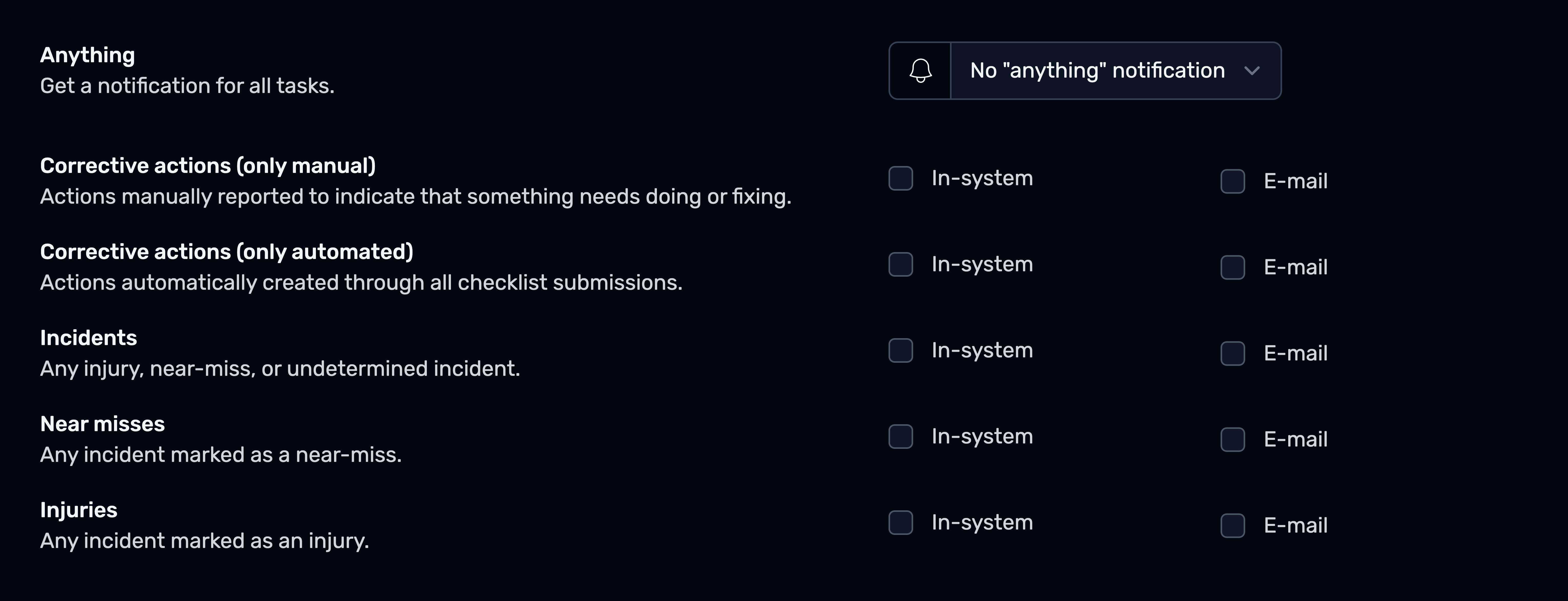
Browse the list and select whether you would like to be notified in-system or via email.
The 'Anything' option
At the top of the list, you will find the Anything option. Selecting this will subscribe you to notifications for all tasks generated at that site and any sub-sites beneath it.
Due to the potentially high volume of notifications, this option is only available for in-system notifications. We recommend being conservative with this option - only enabling it for your personal employee record and/or a single site.
Step
Once you're happy with your configuration, click Save changes at the bottom.
Enabling the digest email
You can enable the digest email via the Subscription wizard, or manually via your subscription settings.